
Ensure that your campaigns are efficiently reaching the right audiences for the best results with Yahoo DSP.
Supported syncing
| Sync type | Description | Supported sync modes | API reference |
|---|---|---|---|
| Conversion events | Sync data from any source to any events | Insert | Conversions API |
| Segments | Create and update audiences | Add | Audiences API |
Connect to Yahoo
Go to the Destinations overview page and click the Add destination button. Select Yahoo and click Continue.
The Yahoo destination has two independent credential sections: Segment integration and Conversion events. Configure whichever section matches the sync type you plan to use.
You don't have to complete both sections during setup. For example, you can configure Segment integration, save the destination, and come back later to add Conversion events credentials from the destination's Configuration tab once Yahoo has replied to your request.
Configure Segment credentials
For Hightouch to sync data to your segments, you need to enter:
- Client ID
- Client Secret
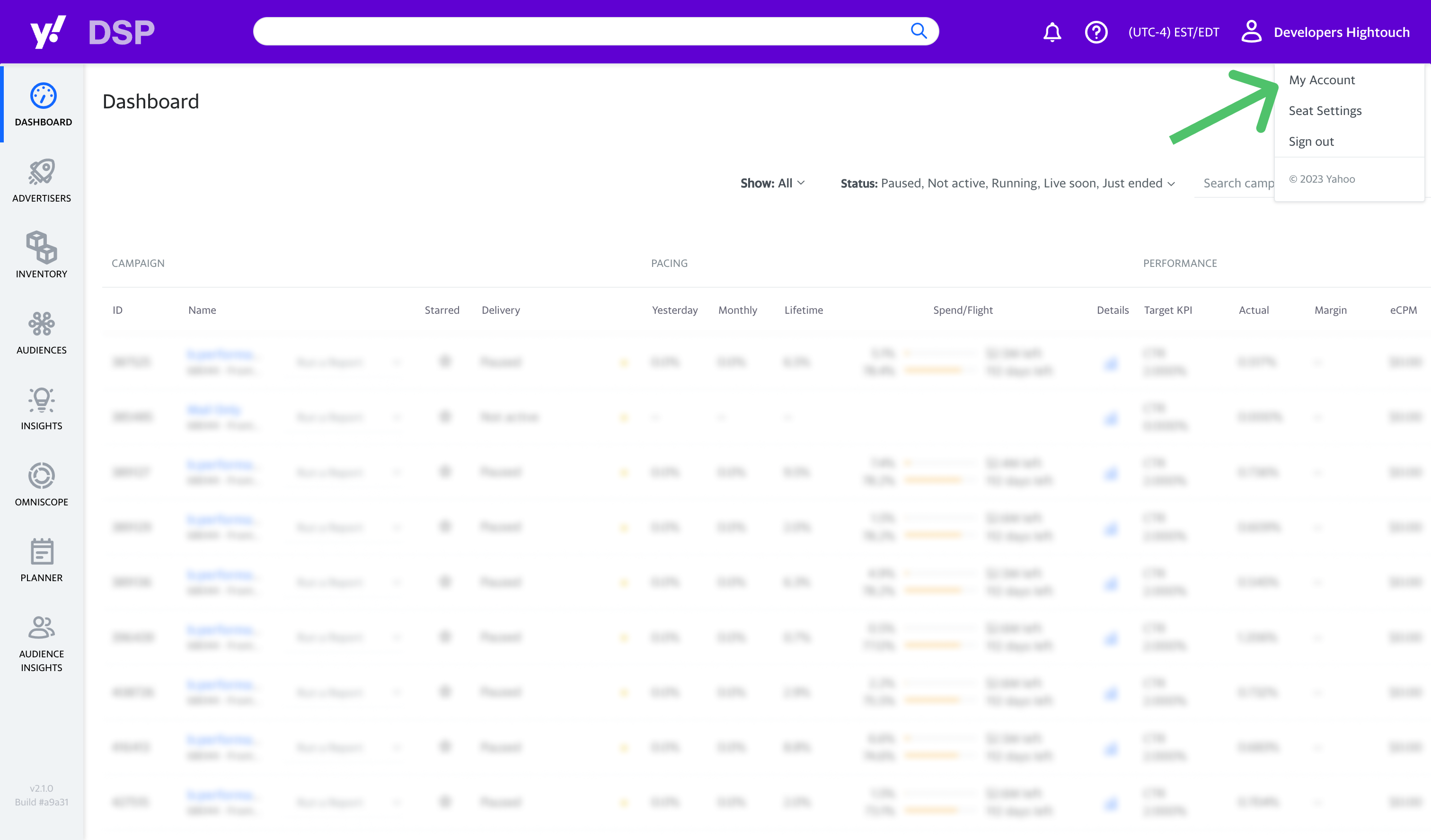
To retrieve these, open your Yahoo DSP Dashboard. In the upper-right corner, select your name, then My Account.
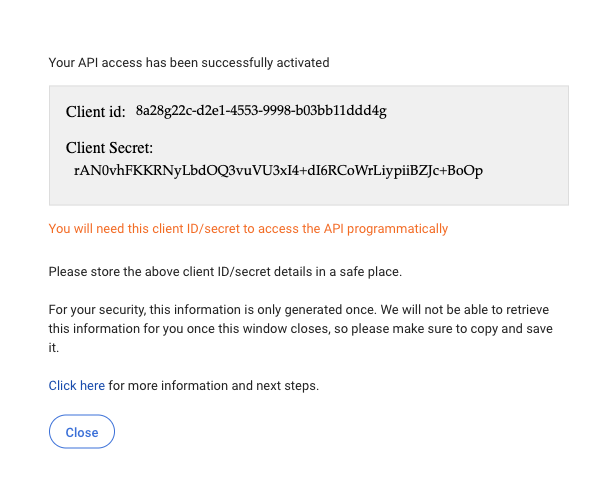
Activate the API and agree to the terms. A success message displays your credentials. Copy the client ID and secret, and keep it in a safe place.
For more details, visit the Yahoo DSP Authentication docs.
Request and configure Conversion event credentials
The Yahoo Conversion API requires approval from both Yahoo and Hightouch before you can configure it.
Step 1: Gather your Yahoo DSP identifiers
You need this information from your Yahoo DSP account before you contact Yahoo:
- Client name: Your advertiser name, found on your advertiser profile page in Yahoo DSP.
- Pixel ID: The ID of the pixel you'll use for the Conversion API. To find or create one, go to your advertiser in Yahoo DSP, open the Tracking tab, and select Get Pixel Code. This lists all pixels associated with your account. If you don't have one yet, select Create New Pixel, name it, and save it. The pixel ID appears in the list and is also embedded in the full pixel tag.
- MDM ID: Your advertiser's MDM ID, if you know it. This is optional.
Use a pixel dedicated to the Conversion API only. Don't share it with other tracking methods.
Step 2: Request credentials from Yahoo
In the destination's Conversion events section, download the Hightouch public key. Then select Email Yahoo team to open a pre-filled email addressed to technical.solutions@yahooinc.com with the public key attached:
Subject: Yahoo CAPI client credentials request
Hi Yahoo Team,
I'm interested in using the Yahoo Conversions API (CAPI) integration through Hightouch and would like to request that client credentials be generated for our account.
Client Name: <Enter your client name>
Pixel ID: <Enter your pixel ID>
MDM ID: <Optional: Enter your MDM ID, if available>
For your convenience, the Hightouch public key is attached.
Please let me know if you need any additional information to complete the setup.
Thank you,
You can also send this request yourself instead of using the pre-filled draft. Yahoo encrypts your credentials with the public key and sends back an encrypted credentials file.
Step 3: Upload your credentials to Hightouch
Once you receive the encrypted credentials file from Yahoo, upload it in the Conversion events section –– either in the setup flow or in the destination's Configuration tab.
Sync configuration
Once you've set up your Yahoo destination and have a model to pull data from, you can set up your sync configuration to begin syncing data. Go to the Syncs overview page and click the Add sync button to begin. Then, select the relevant model and the Yahoo destination you want to sync to.
Syncing events
When syncing events, Hightouch treats any records added to your source as new events and sends them to Yahoo DSP when your sync runs.
Pixel ID
You must set a Pixel ID when syncing conversion events to Yahoo DSP. Create a new Pixel ID in Yahoo DSP under the tracking tab for your advertiser in Yahoo DSP.
You can also map a model column to the Pixel ID field instead of entering a static value. This lets a single sync route events to different pixels, based on a value in each row.
The Pixel ID used for CAPI should be unique and only used for CAPI.
Choose a delivery method
Yahoo CAPI accepts conversion events through both a streaming and a batch endpoint.
- Batch (recommended): Yahoo processes batch events once a day. Use batch delivery when you're sending more than 100,000 events. The batch endpoint doesn't return an indication of rejected rows.
- Streaming: Yahoo processes streamed events multiple times a day. Streaming works best for smaller event loads.
Event timestamp
You can include a timestamp of when the event occurred. If this field is empty, Hightouch uses the time the event arrives at the server.
Hightouch converts any DateTime values to Epoch UTC milliseconds per Yahoo DSP's expectations.
Field mapping
Each event must include at least one user identifier. This can be either one of the userData fields (email, phone, Android advertising ID, Apple advertising ID, or 3rd party external identifier) or a click ID (Yahoo Click ID vmcid or Taboola Click ID tblci). Ensure that at least one of these fields is included in your mapped fields; Hightouch rejects rows where all mapped identifier fields are empty, since Yahoo DSP would reject the event.
Yahoo treats the two click IDs as mutually exclusive—don't map both vmcid and tblci with values on the same event.
For more information about required and supported parameters, refer to Yahoo's Conversion API documentation.
Automatically hash PII
By default, Hightouch detects and hashes values for fields that Yahoo requires to be hashed, including userData.email and userData.phone. Turn this off if you're already sending hashed values.
Rate limits
Yahoo CAPI's default rate limits are 200 requests per second and 10 MB of data per second on the batch endpoint. If Yahoo has enabled a higher rate limit for your pixel, expand Advanced in the sync configuration and enter it in the rate limit field. Hightouch adjusts its send behavior accordingly.
Configure conversions in Yahoo DSP
After Hightouch begins syncing conversion events to your pixel, configure how Yahoo DSP interprets that data. Create pixel rules in the Yahoo DSP UI to segment the incoming event stream into named conversions you can attach to campaigns.
Create a pixel rule
- In Yahoo DSP, go to your advertiser and open the Tracking tab.
- Select the pixel you're using for CAPI, then select Create Rule.
- Name the rule and associate it with your pixel.
- Set the goal type — for example,
Purchase. - Enter a placeholder value, such as
1, in the value field. If you pass a dynamic value in your Hightouch sync, it overrides this placeholder at the event level.
Define rule conditions
Pixel rules filter incoming events by matching on event data fields:
| Yahoo DSP field | Maps from |
|---|---|
| Category | category |
| Label | subcategory |
| Action | eventName |
You can create conditions using these operators:
- Equals: works with strings and numbers.
- Contains: works with strings.
- Less than / Greater than: works with numbers only.
- Regex: matches one of several values. Pipe-delimit values inside parentheses, for example
(purchase|checkout|order_complete).
Set audience membership recency
Each rule automatically creates an audience segment. You can configure how recently a user must meet the rule's conditions to be included — for example, at least once in the last 30 days, or at least three times in the last 15 days. The time unit can be hours or days. This recency window controls audience membership, not conversion attribution look-back.
Attach the rule to a campaign line
- Open the relevant campaign in Yahoo DSP and go to the line item.
- In Line Properties, set a Goal Type and select your pixel rule.
- Set your click and view look-back windows. Both default to 7 days, with a range of 1 hour to 30 days.
Syncing segments
The Yahoo DSP enables you to build audiences that are most responsive to your campaigns, are most likely to convert, or are otherwise advantageous.
Begin by selecting the Yahoo account you would like to sync to. Then, select whether to create a new audience or use an existing one. When creating a new audience, you can optionally enter a name; otherwise, Hightouch defaults to the name of the associated model. To use an existing audience, select the desired audience from the dropdown.
Audience type selection
Yahoo DSP API allows you to create different types of audiences. Hightouch supports email address, device ID, and IP address types. You can only select one audience type per sync. You can later combine the different audience types when building your campaigns in Yahoo.
User identifiers
To identify which users to add or update in an audience, select model columns and the corresponding Yahoo fields. The available fields vary depending on your selected audience type.
Yahoo DSP's API doesn't support removing identifiers or audience members.
Tips and troubleshooting
Common errors
To date, our customers haven't experienced any errors while using this destination. If you run into any issues, please don't hesitate to . We're here to help.
Live debugger
Hightouch provides complete visibility into the API calls made during each of your sync runs. We recommend reading our article on debugging tips and tricks to learn more.
Sync alerts
Hightouch can alert you of sync issues via Slack, PagerDuty, SMS, or email. For details, please visit our article on alerting.