| Audience | Platform admins |
| Prerequisites | Set up for platform admins and data teams |
Data masking protects sensitive columns by controlling how each one can be viewed, used in audiences, and synced. Hightouch flags likely personally identifiable information (PII) for review, and you assign a privacy level that governs the column everywhere it's used.
Overview
Data masking lets you classify sensitive columns and control how each one can be used across Hightouch. You assign every column a privacy level, and that level applies wherever the column appears: profiles, filter suggestions, analytics, agent responses, and syncs.
You manage privacy levels on the Data masking page, under Customer Studio > Governance. You can set the same level per column as you build your schema.
Data masking controls columns and values. To restrict which rows a user can access instead, use subsets.
Privacy levels
Every column has a privacy level. Assign one based on how sensitive the data is and where it's allowed to be used.
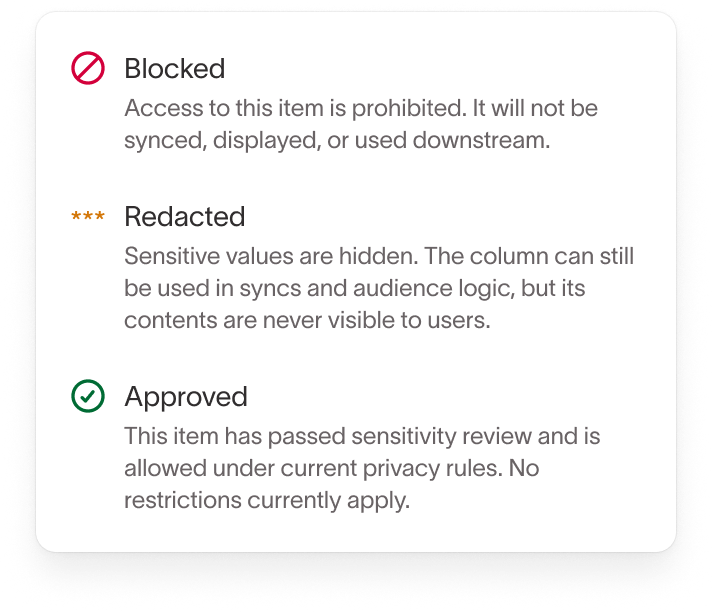
| Privacy level | What it does | Use for |
|---|---|---|
| Unreviewed | Behaves normally until you classify it. This is the default. | Columns you haven't reviewed yet. |
| Approved | No restrictions. Cleared through your review process. | Non-sensitive data. |
| Redacted | Values are hidden from users in the app, but the column can still be used in syncs and audience logic. | Data you can sync but shouldn't show users, such as email addresses. |
| Sync-only | Syncs to destinations, but isn't visible or usable in the app. | Values needed downstream but never in Hightouch. |
| Sync-blocked | Usable inside Hightouch, but never synced to any destination. | Internal attributes that must not leave the warehouse. |
| Blocked | Never synced, displayed, or used downstream. | Highly sensitive data that must stay fully restricted. |
Review flagged columns
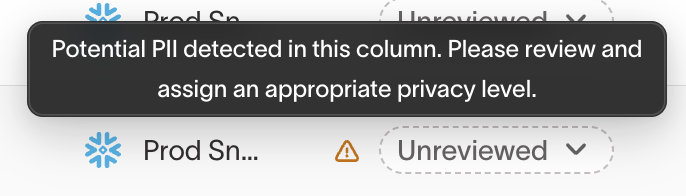
Hightouch automatically flags columns that look like PII and marks them with a warning icon for review. Flagging only applies to unreviewed columns, so it never overrides a level you've already set.
Filter by PII review for the columns that need review, check each one, and assign the correct privacy level.
Set a privacy level
Go to Customer Studio > Governance > Data masking. The table lists every column, sorted by most recently updated. Search or filter by model, source, PII category, privacy level, or PII review status to find the columns you want.
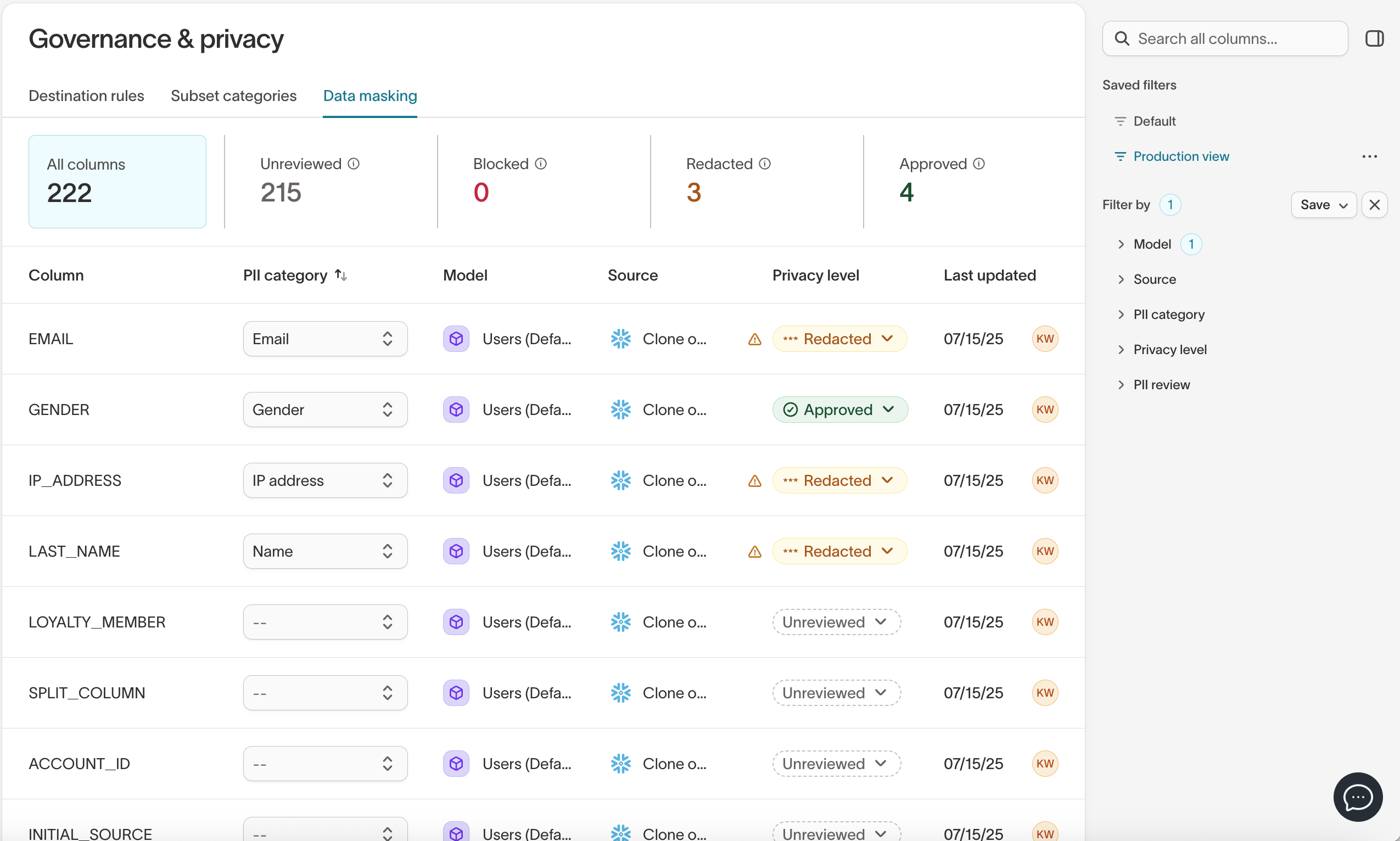
Find the column you want to classify, then set its level from the Privacy level dropdown on that row. The change takes effect as soon as you select a level, and clears any PII flag on the column.
To keep an audit record or review classifications outside Hightouch, select Export CSV. The download lists each column with its model, source, PII category, and privacy level, and respects the filters you've applied.
Categorize columns
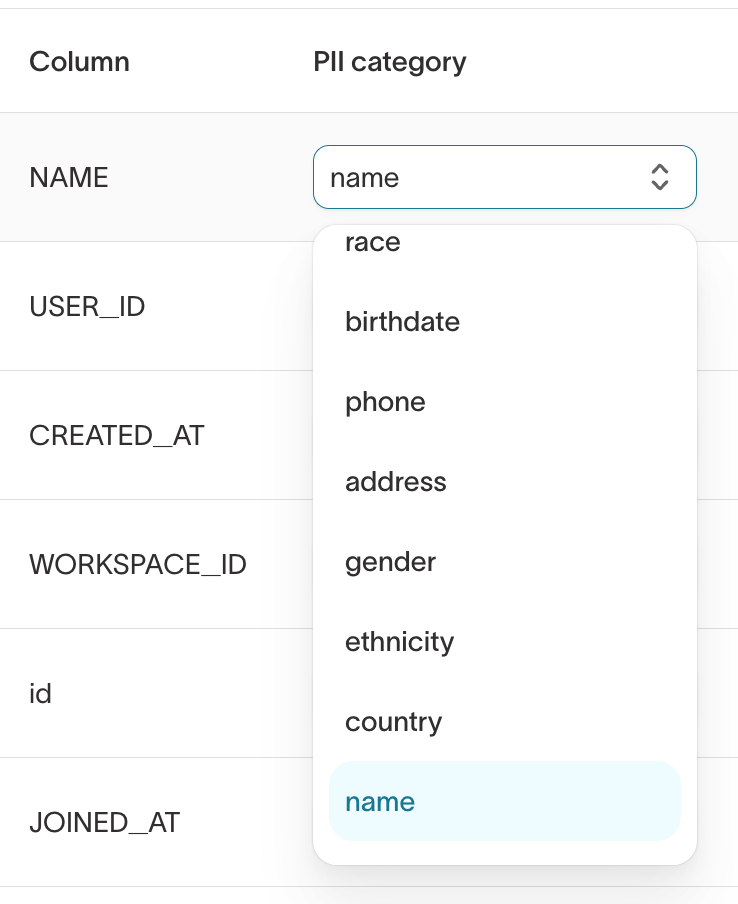
Assign a category to group and filter related columns, such as Email, Name, Birthdate, Address, Phone, or IP address. Categories make it easier to review and manage PII across a large schema.
Permissions
Data masking is controlled by schema permissions. To edit privacy levels and categories, a user must have Configure schema access on the source.
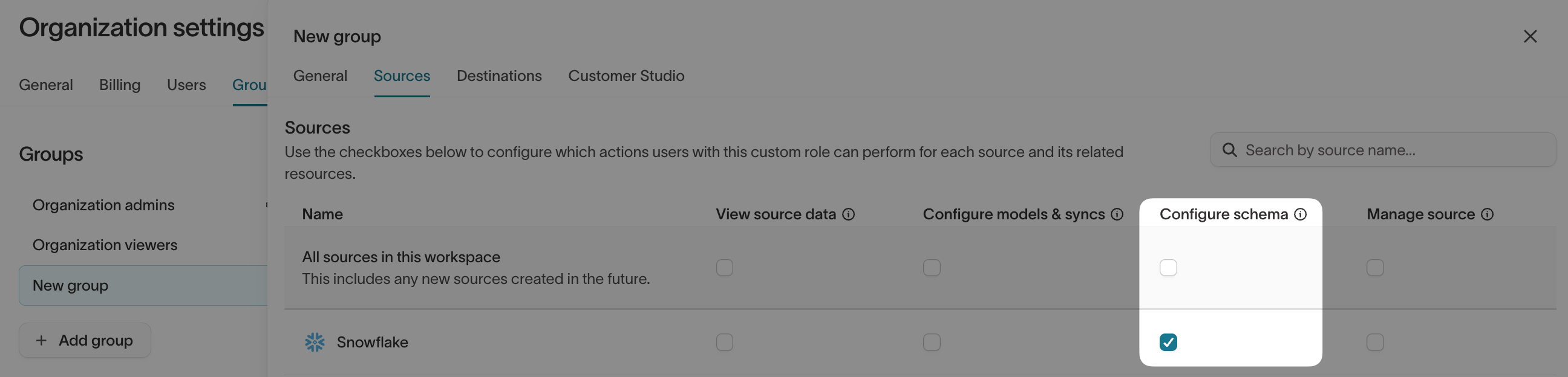
See source-level permissions for details.
Next steps
- Usage to see which audiences, syncs, and journeys depend on a column before you change its privacy level.
- Subsets to restrict which rows of data each user can access.
- Define your schema to set privacy levels as you build the schema.
- Destination rules to control which records can reach a given destination.