| Audience | Marketers preparing a journey to go live |
| Prerequisites | A built journey with entry, tiles, exit criteria, and a schedule (see Create a journey) |
Test a journey in stages: simulate its logic, check the destination sync, then confirm real timing and delivery with a small live cohort.
Before launching broadly:
- Test the journey logic.
- Check the destination sync, if the journey sends to one.
- Run a small live cohort.
- Activate the journey for its intended audience.
| Validation stage | What it validates | What it doesn't validate |
|---|---|---|
| Journey test | Branching logic, segment conditions, entry criteria, which members reach each tile | Delay timing, real sends and payloads, cross-journey interactions, destination behavior |
| Small live cohort | Real timing, sends, exits, and destination delivery under the tested conditions | Behavior outside the cohort or changes to data after testing |
1. Test the journey logic
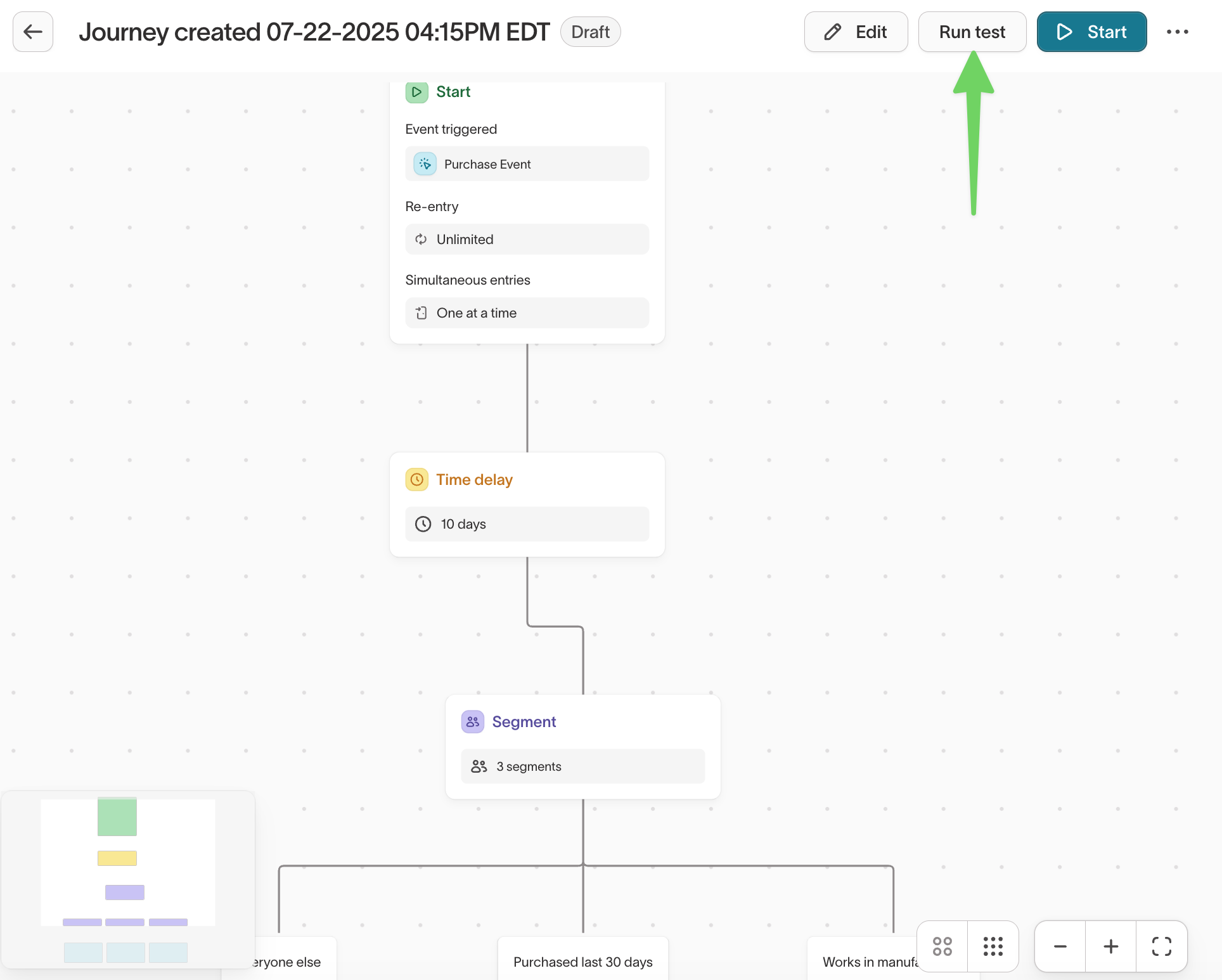
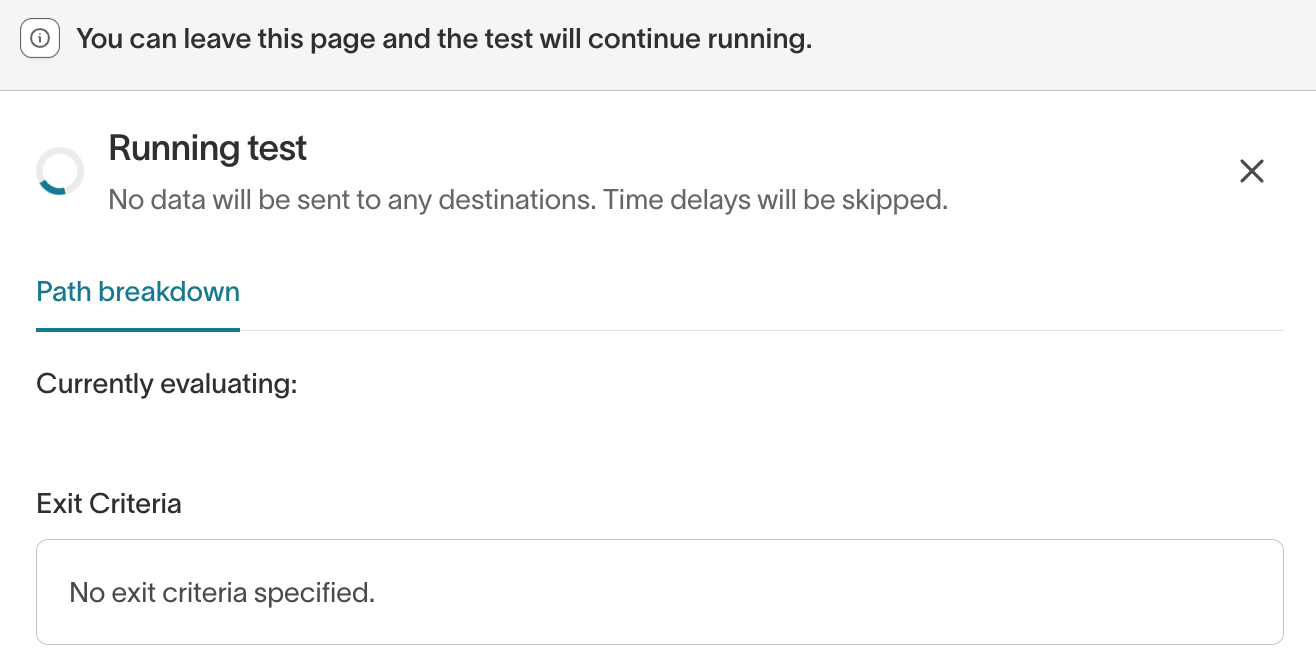
Select Run test on the journey canvas to open Configure a journey test, which simulates how members move through the configured logic. Tests don't send data to destinations, and time delays are skipped.
- Open the journey and select Run test.
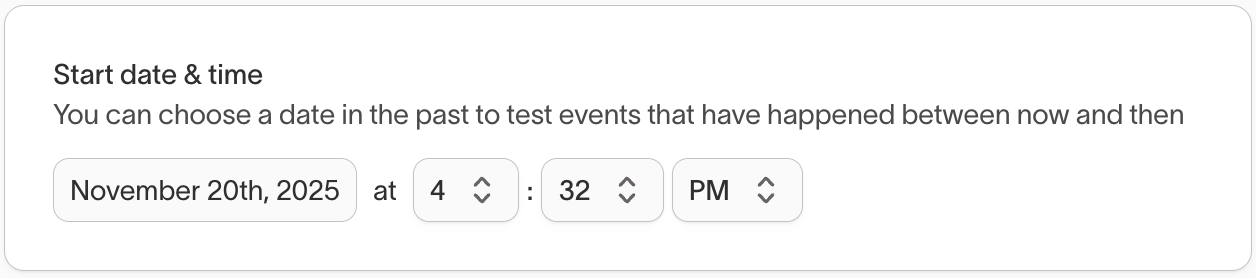
- Set the Start date & time. It defaults to the current time. To test an event-based journey against historical events, choose a past date and time. The test uses events with timestamps after the selected start time.
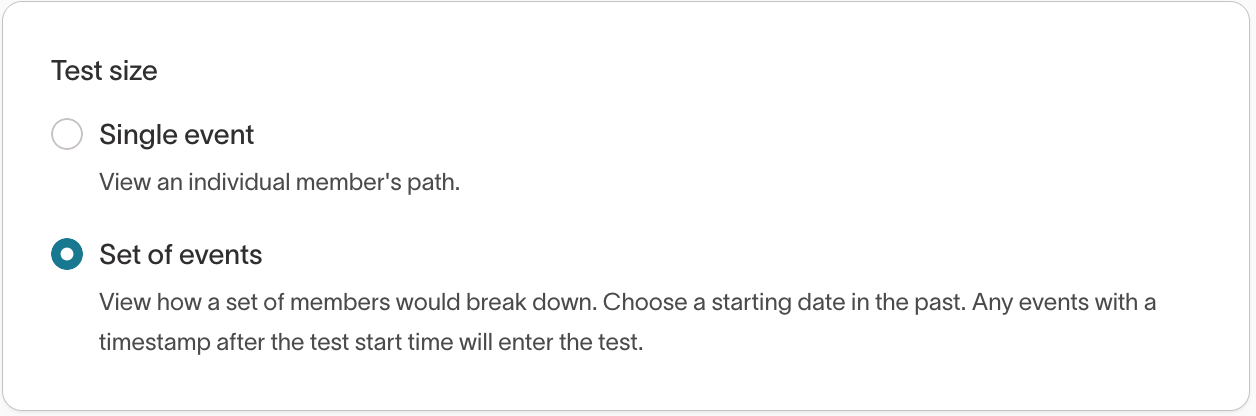
- Choose a test size:
- Single event or Single profile — Simulates the path for one member.
- Set of events or Entire audience (default) — Simulates all qualifying members and is useful for validating branch distribution.
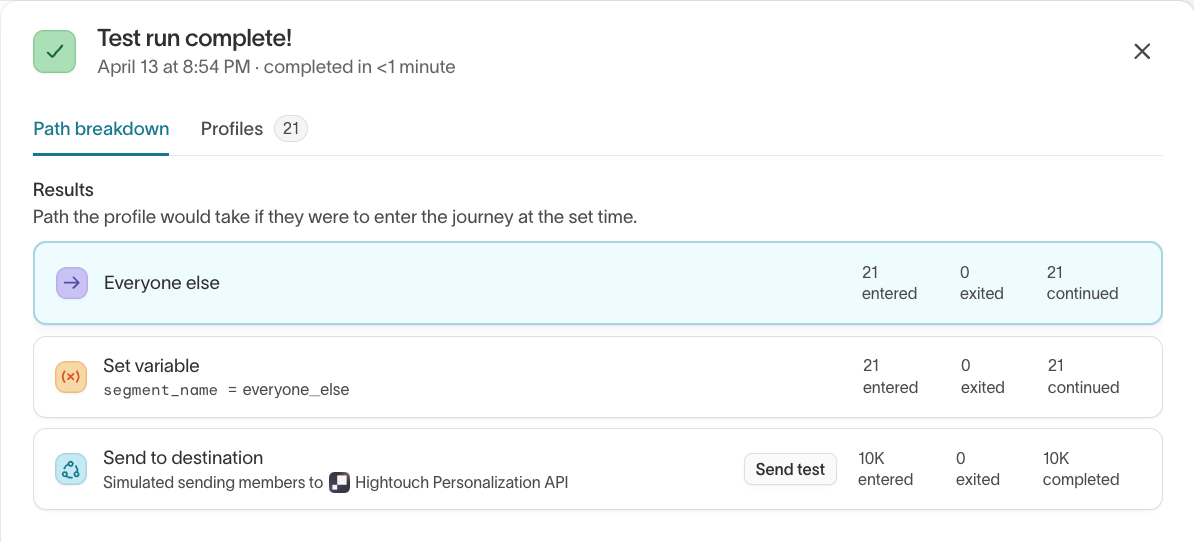
- Select Run test. When it finishes, the Path breakdown shows how many members entered, exited, and continued at each tile, with destination tiles shown as simulated sends. The Profiles tab lists the evaluated profiles, and the canvas highlights the paths taken.
A journey test doesn't change membership, logs, syncs, or the evaluation schedule.
Because a test evaluates journey logic in a single pass with delays skipped, it doesn't:
- Replay future runs over time.
- Trigger syncs or send data.
- Model cross-journey interactions or priority-list behavior.
- Reflect destination-platform rules such as consent filtering or deduplication.
Use a journey test to validate paths and conditions. Use a small live cohort to validate behavior over time.
2. Check the destination sync
A Send to destination tile runs its sync as part of journey evaluation, not on its own schedule. Open the tile before launch to review the sync.
Each sync shows its destination and Type (Trigger or Cohort). Recent Runs stays empty until the journey triggers the sync for the first time.
To review or change the destination-specific configuration, select View sync details to open the full sync. Because the journey test only simulates sends, validate the sync's real output with a small live cohort. To send one member's real data through the sync without running the whole journey, run a test sync.
Run a test sync
A test sync runs a single Send to destination tile's sync for one member — with real data, against the real destination — without running the rest of the journey. Use it to confirm a sync's payload and destination behavior before you launch, or to spot-check a sync on a journey that's already live.
A test sync sends a real payload to the real destination. Override any recipient fields, such as email, with safe test values so the test doesn't reach a customer.
Start a test sync from one of three places, depending on which members you want to send:
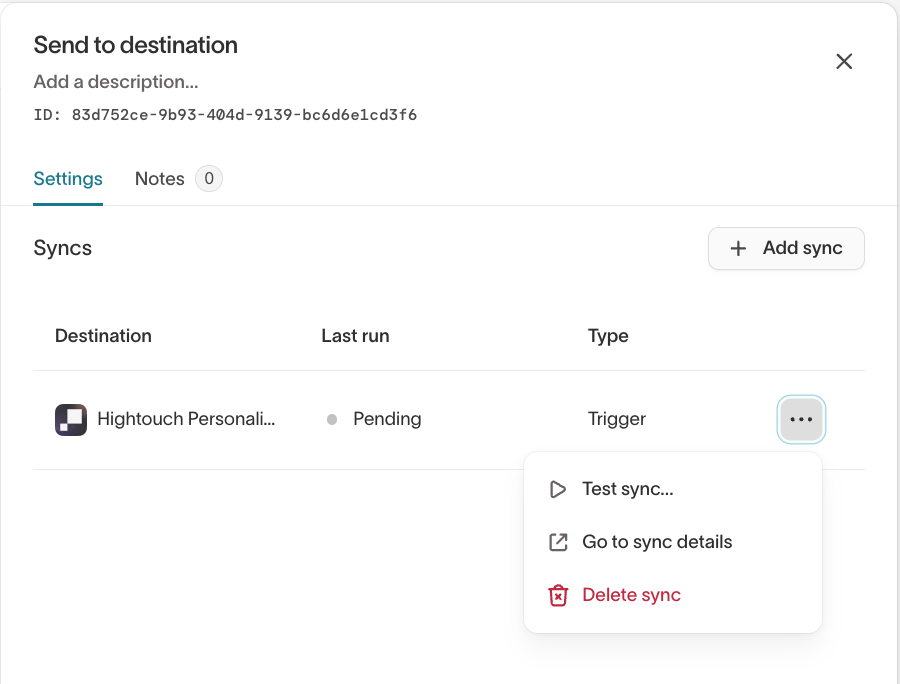
- A sync tile — Open a Send to destination tile, open a sync's actions menu, and select Test sync. Members come from the entry audience, so a selected member isn't guaranteed to reach this tile in a real run.
- A journey test — After you test the journey logic, select Send test on a destination tile to use a member from the simulated path.
- A live journey — On an active journey, select Send test to use a member who has already passed through the tile.
Choose the member and data to send
When the test opens, pick whose data to send and adjust it if needed:
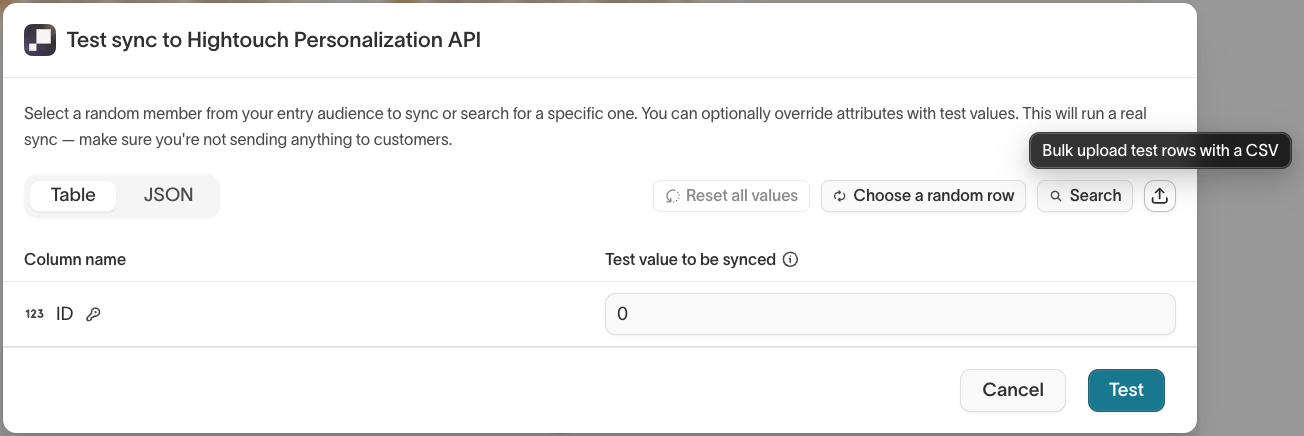
- Choose a random member, or search by primary key to select a specific one.
- Upload a CSV to test several rows at once. Each row needs at least a primary key, and blank fields fall back to the member's original values. Download the template to see the expected columns.
- Override individual attributes with test values — most importantly recipient fields — in the Table or JSON view. Unchanged fields sync their original values, and you can reset your overrides at any time.
A primary key value is required to run the test.
Run the test and review the result
Select Test to send the selected data through the sync immediately. If you haven't overridden any values, Hightouch asks you to confirm first, since the sync is real.
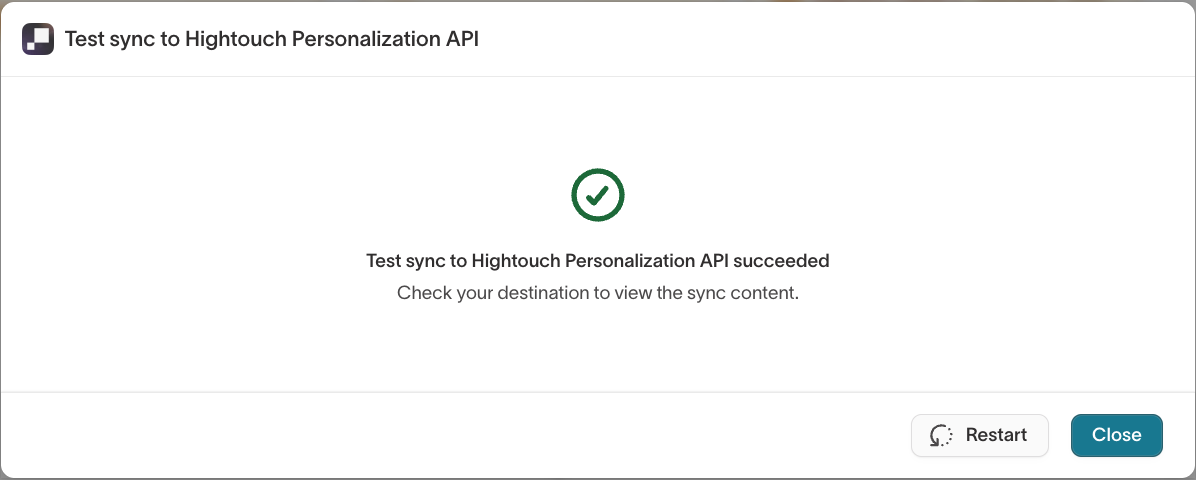
On success, check the destination to confirm the content arrived. If the sync fails, the result shows the destination's error along with the request and response, so you can see what it returned. Select Restart to run another test.
Test sync is available for supported destinations. It isn't available for journeys that start from an event.
3. Run a small live cohort
After the journey test confirms the logic and you've reviewed the destination sync, validate the full journey with a small live audience.
- Create a narrow test audience, such as internal users or a small segment of real users.
- Configure the journey to use this audience for entry.
- Activate the journey and monitor the first several runs.
- Check destinations to confirm that data arrived as expected.
- After validation, update the entry audience to the production audience.
A live cohort validates real timing, exit behavior, sync execution, and destination delivery. If you use destination rules, verify them separately because they can filter records at sync time.
Pre-launch checklist
Before launching broadly, confirm:
- Entry — The intended members qualify for the entry audience or event.
- Priority — If the entry audience belongs to a priority list, its ranking is correct.
- Journey logic — Branches and conditions behave as expected in a journey test.
- Destination configuration — The Send to destination sync has the right destination, type, and field mappings. Review it with View sync details.
- Exit criteria — Exit conditions remove members at the intended point.
- Delivery rules — Destination rules, consent, and suppression won't filter members unexpectedly.
- Live behavior — A small cohort completes the journey with the expected timing and delivery.
Activate
Select Activate to start the journey. Hightouch begins evaluating it on the configured schedule: an interval schedule starts within seconds, and a custom recurrence schedule starts at the next matching time.

Next steps
- Monitor and troubleshoot journeys to inspect live performance, member paths, and run failures.