| Audience | How you’ll use this article |
|---|---|
| Marketing teams | Understand where event data lives and how it becomes available for activation and analytics. |
| Data teams | Configure warehouse storage, schema behavior, and table structure for event data. |
| Engineering teams | Set up secure warehouse connections and validate end-to-end event delivery. |
Overview
To write event data collected by Hightouch Events to your warehouse, you must configure an event storage destination.
An event storage destination defines:
- Where events are written (Snowflake, BigQuery, Redshift, etc.)
- How event tables and schemas are created
- How event properties and context fields are stored
Once configured, Hightouch automatically creates and manages event tables in your warehouse as new events and fields are received.
Event storage is optional but strongly recommended if you want to use events for analytics, modeling, or warehouse-based activation.
You can also use Hightouch Events in a streaming‑only mode to forward events directly to downstream tools without writing them to the warehouse.
Supported event storage destinations
Hightouch supports the following event storage destinations:
- Snowflake
- BigQuery
- Redshift
- Databricks
- Microsoft Fabric
- PostgreSQL
- Amazon S3
Each destination supports the same core event schema, with destination-specific configuration options.
Destination-specific prerequisites
Most event storage destinations only need the credentials you provide on the Connect destination step. The destinations below also need specific warehouse or IAM grants. Set these up before you connect the destination, so Hightouch can create tables and load events on the first sync.
Snowflake
Hightouch creates the schema if it doesn't already exist, creates tables, and adds columns as your event schema evolves. It stages rows as CSV files in cloud storage, then loads them with COPY INTO and merges them into the final table.
If you're setting up a new Hightouch service account, use the service account template. It includes the CREATE SCHEMA and CREATE TABLE grants that event storage needs. If you already have a Hightouch service account from before you added Snowflake as an event storage destination, confirm it includes both grants.
BigQuery
Hightouch creates the dataset if it doesn't already exist, creates tables, and adds columns as your event schema evolves. It stages rows as JSON files in a Hightouch-managed Cloud Storage bucket, then loads and merges them into the final table. Hightouch grants your service account read access to those staged files automatically, so you don't need to configure separate Cloud Storage permissions.
Use full access (bigquery.user, bigquery.dataViewer, and bigquery.dataEditor) when you use BigQuery as an event storage destination. The limited access custom role is scoped to datasets and tables you specify up front, so it doesn't cover creating a new dataset for event storage.
When you connect the destination, choose the Dataset location that matches the region you want your event data stored in. Hightouch stages files in the same location.
Redshift
Hightouch connects with a username and password (a dedicated Hightouch user is recommended) and supports SSH tunneling for private clusters. It creates the schema if it doesn't already exist, creates tables, and adds columns as your event schema evolves. It stages rows as CSV files in a Hightouch-managed S3 bucket using temporary credentials, then loads them with COPY and merges them into the final table.
Grant your Hightouch user the following on the schema this destination writes to:
GRANT USAGE, CREATE ON SCHEMA your_schema TO hightouch_user;
If your_schema doesn't already exist, either create it yourself first or also grant schema creation at the database level:
GRANT CREATE ON DATABASE your_database TO hightouch_user;
Hightouch owns the tables it creates, so no separate INSERT or ALTER grant
is required for those tables. If you pre-create the schema or tables yourself
instead, grant SELECT and INSERT explicitly. Redshift's ALTER privilege
only applies to tables managed through AWS Lake Formation, so you'll need to
add new columns to pre-created tables yourself as your event schema evolves.
Databricks
Hightouch creates the schema if it doesn't already exist, creates tables, and adds columns as your event schema evolves. It stages rows as Avro files in a Hightouch-managed S3 or Azure Blob Storage location using temporary credentials, then loads them with COPY INTO and merges them into the final table.
Grant the schema-level permissions in Connect to Databricks on a schema you've pre-created. If you'd rather have Hightouch create the schema automatically on first sync, also grant CREATE SCHEMA on the catalog.
Microsoft Fabric
Hightouch writes events to Microsoft Fabric using the service principal you provide when you connect the destination. Before you add a Microsoft Fabric event storage destination, grant that service principal the SQL permissions it needs in your Fabric warehouse.
Microsoft Fabric event storage requires a Fabric Data Warehouse. A Lakehouse's SQL analytics endpoint is read-only and can't accept the writes Hightouch needs to load events.
Events collect into Hightouch, stage as Parquet files in Azure Blob Storage, then load into your warehouse with COPY INTO. Hightouch also creates staging tables and alters the target table as your event schema evolves. From the Fabric workspace SQL console, run the following, replacing your_service_principal with your service principal's name and your_schema with the schema this destination writes to (set on the Schema settings tab after setup):
-- Required to load staged events with COPY INTO
GRANT ADMINISTER DATABASE BULK OPERATIONS TO [your_service_principal];
GRANT INSERT TO [your_service_principal];
-- Required because Hightouch creates staging tables and manages the target schema
GRANT CREATE TABLE TO [your_service_principal];
GRANT ALTER ON SCHEMA::[your_schema] TO [your_service_principal];
Hightouch checks whether your_schema exists at the start of every sync and creates it automatically if it doesn't. If the schema doesn't exist yet, either create it yourself first or also grant schema creation:
GRANT CREATE SCHEMA TO [your_service_principal];
Grant these permissions to the service principal explicitly. Testing the connection with a personal or work account instead can succeed without these grants, because that account inherits broader permissions in the Fabric workspace. This can hide a missing grant until Hightouch runs a sync using the service principal.
These grants are specific to Microsoft Fabric as an event storage destination. If you also use Microsoft Fabric as a Hightouch source, see Microsoft Fabric source setup. That connection uses different grants.
If your Fabric workspace restricts inbound connections by IP, also confirm Hightouch's IP addresses are allowlisted for your workspace region. See Networking.
You do not have permission to use the bulk load statement
You may see this error if the service principal is missing the grants above:
Error loading data into cdp_events_raw.{staging_table} from Azure Blob Storage:
You do not have permission to use the bulk load statement.
Run the grants above for your service principal, then retry the sync.
Amazon S3
Unlike the other event storage destinations, Amazon S3 doesn't involve any schema or table management. Hightouch writes raw event files directly to your bucket. See Connect to Amazon S3 for the required IAM permissions.
Step-by-step: Set up an event storage destination
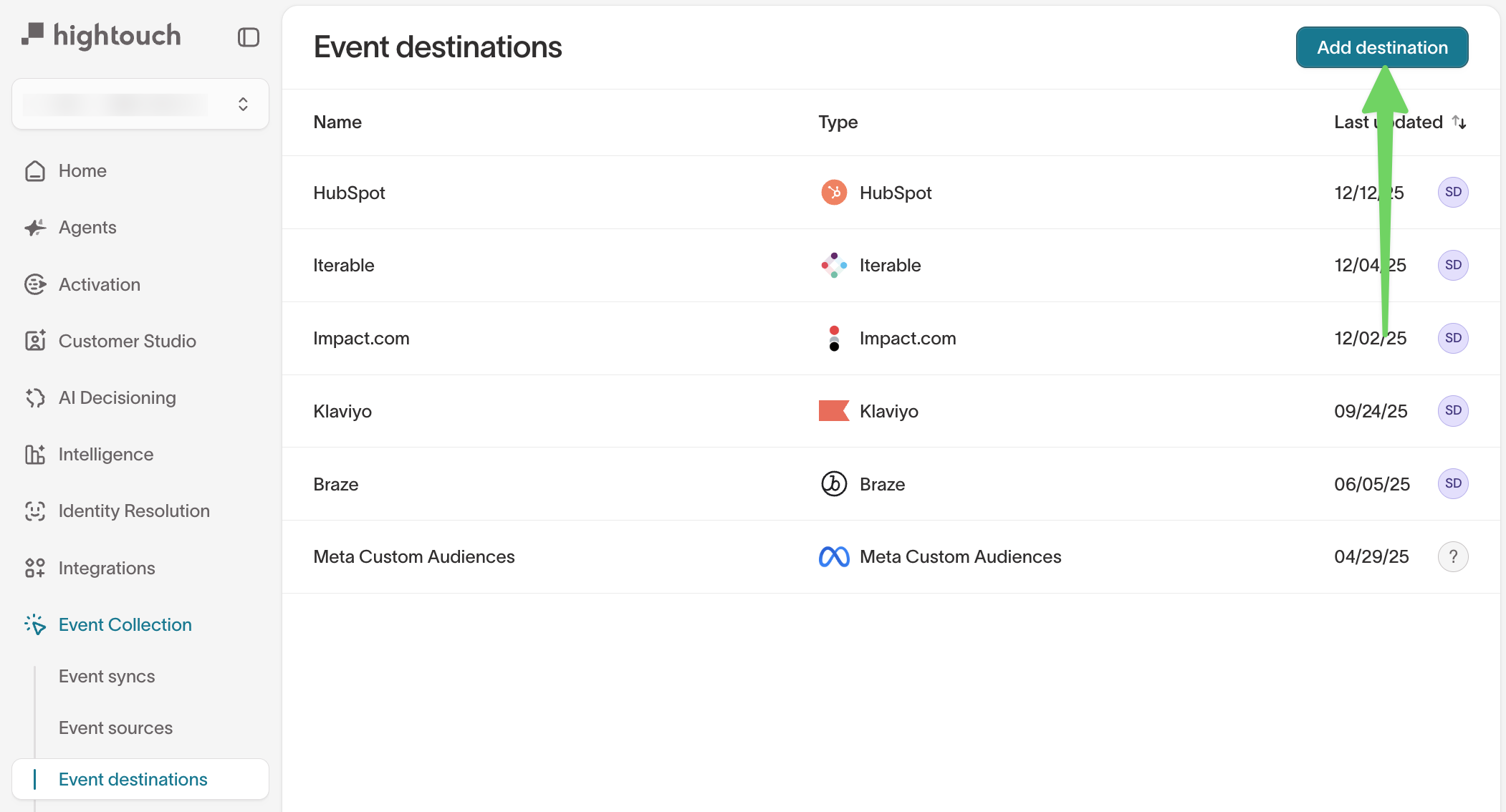
1. Add a destination
- In the left navigation, go to
Event Collection → Event destinations - Click
Add destination
2. Select a destination type
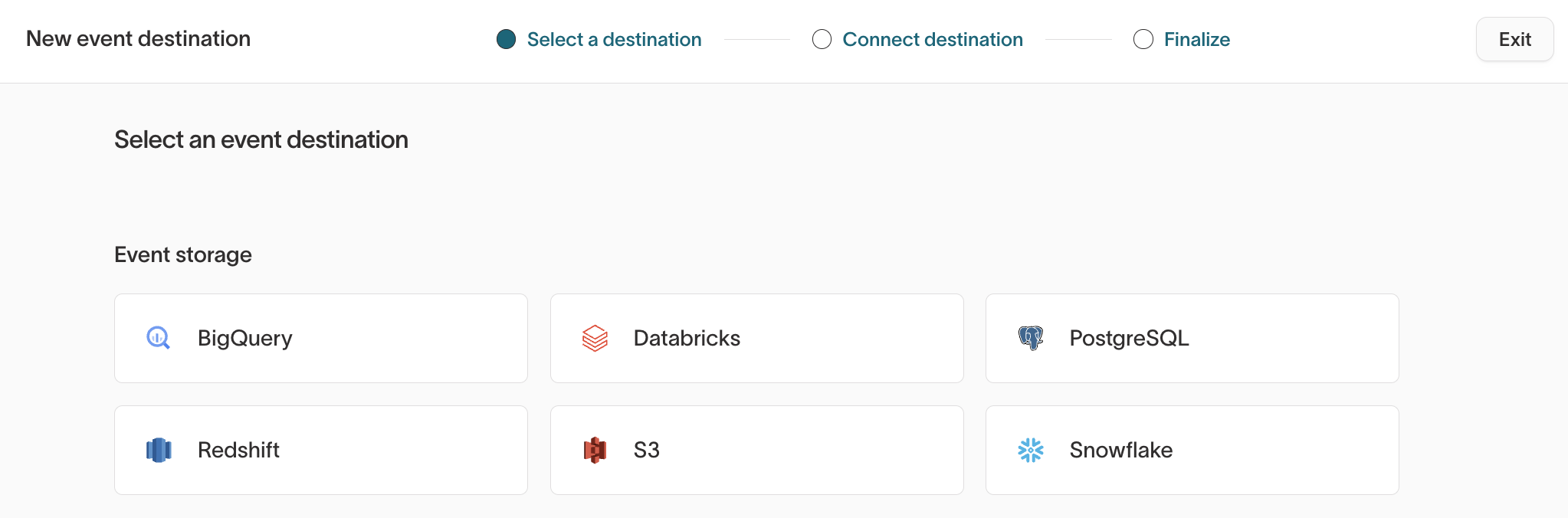
On the Select a destination step:
- Under Event storage, choose your warehouse (for example, Snowflake)
- Click the destination tile to continue
3. Connect the destination
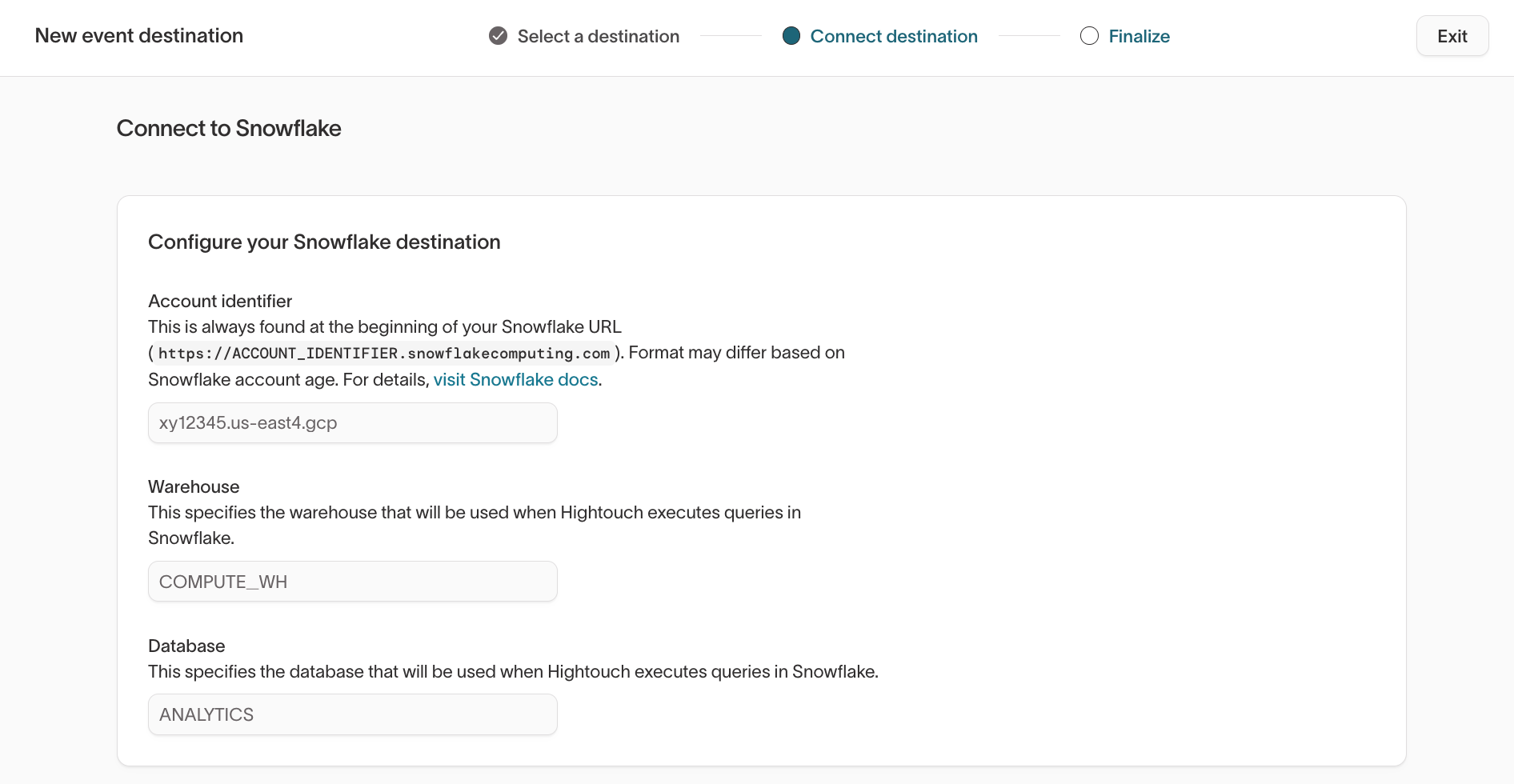
On the Connect destination step, enter the required warehouse credentials.
For example, for Snowflake, you’ll configure:
- Account identifier
- Warehouse
- Database
- Authentication method (RSA key recommended)
You’ll also upload credentials and validate that Hightouch can connect successfully.
For credential and permission setup, see the destination-specific guides:
The destination docs linked below cover both credential setup and model-based sync configuration.
For event destinations, only the credential/permission setup applies. Skip sections like Sync configuration, Add sync, and any model mapping or sync mode instructions.
If your destination needs additional warehouse or IAM grants beyond credentials, see Destination-specific prerequisites above.
Click Continue once the connection details are complete.
4. Finalize the destination
On the Finalize step:
- Review the destination details
- Click
Finish
Once finalized, the destination becomes available for event storage.
What happens after setup
After your event storage destination is created and used in an event sync:
- Hightouch begins writing incoming events to your warehouse
- Schemas and tables are created automatically (see: Warehouse schema)
- New event fields are added as columns as they appear
You can manage this behavior using the destination’s Configuration and Schema settings tabs.
Configuration after initial setup
Navigate to:
Event Collection → Event destinations → [Select destination]
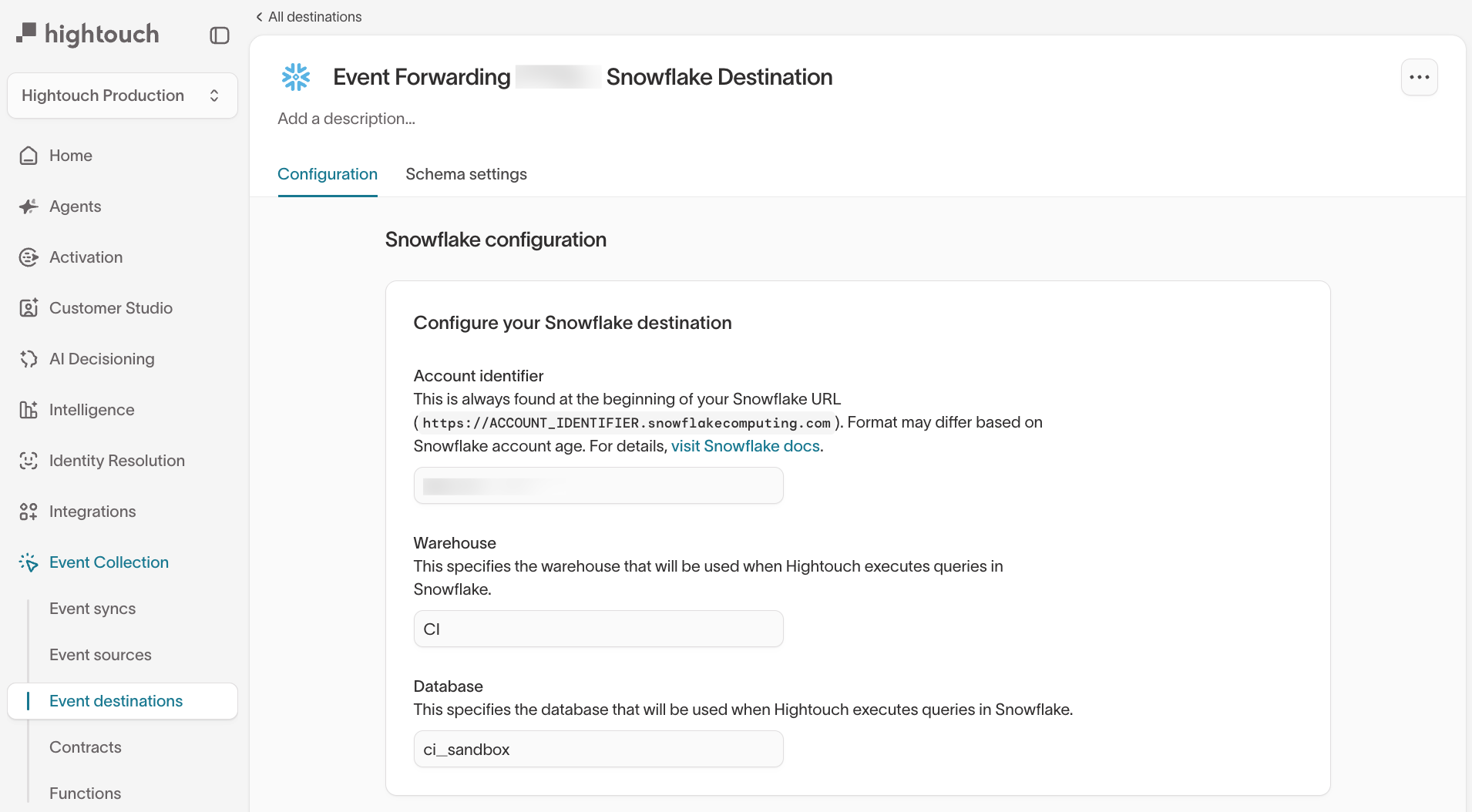
Configuration tab
The Configuration tab contains the core warehouse connection settings, including:
- Account and authentication details
- Warehouse, database, and role configuration
- Credentials and key management
Use this tab if you need to:
- Rotate credentials
- Update authentication methods
- Change the warehouse or database used for writes
Schema settings tab
The Schema settings tab controls how Hightouch writes event data into your warehouse.
From here, you can configure:
-
Schema name
Customize the schema Hightouch uses. By default, this is derived from the event source name. -
Per-event tables
When enabled, Hightouch creates a separate table for eachtrackevent type.
When disabled, all track events are written to a sharedtrackstable. -
Convert properties and context fields to columns
When enabled, event properties and context fields are written as individual columns.
When disabled, they are stored as JSON. -
Write Page and Screen events to the Tracks table
Useful if you want all user interactions in a single table.
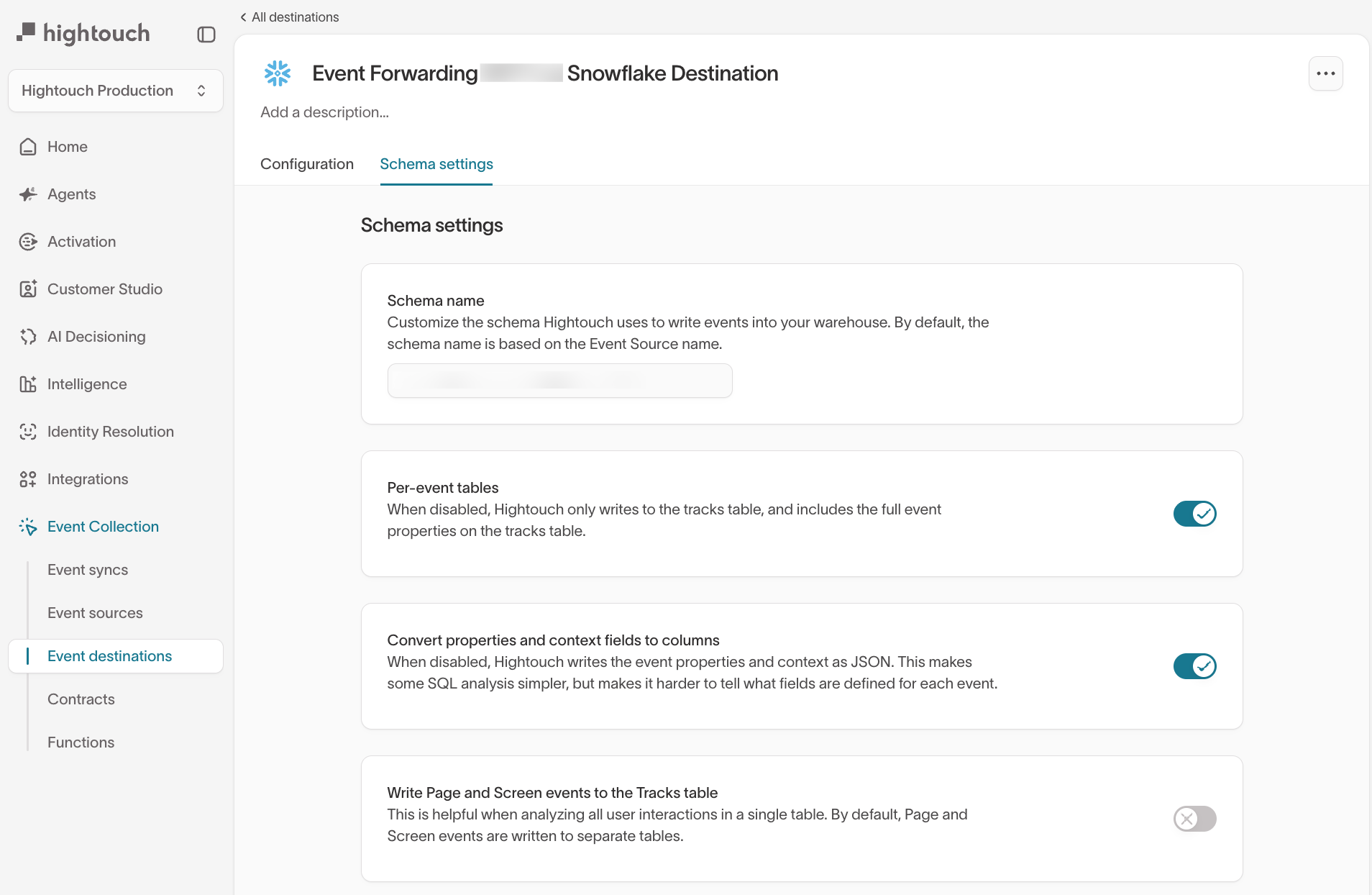
These settings apply to all events written to this destination.
Validating event storage
After setup, you should:
- Send test events from an event source
- Confirm tables and schemas appear in your warehouse
- Verify event fields match your tracking spec
You can also inspect events in the debugger before they’re written to storage.
→ See Warehouse schema for a full breakdown of tables and columns.
Enable, disable, and run event warehouse syncs
Manage your event warehouse syncs from Event Collection → Event syncs.
- Enable or disable a sync — open the sync and use the Enabled toggle in the header. A disabled sync stops running.
- Run a sync on demand — select Run on the sync's page.
- Manage syncs in bulk — select one or more syncs in the list to reveal the Actions dropdown, then choose Run, Disable, or Enable to apply it to every selected sync.
Events received while a sync is disabled are dropped, along with any queued events that haven't been delivered yet. They can't be recovered when you re-enable the sync.
Next steps
- Understand how events are written to your warehouse: Warehouse schema
- Review retries, failures, and archived events: Error handling
- Forward events to downstream tools: Event streaming