| Audience | Marketers, platform admins |
| Prerequisites |
|
Realtime audiences evaluate user behavior during the current session using streaming events and warehouse context.
What you'll learn
After reading this article, you'll know how to:
- Configure realtime events in your Customer Studio schema
- Build an audience that evaluates live user behavior
- Deliver audience membership through realtime syncs or the Membership API
- Choose the right delivery pattern for your personalization or campaign workflow
Overview
Realtime audiences evaluate audience membership from live behavioral events during the current session, combining streaming events with warehouse attributes.
This guide walks you through the four steps to create one:
- Connect an event stream
- Define a realtime event in your schema
- Build an audience that references that event
- Configure how audience membership is delivered
Step 1: Connect an event stream
Hightouch must receive realtime events before audiences can be evaluated.
Supported event sources include:
- Hightouch Events
- Snowplow
- RudderStack
- Segment
These events flow through Hightouch’s event pipeline and can be used for realtime audience evaluation once a corresponding realtime event model is defined in your schema.
See:
Step 2: Create a realtime event
Realtime events define which incoming events should be available for realtime audience evaluation.
To create one:
-
Go to Customer Studio → Schema
-
Locate or create a parent model (usually
Users) -
Click the plus (+) icon next to the parent model
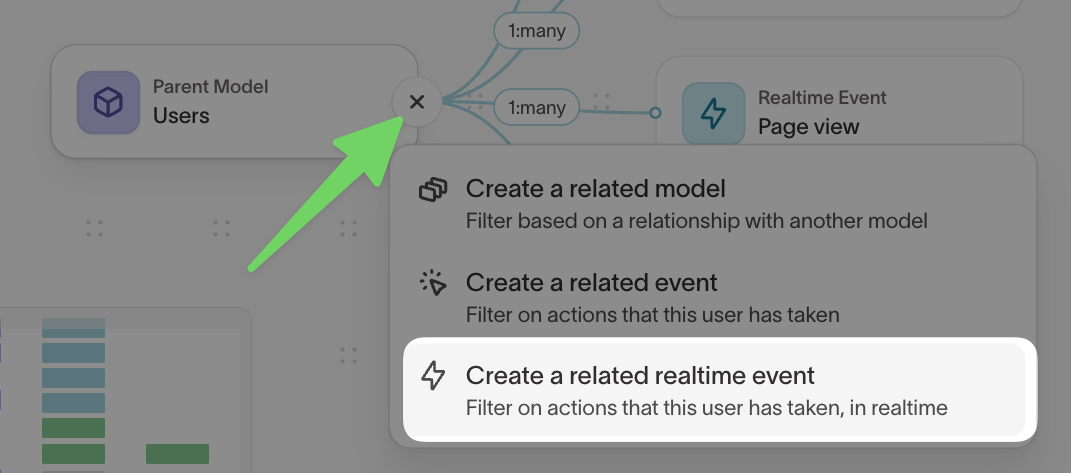
- Select Create a related realtime event
Configure the event source
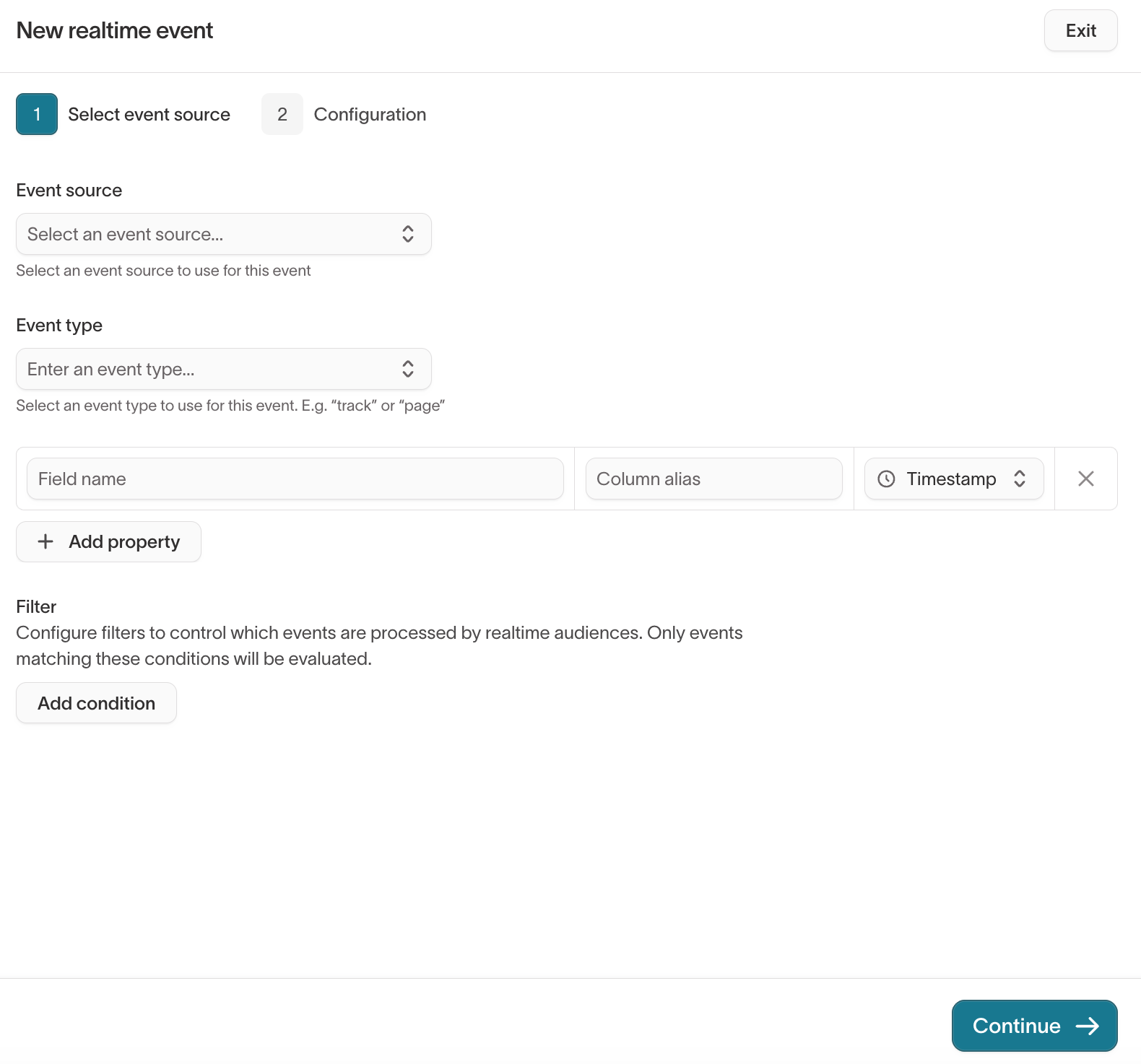
In the Select event source screen:
- Choose the event source (for example Segment or Hightouch Events)
- Enter the event type (for example
track,page, ororder_completed) - Define event properties by adding columns and optional aliases
- Select the timestamp column, which determines when the event occurred
Click Continue.
Configure the event model
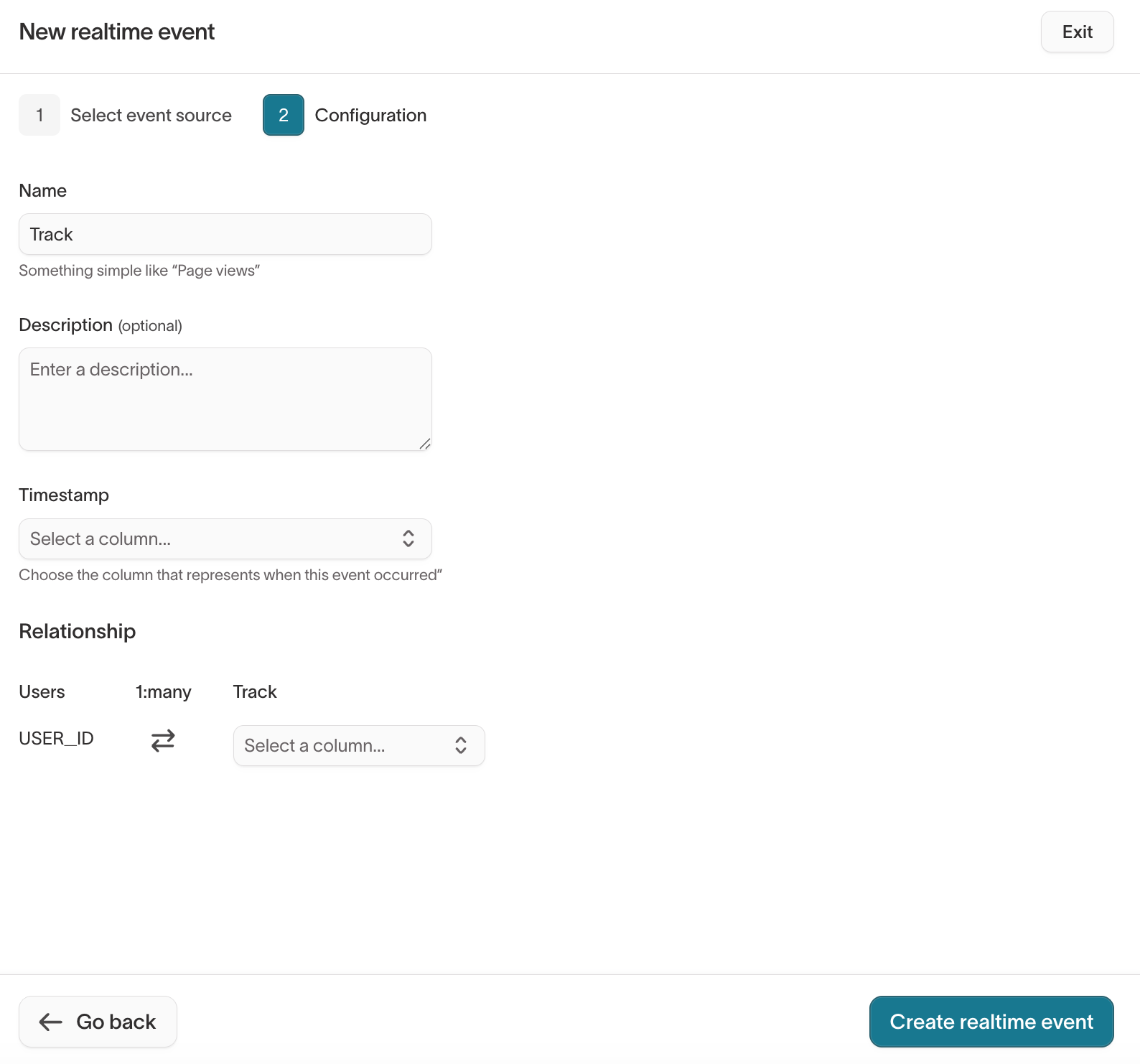
Next, configure how the event relates to your schema.
Provide:
| Field | Description |
|---|---|
| Name | Display name for the event in Customer Studio |
| Description | Optional explanation of the event |
| Timestamp column | Used for time-based audience filters |
| Foreign key | Column linking the event to the parent model (for example user_id) |
Click Create realtime event.
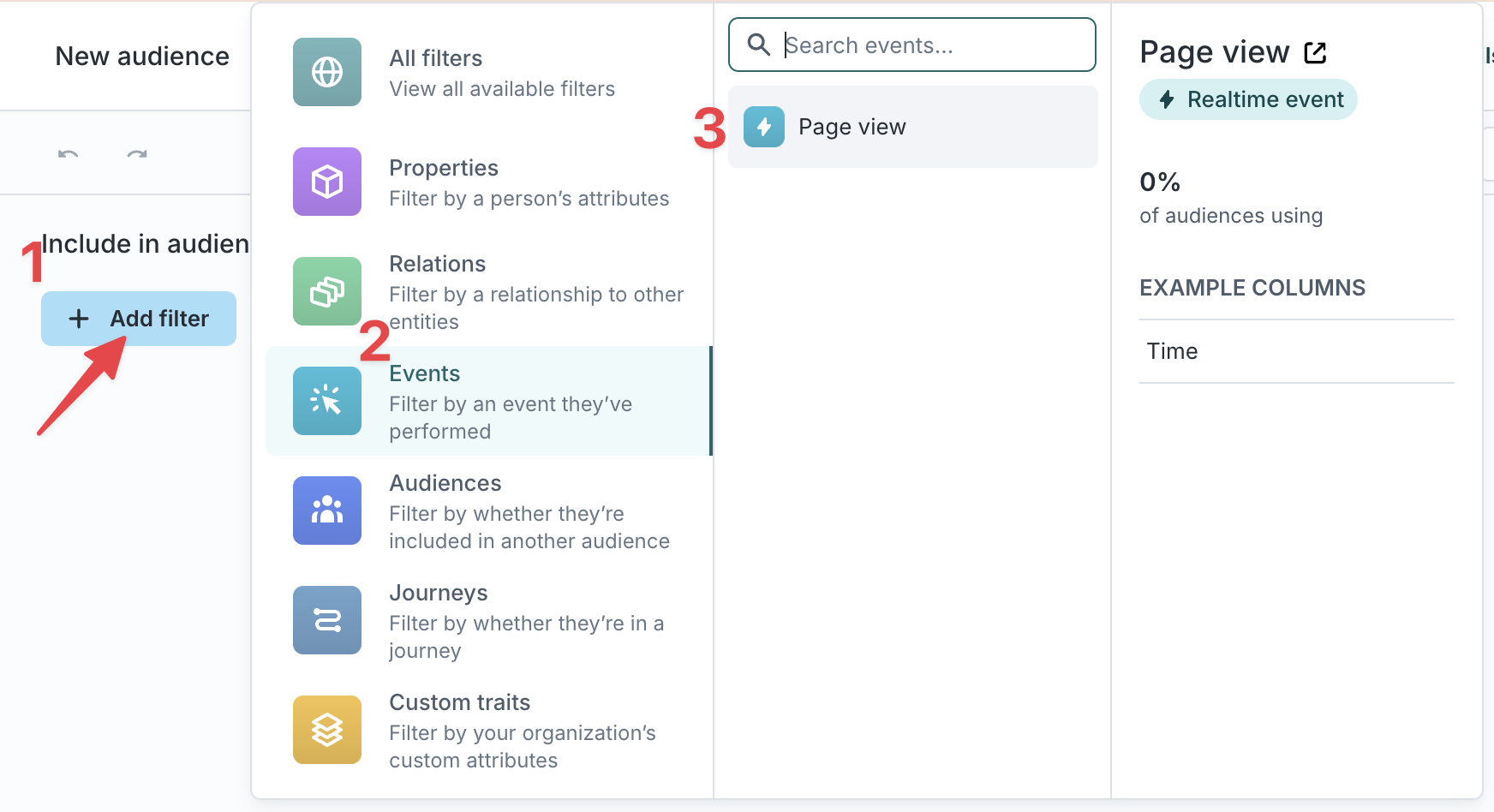
Once created, the realtime event appears as an event filter option in the audience builder.
Step 3: Create an audience
Next, create an audience that references the realtime event.
-
Go to Customer Studio → Audiences
-
Create a new audience or open an existing one.
-
Select the parent model connected to your realtime event.
Any existing audience can become a realtime audience once it includes a realtime event condition.
Step 4: Add a realtime event condition
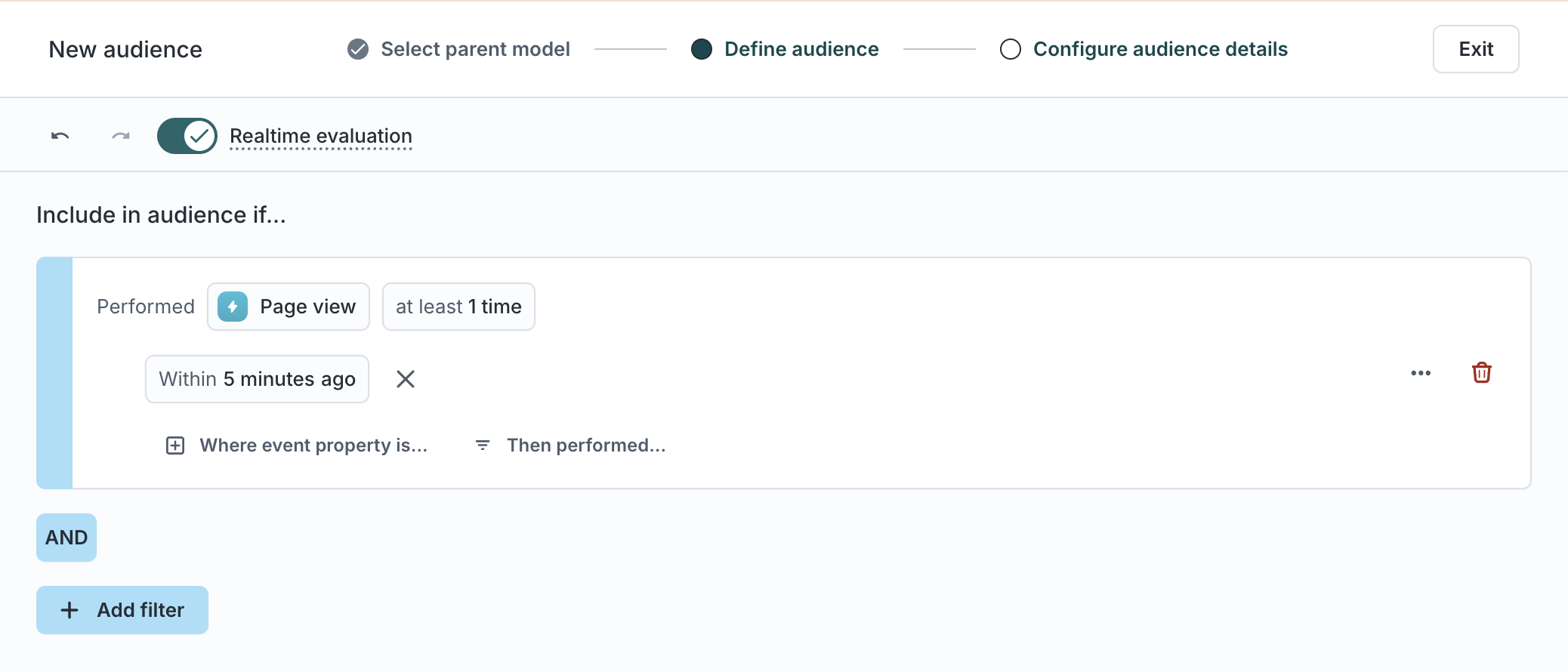
Add a filter that evaluates the realtime event.
-
In the audience builder, click Add filter
-
Select Event and choose your realtime event model
- Define the event condition—for example, set it to "performed within the last 5 minutes" to capture recent activity
-
Click Continue
-
Finalize audience settings and click Finish
Time-based conditions expire automatically. When a user no longer meets a lookback-window condition—for example, "viewed a page 3 times in the last 4 hours"—Hightouch removes them from the audience even if they generate no further events. This produces an audience exit, which is sent downstream if exit events are enabled on the sync.
Step 5: Choose a delivery method
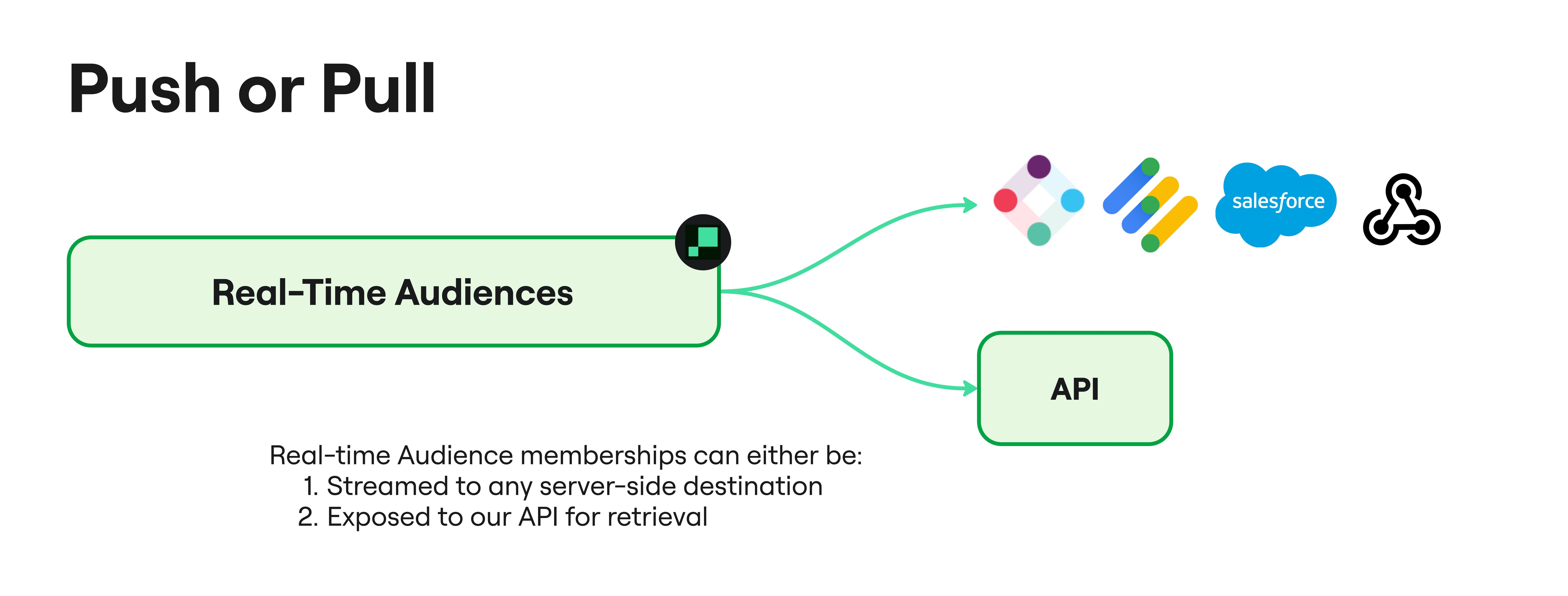
Realtime audiences can deliver membership updates through two mechanisms.
| Method | Best for | Description |
|---|---|---|
| Realtime syncs | Campaign tools, CRMs, advertising platforms | Push audience entry or exit events to supported destinations |
| Membership API | Websites, apps, personalization engines | Query audience membership on demand |
Option 1: Realtime syncs
Realtime syncs send audience membership changes to supported destinations.
When a user enters or exits an audience, Hightouch forwards a membership event to the destination.
Example event:
User 123 entered audience "High-intent pricing visitors"
Create a realtime sync
-
Open your audience and go to the Syncs tab
-
Click Add Sync
-
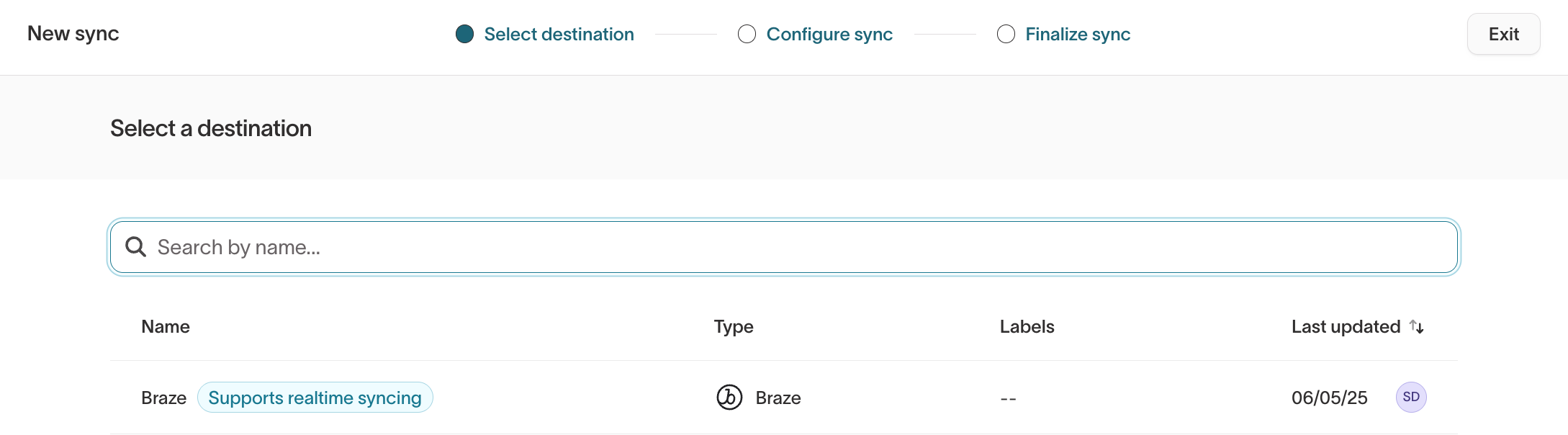
Select a destination that supports realtime syncing
Supported destinations include:
- Complete the sync setup.
Configure events
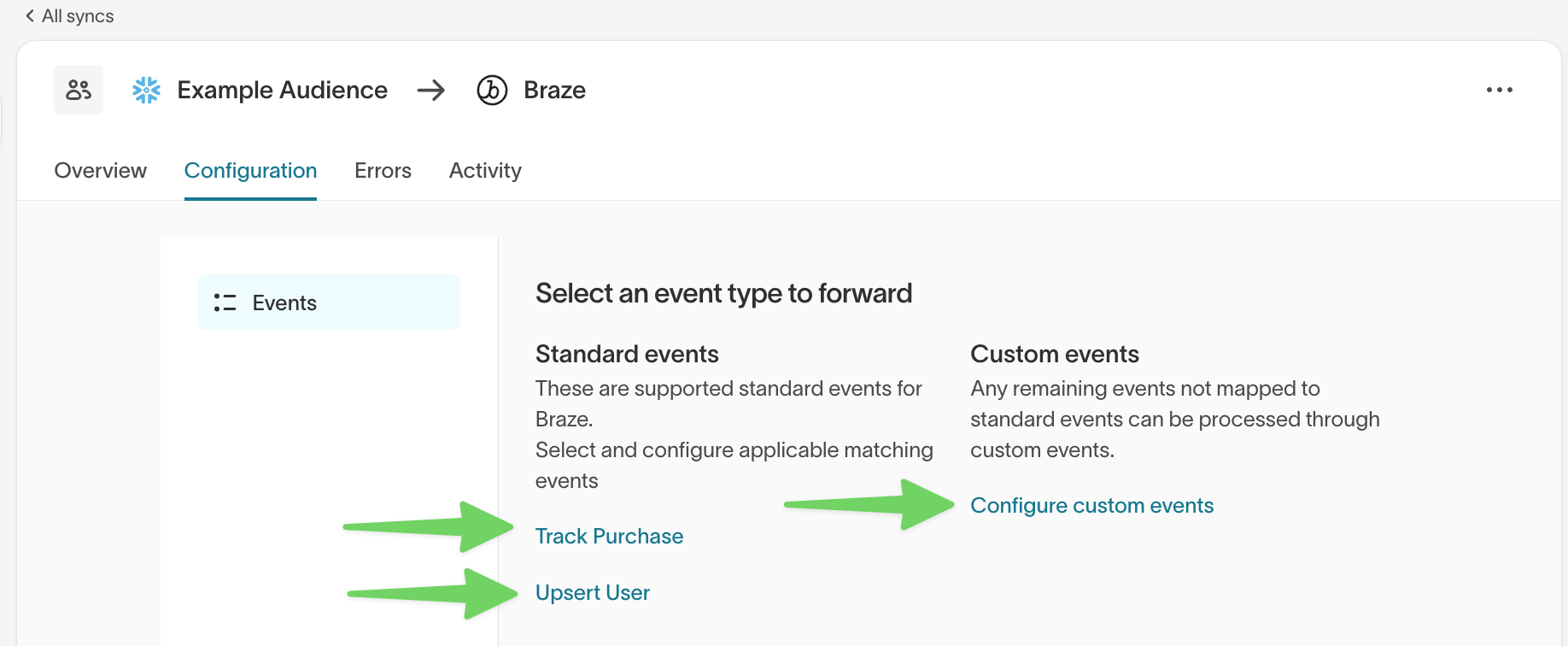
After your sync has been created, open its Configuration tab to choose which membership changes to forward to the destination.
Depending on the destination, you can configure:
- Entry events — sent when a user qualifies for the audience
- Exit events — sent when a user leaves the audience
- Custom event mappings — additional event or property mappings supported by the destination
Send entry events when downstream systems only need to react when a user qualifies. Add exit events when downstream systems also need to react when a user stops qualifying—for example, to remove a suppression, cancel a journey, or stop targeting. Exit events fire whenever a user leaves the audience, including when a time-based condition ages out, not only when their latest event activity stops matching.
Option 2: Membership API
The Membership API allows applications to check audience membership directly.
Your application sends a user_id and receives all realtime audiences the user currently qualifies for.
This is commonly used for:
- website personalization
- feature gating
- experimentation platforms
- in-app messaging
Example request:
GET /v1/audiences/{parent_model_id}/{user_id}
Authorization: Bearer <API_KEY>
Example response:
{
  "parent_model_id": "1234567",
  "user_id": "123xyz",
  "audience_ids": ["1212121", "3434343"]
}
The Membership API returns realtime audience membership. To retrieve warehouse-backed traits and profile attributes, use the Personalization API.
Refresh warehouse-backed conditions
If a realtime audience includes warehouse-backed conditions, Hightouch evaluates those conditions against a cached copy of your warehouse data rather than querying the warehouse for every incoming event. That cache refreshes on a schedule, and you can see its freshness and control when it refreshes from the audience.
When an audience has warehouse-backed conditions, a freshness indicator appears in the audience header next to the source, showing the current state—Current, Stale, Refreshing, or Pending. Hovering over it opens a panel with the Last pull time and result, the Next scheduled pull, and a link to the pull history.
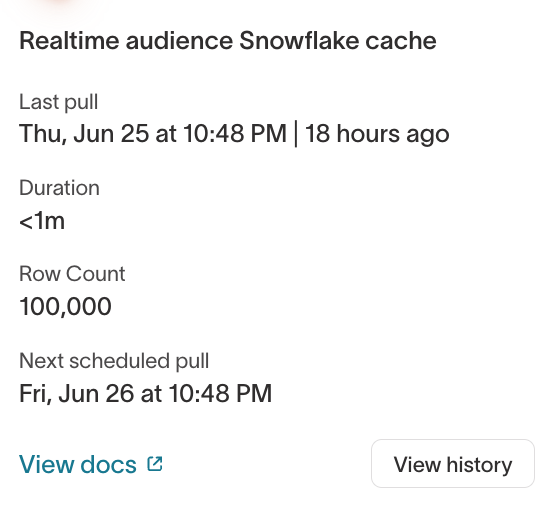
To control refreshes:
- Run an on-demand pull. On the History tab, select Run [source] pull (labeled with your source, for example Run Snowflake pull) to refresh the cache immediately—useful when you've changed warehouse data or audience logic and want it reflected sooner than the next scheduled pull.
- Adjust the refresh cadence. Open the Configuration tab and set the Pull schedule. Options are every 4, 6, 8, 12, or 24 hours (the default is every 24 hours).
- Review pull history. The History tab lists recent pulls with their Pull Date, Status, Trigger (on-demand or scheduled), Duration, and Rows, so you can confirm refreshes are succeeding.
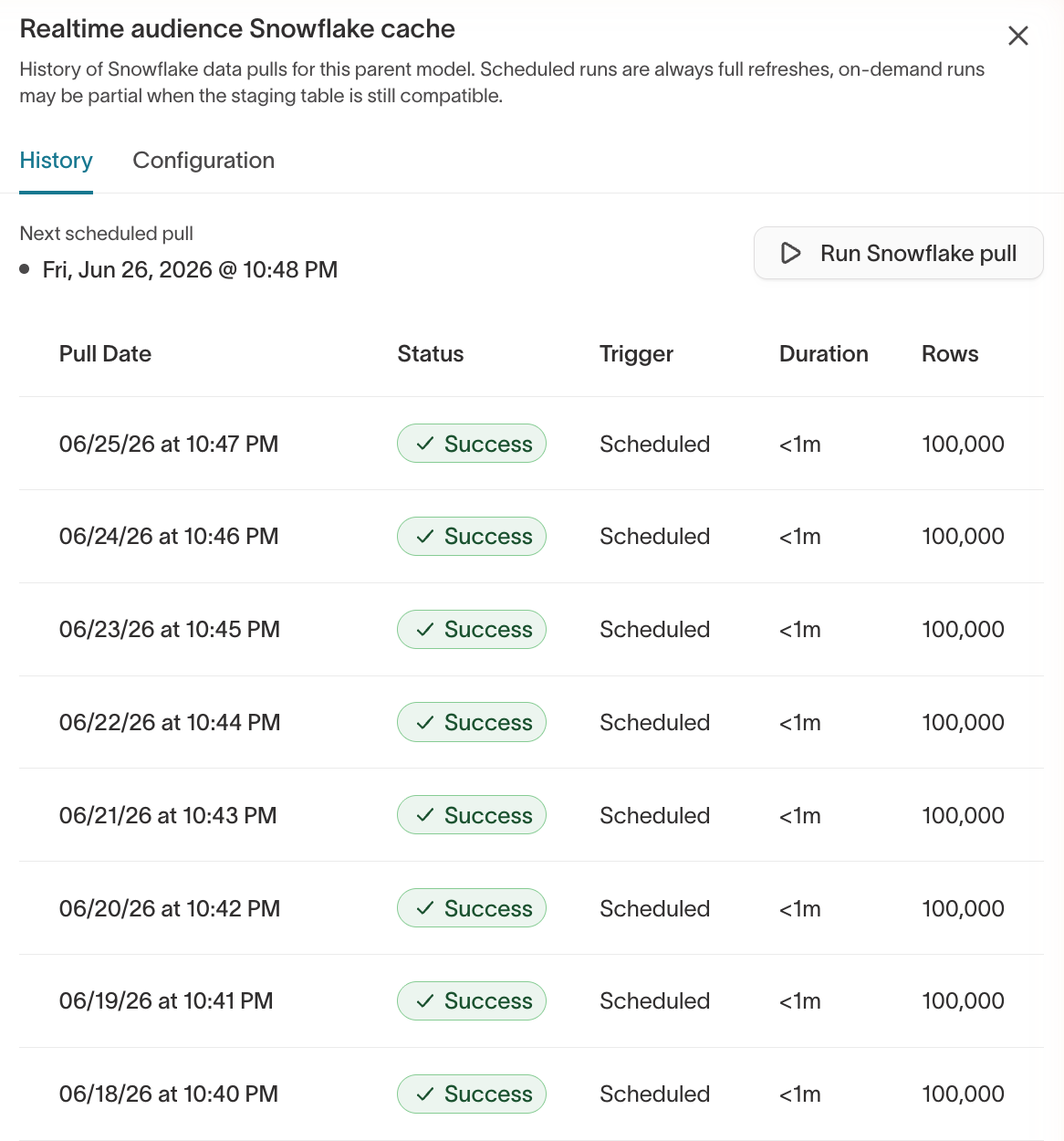
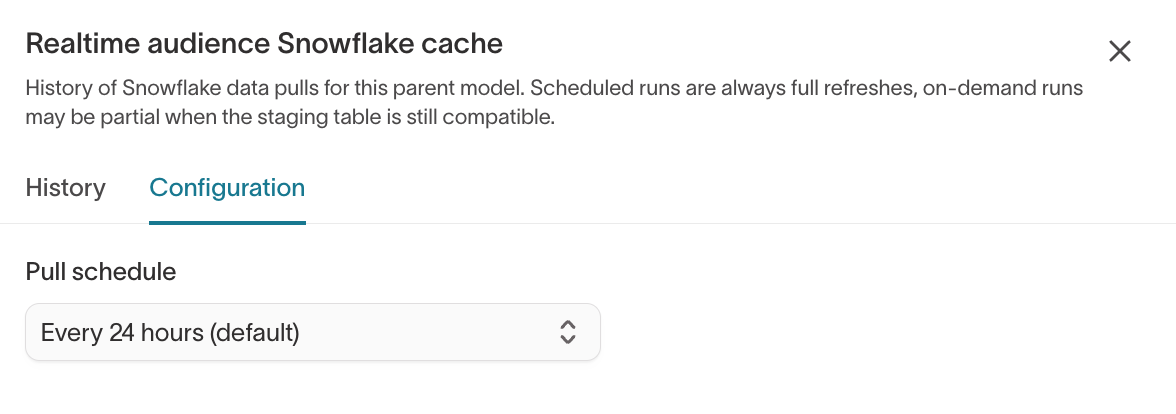
Scheduled pulls are always full refreshes. On-demand pulls may be partial when the staging table is still compatible.
Running an on-demand pull and changing the pull schedule require permission to update the audience.
Realtime event conditions are always evaluated live and are not affected by the warehouse refresh cadence.
Example: Suppression use case
Goal: Hide a promotional banner after a user completes a purchase.
Audience filters:
- Event:
order_completedin the last 5 minutes - Trait:
LTV > 300 - Property:
channel = web
Delivery: Realtime webhook sync to the personalization system
Result: A user completes a purchase and immediately exits the promotional audience. The banner no longer appears during the same session.
This pattern is commonly used for cart abandonment suppression, real-time promotions, and session-based personalization.
Constraints
Keep the following limitations in mind when designing realtime audiences:
- Realtime event conditions must include a lookback window (maximum 24 hours)
- Only event count conditions are supported today (no arbitrary aggregations like SUM)
- User property conditions from
identifycalls must go through the warehouse and cannot be evaluated in realtime
For the full list of constraints, see Constraints and limitations in the architecture guide.
Best practices
When designing realtime audiences:
- Focus on recent session behavior (minutes rather than hours)
- Keep event conditions specific and narrow
- Combine live events with warehouse traits for richer targeting
- Monitor delivery through sync logs or API responses
Realtime event conditions must include a lookback window and support windows up to 24 hours.