| Audience | Data teams, platform admins |
| Prerequisites |
|
Sync metric and dimension definitions from Snowflake or Databricks, or files from GitHub, into Context Hub so agents can use the definitions maintained by your team.
Overview
If your team defines metrics and dimensions in Snowflake or Databricks, you can sync those definitions into Context Hub instead of maintaining separate copies.
| Warehouse | Supported views |
|---|---|
| Snowflake | Snowflake Semantic Views |
| Databricks | Databricks Unity Catalog Metric Views |
Each selected view appears as a file in Context Hub > Knowledge > Files, marked Synced. Hightouch reads the definitions from your warehouse without modifying the original views.
If your team keeps definitions, glossaries, or playbooks in a GitHub repository, you can sync those files too.
Use synced views for definitions maintained in your warehouse. Use Business context for additional business rules, instructions, and knowledge.
Grant warehouse access
Hightouch reads views with the credentials of the source you connect. Before you sync, grant the source's Snowflake role or Databricks service principal access to the views you want agents to use. Hightouch only lists views those credentials can see.
Snowflake grants
Hightouch lists semantic views across your Snowflake account, so views in any database the source's role can access appear, not only views in the source's default database.
Replace YOUR_DATABASE, YOUR_SCHEMA, and HIGHTOUCH_ROLE with your database, schema, and the role configured for your Snowflake source:
-- Allow the role to have basic access to the database and schema
GRANT USAGE ON DATABASE YOUR_DATABASE TO ROLE HIGHTOUCH_ROLE;
GRANT USAGE ON SCHEMA YOUR_DATABASE.YOUR_SCHEMA TO ROLE HIGHTOUCH_ROLE;
-- Allow the role to have read access to all current and future semantic views in this schema
GRANT SELECT, REFERENCES ON ALL SEMANTIC VIEWS IN SCHEMA YOUR_DATABASE.YOUR_SCHEMA TO ROLE HIGHTOUCH_ROLE;
GRANT SELECT, REFERENCES ON FUTURE SEMANTIC VIEWS IN SCHEMA YOUR_DATABASE.YOUR_SCHEMA TO ROLE HIGHTOUCH_ROLE;
Run the schema grants for each schema that holds semantic views you want to sync. The ALL statement covers existing views, and the FUTURE statement covers views created later.
To grant access to one semantic view instead:
GRANT SELECT, REFERENCES ON SEMANTIC VIEW YOUR_DATABASE.YOUR_SCHEMA.YOUR_SEMANTIC_VIEW TO ROLE HIGHTOUCH_ROLE;
Databricks grants
Metric views are a Unity Catalog feature, so your Databricks source must have a catalog configured. Hightouch lists metric views only within that catalog.
Replace YOUR_CATALOG, YOUR_SCHEMA, YOUR_METRIC_VIEW, and HIGHTOUCH_SERVICE_PRINCIPAL with the values configured for your Databricks source. HIGHTOUCH_SERVICE_PRINCIPAL is the service principal's application ID.
-- Allow Hightouch to discover metric views through Databricks metadata
GRANT USE CATALOG ON CATALOG system TO `HIGHTOUCH_SERVICE_PRINCIPAL`;
GRANT USE SCHEMA ON SCHEMA system.information_schema TO `HIGHTOUCH_SERVICE_PRINCIPAL`;

-- Allow Hightouch to access the selected metric view
GRANT USE CATALOG ON CATALOG YOUR_CATALOG TO `HIGHTOUCH_SERVICE_PRINCIPAL`;
GRANT USE SCHEMA ON SCHEMA YOUR_CATALOG.YOUR_SCHEMA TO `HIGHTOUCH_SERVICE_PRINCIPAL`;
GRANT SELECT ON VIEW YOUR_CATALOG.YOUR_SCHEMA.YOUR_METRIC_VIEW TO `HIGHTOUCH_SERVICE_PRINCIPAL`;
The metadata grants don't give access to data outside the catalogs, schemas, and views the service principal can already reach.
To grant access across a schema instead of per view:
GRANT SELECT ON SCHEMA YOUR_CATALOG.YOUR_SCHEMA TO `HIGHTOUCH_SERVICE_PRINCIPAL`;
The schema-level grant applies to all current and future tables and views in the schema. Use per-view grants when the service principal should only read selected metric views.
Sync semantic or metric views
- Go to Context Hub > Connected data > Integrations.
- In the External context sources card, select Add external context.
- Select Snowflake Semantic Views or Databricks Unity Catalog Metric Views.
- Under Select a connection, select the Snowflake or Databricks source to read from.
- Under Select semantic views, select the views agents should use. Search by the view's full name to find one quickly.
- Select Finish.
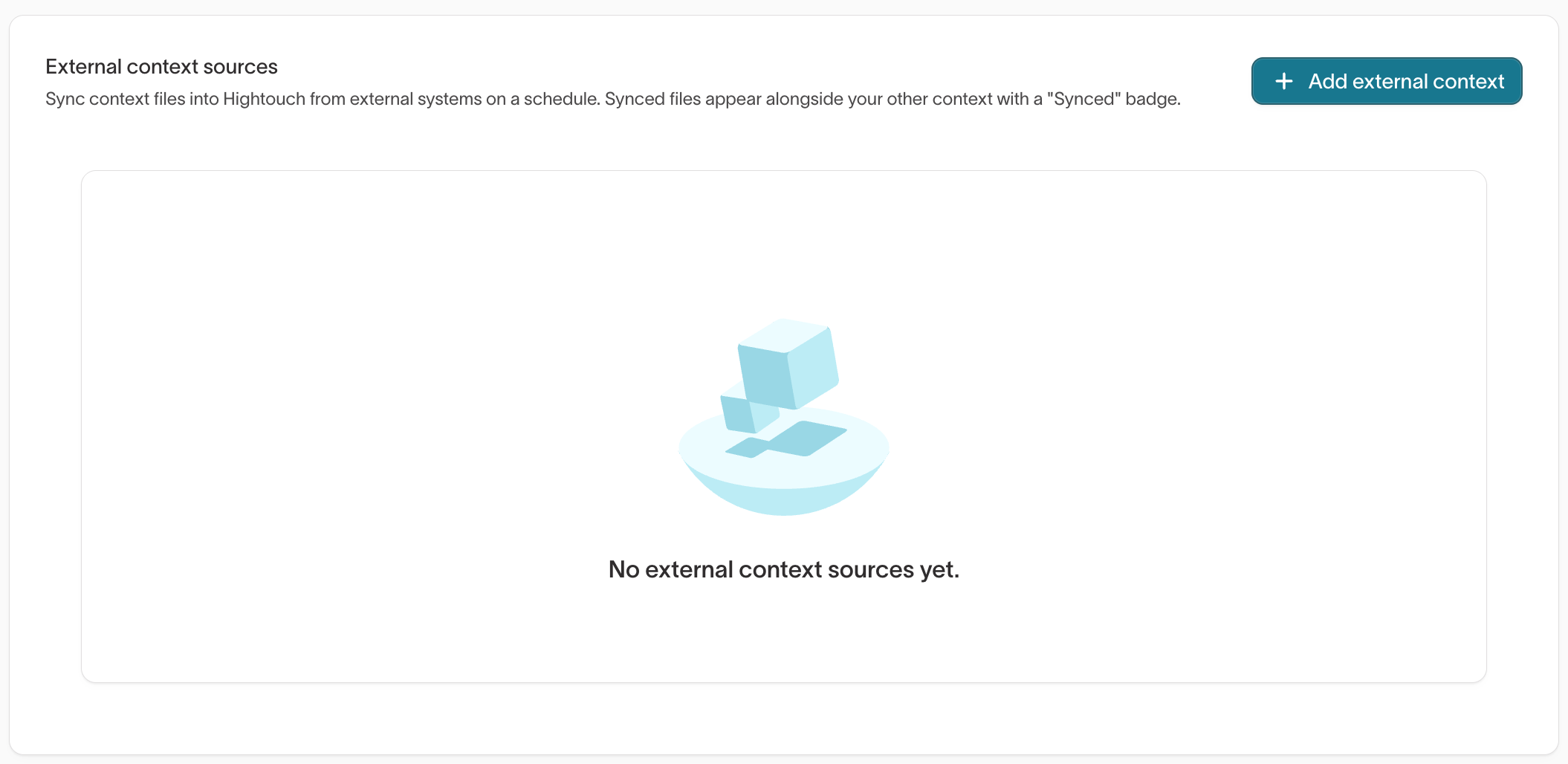
The first sync starts as soon as you finish. When it completes, each view appears in Context Hub > Knowledge > Files with a Synced badge. Synced files are published by default, so agents can use them right away.
If no views appear, check the grants for the role or service principal that the selected source uses. If no connections appear, add a Snowflake or Databricks source first.
How agents use synced definitions
Each synced file lists the view's terms (its metrics and dimensions) with their formulas and descriptions, followed by the view's full source definition. When a request uses one of those terms, the agent reads the matching file and uses your data team's definition to write its query.
Each file also lists the warehouse tables the view references and whether each table is modeled in Hightouch. Agents build queries on the matching Hightouch models. For a table without a model, agents can explain the metric from its definition but don't query the table directly.
If you want agents to calculate a synced metric, not only explain it, create models for the tables its view references.
Synced definitions update every hour
Hightouch re-syncs each external context source every hour, so changes your data team makes to a view reach agents without any action from you. To pick up a change sooner, open the source's actions menu in the External context sources card and select Sync now. The Last sync column shows whether the most recent run succeeded.
To change a definition, update the view in your warehouse. The next sync brings the change into Hightouch. You can't edit a synced file's content in Hightouch or delete the file from Knowledge.
To change which views you sync, select Edit from the source's actions menu, update your selection, and select Save changes.
To stop syncing, select Delete. Hightouch marks the source's synced files as deleted, and agents stop using them. If you add the views again later, the new source's first sync adds them back as new files.
Sync files from GitHub
Sync files from a GitHub repository when your team maintains metric definitions, glossaries, or playbooks in version control. Agents then work from the same version your team reviews in GitHub, and you don't maintain a second copy in Context Hub.
Hightouch reads the repository with your workspace's GitHub credentials from Git Sync. Before you start, connect GitHub with the Hightouch GitHub app or a GitHub access token, and grant access to the repository you want to sync. Repositories on a self-hosted GitHub Enterprise server and tunneled connections aren't supported.
- Go to Context Hub > Connected data > Integrations.
- In the External context sources card, select Add external context.
- Select GitHub.
- Select the Repository and Branch to read from.
- Select the files and folders agents should use, or select Sync entire repository.
- Select Finish.
Select a folder when you want new files in it to sync automatically. A selected folder includes every supported file in it, including files your team adds there later. Select individual files when the folder also holds drafts or content agents shouldn't use.
You can sync Markdown, plain text, JSON, and Python files. Each file can be up to 5 MB, and each source can include up to 1,000 files and 50 MB in total. You can't select files over 5 MB or more than 1,000 files. If the selected files total more than 50 MB, the sync fails.
The first sync starts as soon as you finish. Each file appears in Context Hub > Knowledge > Files with a Synced badge, named by its path in the repository. Markdown files keep their formatting, and other file types appear as code blocks.
GitHub sources follow the same hourly schedule and actions as warehouse sources. To change a file's content, commit the change in GitHub. To change the branch or the selected files, select Edit from the source's actions menu. To sync a different repository, add another GitHub source.
Next steps
- Teach agents your business to add the business rules and instructions that your warehouse views don't cover.