| Audience | How you’ll use this article |
|---|---|
| Data teams | Configure survivorship rules and understand Golden Record outputs in your warehouse. |
| Platform admins | Enable a clean, trusted profile table for downstream activation and segmentation. |
Overview
Golden Record is a unified profile table built on top of an identity graph. It is created automatically when you set up a new identity graph. First, the identity graph determines which records belong to the same person (or account, household, etc.). Then, Golden Record decides what the final profile should look like.
Golden Record provides a unified profile of each resolved identity in two forms:
- A flattened table written directly to your data warehouse
- An auto-generated parent model in Customer Studio (if enabled)
When multiple records are linked together, they often contain different values for the same field (for example, two different phone numbers or slightly different names). The Golden Record applies survivorship rules to select the single best or primary value for each field — or optionally preserve multiple values when needed.
Instead of working directly with all raw records and identifier combinations, you get one clean, deduplicated row per identity.
With this unified profile table, you can:
- Segment users using your most up-to-date and trusted trait values
- Sync standardized traits into your marketing or sales tools
- Give non-technical stakeholders (for example, marketers) a single, easy-to-understand table to build audiences from
If you're new to Identity Resolution, review the Overview and Lookup table usage docs first.
How Golden Record fits into IDR outputs
When Identity Resolution runs, it writes core output tables to your warehouse:
<output_prefix>_resolved— all rows from your input models, each labeled with anht_id(the unique identifier for your profiles).<output_prefix>_resolved_identifiers— all identifier values per identity (for example, all emails for a user).<output_prefix>_unresolved— rows that were skipped if primary keys weren't unique in your input models.
Golden Record writes an additional table:
<output_prefix>_golden_records— one row perht_idwith canonical field values
Each row in <output_prefix>_golden_records:
- Represents a single resolved identity
- Uses
ht_idas the primary key - Contains one selected value per configured field (for example,
email,user_id,phone_number) chosen via survivorship rules - Optionally includes additional columns based on additional survivorship rules you define
Golden Record does not affect how identities are matched. It only controls how identities are represented.
Why use Golden Record?
Golden Record simplifies downstream workflows by providing:
Simple audience creation
If Customer Studio is enabled, Golden Record automatically becomes the parent model, allowing marketers to build audiences from the best-available Golden Record traits per identity.
All IDR input models are joined to the parent model using ht_id.
Easily extensible profile
You can define additional fields such as lifetime_value or membership_tier using Traits on the Golden Record parent model without additional stitching logic or SQL queries.
Less manual SQL
Instead of writing custom SQL to select the “most recent” or “most frequent” value per field, Golden Record applies your configured survivorship rules automatically.
Cleaner activation
Sync a single canonical email, phone number, or name to downstream tools instead of multiple possible values.
Warehouse-native access
Because the table lives in your warehouse, you can:
- Query it directly
- Use it in dbt models
- Join it in BI tools
- Feed it into ML pipelines
Manage Golden Record
Golden Record is created automatically as part of identity graph setup. After creation, you can manage Golden Record settings from the Survivorship tab.
To manage Golden Record on an existing graph:
- Go to Identity Resolution
- Open your identity graph
- Select the Survivorship tab
You’ll see all available identifier and model fields, along with options to add additional columns and configure survivorship rules.
Add columns and define survivorship rules
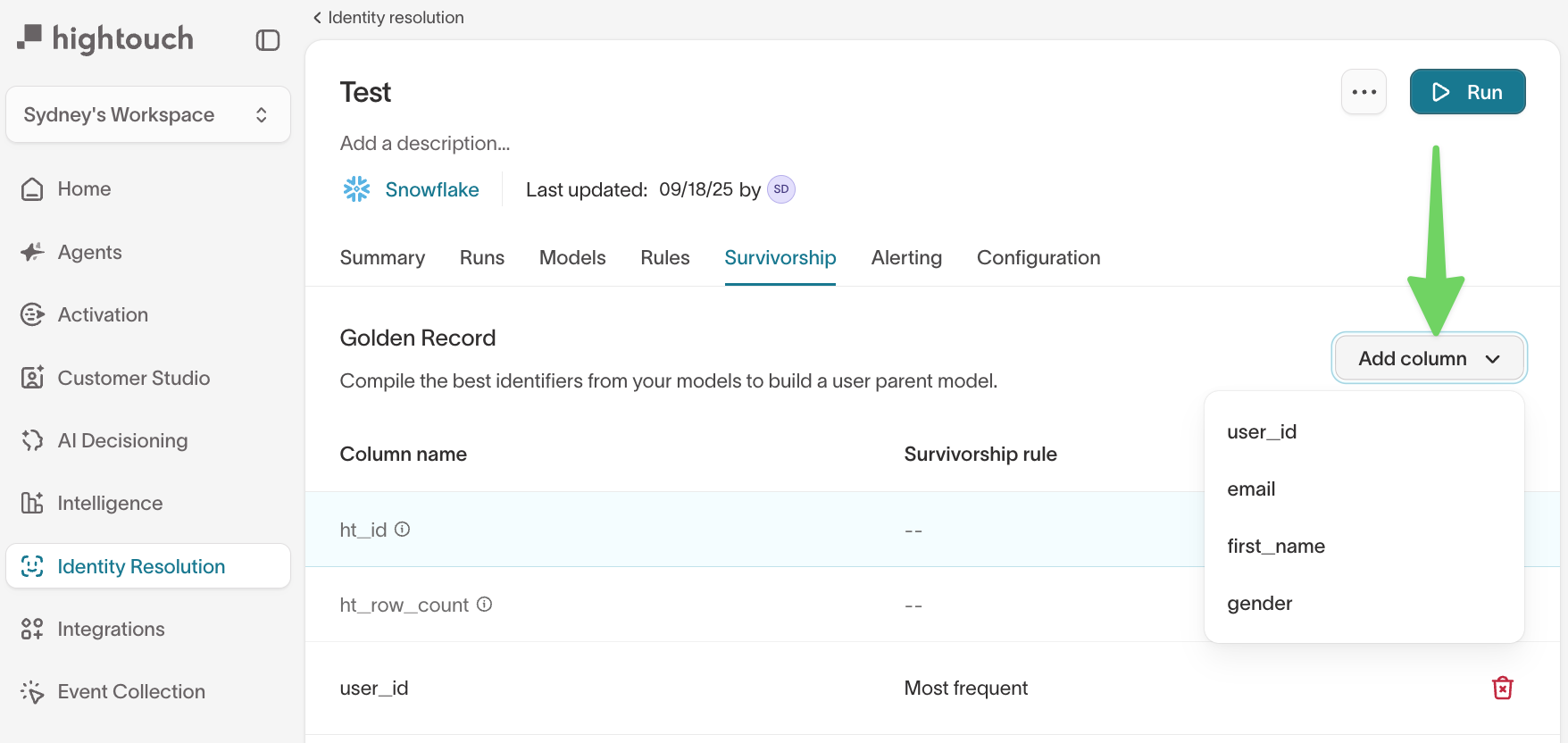
Add columns
Click Add additional columns to include:
- Identifier fields
- Non-identifier fields (for example,
first_name,lifetime_value) - Multiple versions of the same logical field with different logic
(for example,most_recent_emailandmost_trusted_email)
Include non-identifier columns (base columns)
Many input models contain valuable fields that aren’t used for matching — things like lifetime_value, loyalty_tier, product_preference, or birth_date. You can include these non-identifier columns in your Golden Record without making them identifiers.
This lets you:
- Keep IDR matching fast and focused on true identifiers
- Still expose rich profile attributes in the Golden Record output
To include non-identifier columns in the Golden Record:
- Open your identity graph and go to the Models tab.
- Select a model and open its configuration panel.
- Check Include in Golden Record next to any column you want to add.
- When you toggle a column on, the same column name is automatically toggled on across all other models that share that column name.
- These columns appear in the Survivorship tab, where they inherit a default survivorship rule that you can optionally override per column.
Including a non-identifier column does not affect IDR matching. These columns are only used when building the Golden Record output.
Define survivorship rules
For each column, choose how Golden Record selects the value:
| Rule | Behavior | Works with |
|---|---|---|
| Most recent | Selects the value with the most recent timestamp. | All column types |
| Oldest | Selects the value with the oldest timestamp. | All column types |
| Most frequent | Selects the value that appears most often across merged rows. | All column types |
| Source priority | Picks the value from the highest-priority source. (For instance, if you trust Salesforce over your app sign-up data for phone numbers, you'd put Salesforce first.) | Identifier columns only |
| Min | Selects the smallest value. | Numeric columns |
| Max | Selects the largest value. | Numeric columns |
| Array | Stores all unique values for the field in an array. This is useful when you want to maintain a complete list of all unique values for a field across all records that were merged into the identity. | All column types |
Choosing survivorship rules can materially affect downstream activation.
For high-impact fields like email, phone, CRM IDs, or external platform
identifiers, align with your RevOps or data team before finalizing rules.
Changing survivorship logic later can alter which values are synced to downstream tools.
Min and Max are designed for numeric columns. Applying them to non-numeric columns (for example, text fields) can cause errors during Golden Record builds.
Source priority is not available for non-identifier columns. These columns rely on model ranking and default survivorship behavior (described below) to determine which model’s values take precedence.
Recency-based rules use the timestamp configured for each model. Ensure timestamps accurately reflect update timing.

Default survivorship and base records
When you include non-identifier columns in your Golden Record, they inherit a default survivorship rule that applies at the record level rather than the column level.
Instead of picking the best value for each column independently, default survivorship:
- Selects a single best record from each model for a given identity.
- Copies all of its non-identifier fields into the Golden Record (subject to coalescing and any column-level overrides you configure).
This is useful when:
- You have many columns (50+) and don’t want to configure a rule for each one.
- Your columns are semantically related (for example, address fields that should come from the same source record).
- You want a simple “copy all fields from the best record” behavior.
How default survivorship works
For each identity (ht_id), Hightouch:
-
Selects the best record from each model
Records are ranked by your configured base-record rule (most recent by default). -
Coalesces values within each model
If the best record from a model has anullvalue for a particular column, but a second-best (or Nth-best) record for the same identity has a non-null value, Hightouch uses the first available non-null value from that model. -
Combines columns across models
For all columns marked Include in Golden Record:- The column is projected into the Golden Record.
- If multiple models have the same column name and compatible types, the top-ranked model takes precedence for filling in the value (subject to the coalescing behavior above).
-
Applies any column-level overrides
If you’ve set a specific survivorship rule on a column, that column-level rule overrides the default record-level behavior for that column.
Example: default survivorship across two models
You have two models — CRM and Email — with the following data for a single identity:
Input records
| Column | CRM (rank 1) | Email (rank 2) |
|---|---|---|
first_name | John | John |
last_name | Doe | null |
loyalty_tier | null | Gold |
Golden Record output
| Column | Golden Record value |
|---|---|
first_name | John |
last_name | Doe |
loyalty_tier | Gold |
In this example:
first_nameandlast_nameare filled from the CRM model because it is ranked higher.loyalty_tieris filled from the Email model because the CRM record has anullvalue and the Email record has a non-null value.
Column-level survivorship overrides
By default, non-identifier columns inherit the base-record behavior described above. You can override this behavior for specific fields by setting a column-level survivorship rule.
This is useful when certain fields need different logic than the default. For example:
- You might want the maximum
lifetime_valuerather than the most recent. - You might want the oldest
initial_purchase_dateto reflect when a customer first became active.
To set a column-level override:
- Go to the Survivorship tab in your identity graph.
- Find the column you want to override.
- For non-identifier columns, you’ll see the rule shown as Inherited by default.
- Use the dropdown to select a different survivorship rule (for example, Max, Most recent, or Most frequent).

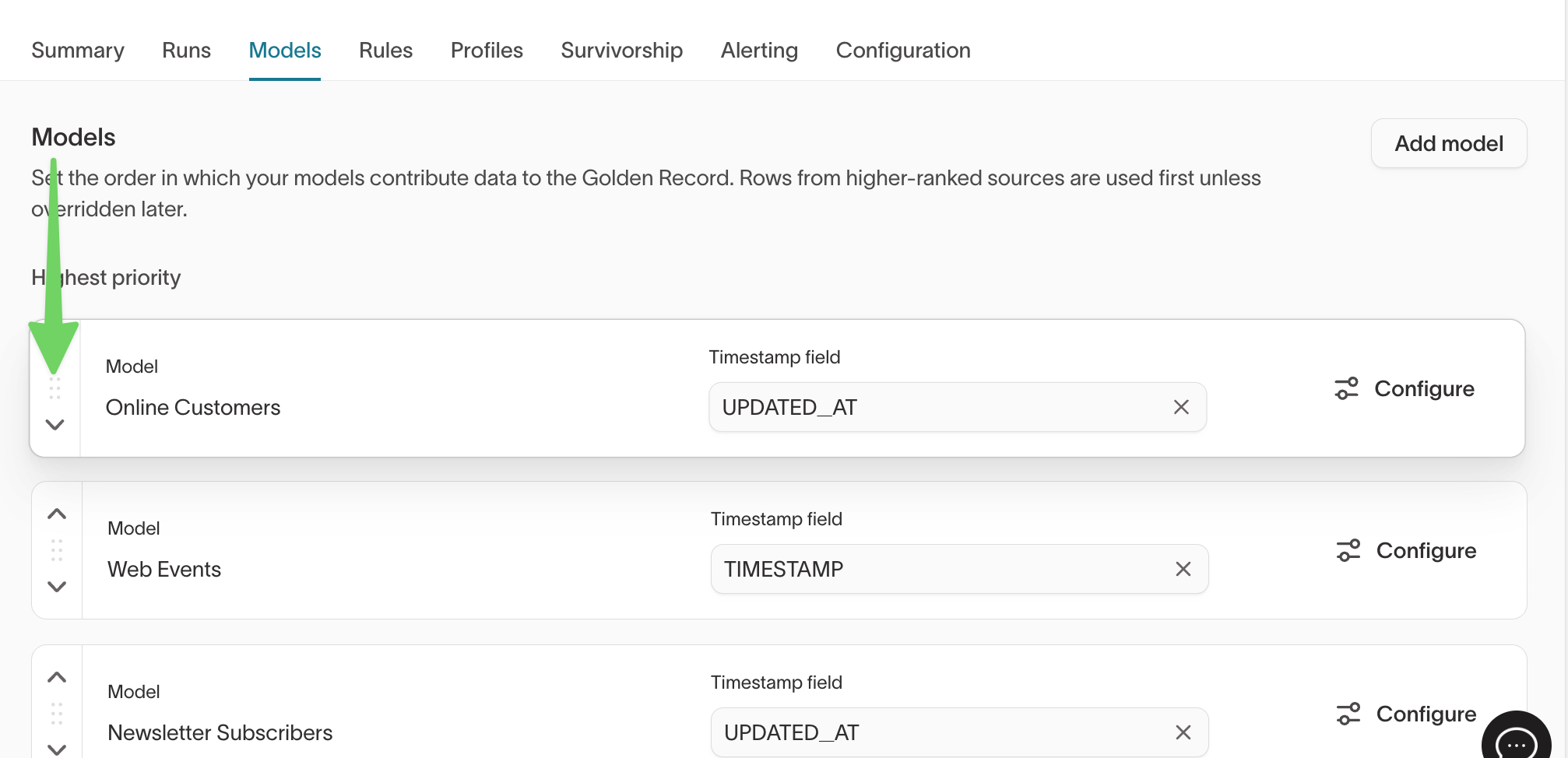
Configure model ranking
The order of your input models controls which records take precedence when building the base record used for default survivorship.
To configure model ranking:
- Go to the Models tab in your identity graph.
- Drag models into your preferred order.
- The model at the top has the highest priority.
Model ranking affects:
- Which record is selected as the base for default survivorship.
- The order in which
nullvalues are filled when coalescing across models (first non-null from the highest-priority model wins). - Which model’s values are chosen when multiple models contribute the same column name.
Example: Building a Golden Record with 200+ columns
A common use case is building a comprehensive customer profile from multiple source tables.
Example input models
| Model | Approx. columns | Example fields |
|---|---|---|
dim_customer | 150 | name, email, phone, loyalty_tier, preferences |
dim_subscriber | 120 | subscription_status, opt_in_date, channel_preferences |
dim_transactions | 80 | ltv, last_purchase_date, avg_order_value |
dim_address | 50 | street, city, state, zip, country |
Setup steps
- Map identifier columns (for example,
email,phone,customer_id) as usual for IDR matching. - Toggle Include in Golden Record for all non-identifier columns you want in the profile across your input models.
- Override specific columns where needed. For example:
- Set
ltvto Max to always surface the highest lifetime value. - Set
initial_purchase_dateto Oldest so it always reflects the first purchase.
- Set
- Leave everything else on the default (Inherited) rule derived from the base record and model ranking.
Result
This configuration produces a single Golden Record table with potentially 400+ columns — one row per identity — with the best value for each field, using a mix of:
- Default record-level survivorship.
- Column-level overrides for specific fields.
- Model ranking to resolve conflicts when multiple models provide the same column.
Using the Golden Record table
In Customer Studio
If you have Customer Studio, Golden Record automatically creates a schema using the Golden Record configuration and IDR input models:
<output_prefix>_golden_recordsbecomes the parent model- IDR input models become related models joined on
ht_id
This allows marketers to:
- Build audiences without SQL
- Define traits visually
- Work from a stable, one-row-per-identity table
Golden Record does not require Customer Studio, but it integrates automatically if available.
Certain structural elements (such as the underlying query and joins on ht_id) are locked to preserve identity integrity. You can still:
- Rename or alias columns
- Add descriptions
- Add additional related models outside of IDR
Outside Hightouch
Because <output_prefix>_golden_records lives in your warehouse, you can:
- Query it directly
- Join it in BI tools
- Reference it in dbt models
- Use it in data science or ML pipelines
It serves as a stable, canonical identity table for analytics and activation workflows. This is especially useful for:
- Dashboards that require a single, deduplicated row per user
- Data science workflows that depend on consistent, identity-level feature inputs
- Warehouse-native modeling where identity joins must remain stable over time
FAQ
How is the Golden Record table different from the resolved identifiers table?
<output_prefix>_resolved_identifiersstores all identifier values (multiple rows per identity, for example, multiple emails or phone numbers).<output_prefix>_golden_recordsstores one "best" (or primary) value per identifier using your survivorship rules (one row per identity).
Do I need timestamps in my models to use recency-based rules?
Yes. IDR input models require a timestamp in all cases for incremental processing. The same timestamp is used to calculate "most recent" logic for survivorship.
Can I update or delete Golden Record columns later?
Yes. You can revisit the Golden Record tab in your identity graph at any time. Adding, removing, or changing a column or rule will re-materialize <output_prefix>_golden_records on the next run.
What field does Golden Record use as the primary key in Customer Studio or when syncing?
By default, Golden Record uses ht_id as the primary key for each row. In Customer Studio, ht_id becomes the parent model's primary key. For external syncs, you can configure how you want to map ht_id or other fields as needed.
A profile's ht_id carries over across full re-runs and changes only when its records change, most often because two profiles merge or one splits. For destinations that need a key that never changes, map a real-world identifier (user_id, email, external_id) instead. See Using ht_id as a sync key.
What happens when there's a tie between multiple values for a Most Recent or Most Frequent survivorship rule?
When there are multiple different values that are the most recent or most frequent, Golden Record falls back to the other rule:
- For a Most recent rule, if two values share the same most recent timestamp, Golden Record uses the value that appears most frequently.
- If there’s still a tie on the fallback rule, Golden Record selects the value that the warehouse orders first.
Because warehouse ordering is usually not guaranteed, the selection in this rare case is non-deterministic.
How do array fields work in Golden Record?
When you select the Array survivorship rule for a field, Golden Record stores all unique values for that field from across all records that were merged into the identity. This creates an array column in your warehouse containing all distinct values, which is useful when you need a complete list rather than a single “best” value (for example, all historical email addresses or phone numbers for an identity).
Does Golden Record affect matching?
No. Matching is controlled by identifier rules and the identity graph. Golden Record only affects how values are selected and represented after identities are formed.
Can I update survivorship rules later?
Yes. You can modify survivorship rules at any time. Changes take effect on the next identity graph run and will be reflected in <output_prefix>_golden_records.
What’s the difference between identifier columns and non-identifier columns on the Golden Record?
Identifier columns:
- Are used for IDR matching (for example,
email,phone,customer_id). - Support all survivorship rules, including Source priority.
- Directly affect how records are linked into identities.
Non-identifier columns (base columns):
- Are additional fields included in the Golden Record that aren’t used for matching.
- Inherit default survivorship from the base record unless you configure a column-level override.
- Support all survivorship rules except Source priority.
Can I include columns from only some of my input models?
Yes. The Include in Golden Record toggle is configured per-column, per-model. You can choose to project a column from:
- Only a subset of your models, or
- All models where that column exists.
If you toggle on a column name that exists in multiple models, Hightouch automatically toggles it on across all models that share that name. Model ranking then determines which model’s values are preferred when there are conflicts.
What happens if the same column name exists in multiple models with different data types?
If the same column name appears in multiple models with different data types, column-level survivorship rules may fail. For example:
- One model stores
statusas a number. - Another stores
statusas text.
Applying a Min rule to such a column will fail on the text version because Min expects a numeric value.
To avoid this:
- Ensure shared column names have consistent types across models, or
- Use different column names for semantically different fields.
Do non-identifier columns affect IDR matching performance?
No. Non-identifier columns:
- Are not used as match keys.
- Do not participate in the IDR matching algorithm.
- Are only processed when building the Golden Record output table.
They therefore have no impact on IDR matching performance, though very wide Golden Records may increase build time.
How many columns can a Golden Record support?
Golden Records have been tested with 500+ columns. There is no hard limit, but:
- Very large column counts can increase the time it takes to build the Golden Record table.
- Performance will depend on identity volume and the complexity of your survivorship configuration.
With Golden Record enabled, you have a clean, single-row-per-customer profile ready for activation, analysis, and beyond. If you run into any issues, reach out to or your Hightouch representative.