| Audience | Marketers, creative teams, designers |
| Prerequisites |
|
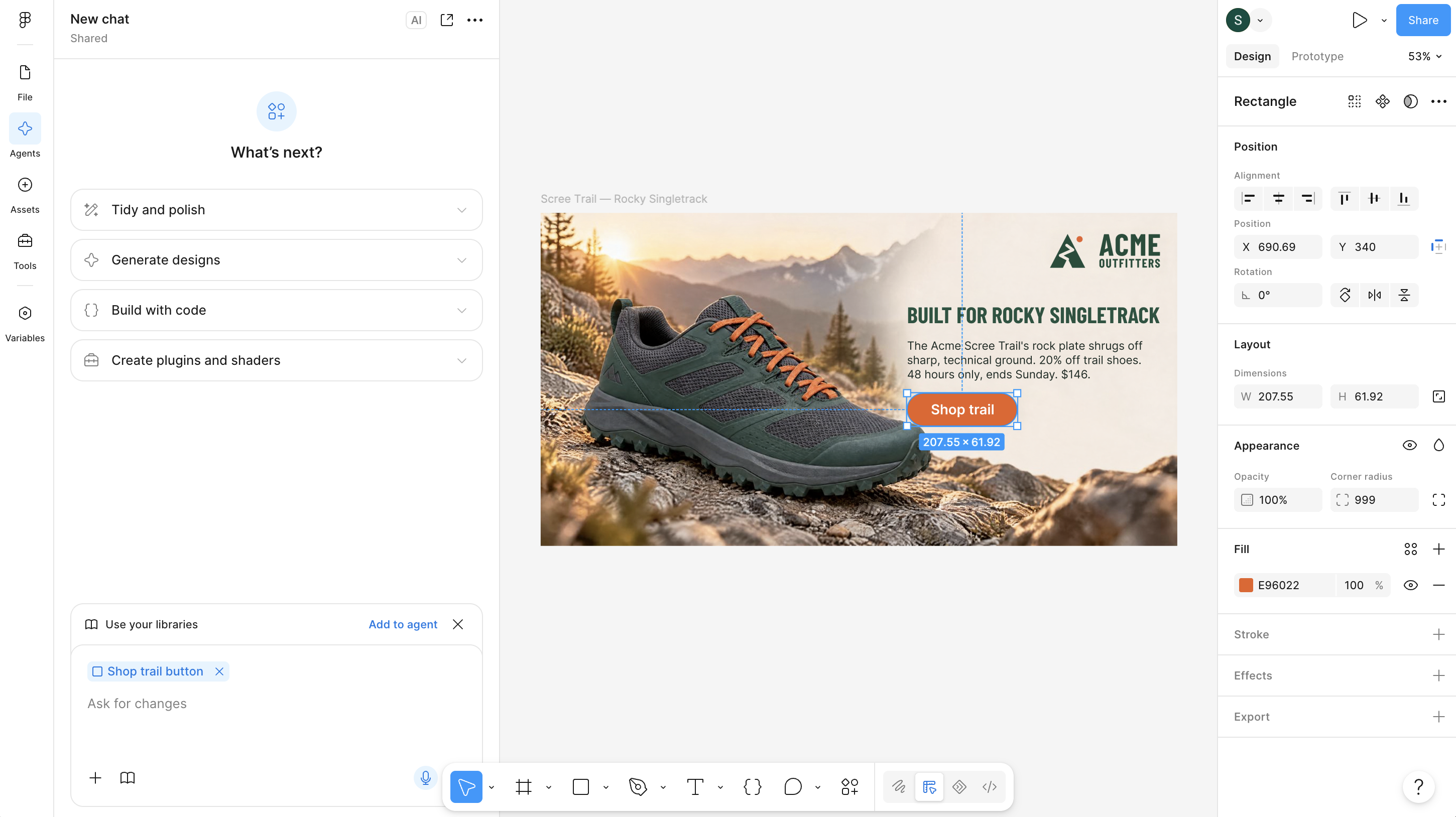
Bring a finished ad into Figma when your design team wants to polish the layout in their own tools. The ad arrives as a fully editable, layered frame — text, imagery, and background as separate layers — so they refine it in Figma instead of rebuilding it by hand.
Figma handoff is available on static ads. The import runs from the Hightouch plugin inside Figma, not from Hightouch: selecting Open in Figma in the toolbar shows the setup steps rather than exporting a file. Figma export isn't available in every workspace — if selecting the icon shows a prompt instead of the setup steps, it isn't enabled for yours.
Set up the plugin
Install the plugin and connect it to your Hightouch workspace once. After that, the plugin works in any Figma file you open.
This is a different connection from Figma Designs in Context Hub, which lets Hightouch read your Figma files to import designs as templates.
Find the plugin
You run every plugin command from the Tools tab in Figma, so this is also how you get back to the plugin later.
-
In any Figma design file, select Tools in the left navigation.
-
Search for
Hightouchand select the Hightouch plugin. Its details open with a Run menu that lists the plugin's commands.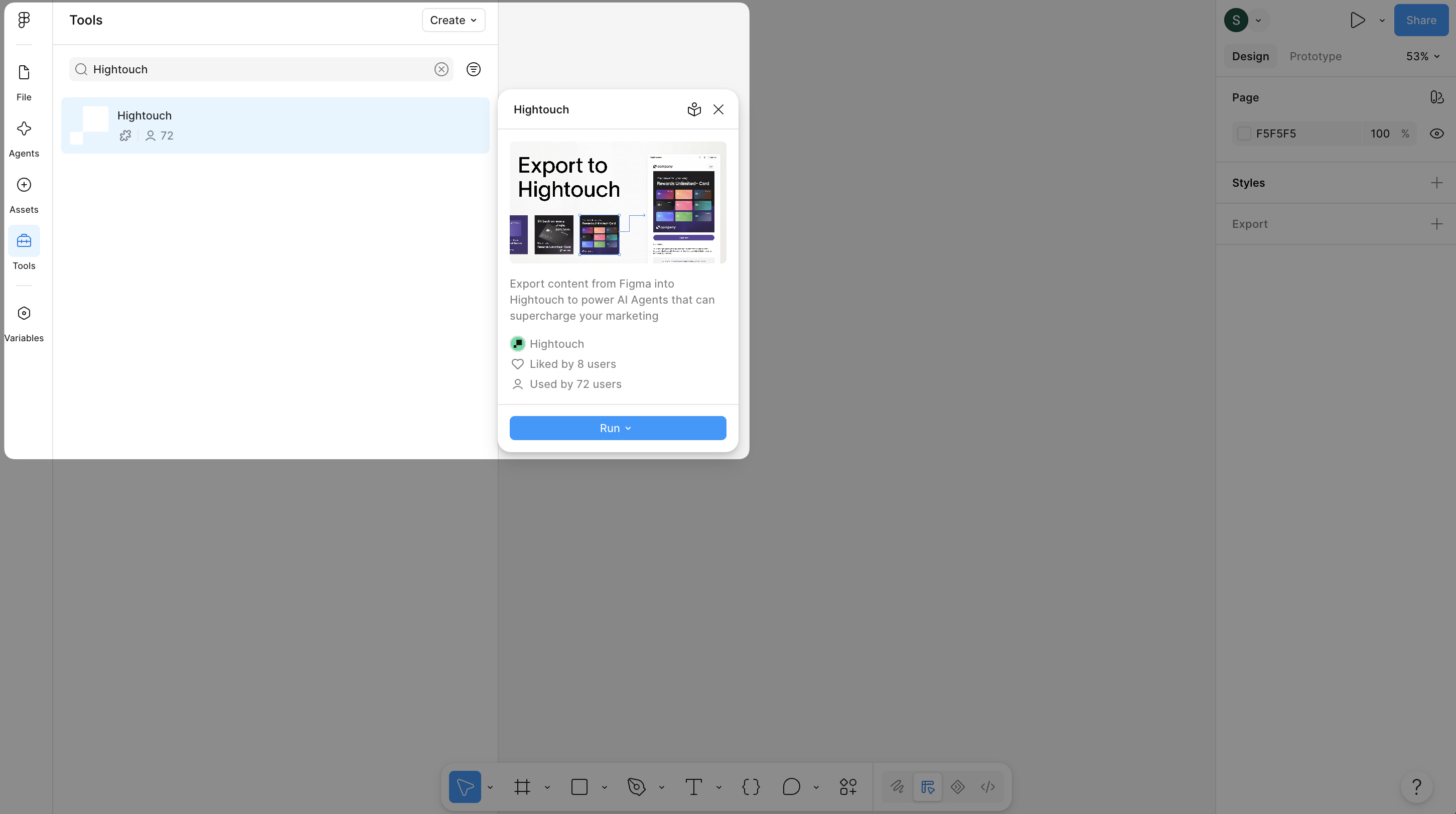
If your company's Figma organization requires approval for plugins, ask your Figma admin to approve the Hightouch plugin first.
You can also search for the plugin from Actions in the toolbar (⌘K), or open it from its Figma Community page in a browser.
Connect to Hightouch
The plugin connects to Hightouch in one of two ways. Which one you use depends on whether the person working in Figma has their own Hightouch account.
| If the person using the plugin… | Connect with |
|---|---|
| Is a member of your Hightouch workspace | Sign in with Hightouch |
| Doesn't have a Hightouch account, such as a designer at an agency | An API key from a workspace admin |
Sign in whenever you can. The key it creates acts as you and only works with the plugin, so the plugin can't do anything your own account can't. An API key you paste in works with the full Hightouch API, so anyone who holds it has the access of the key's user group.
Sign in with Hightouch
-
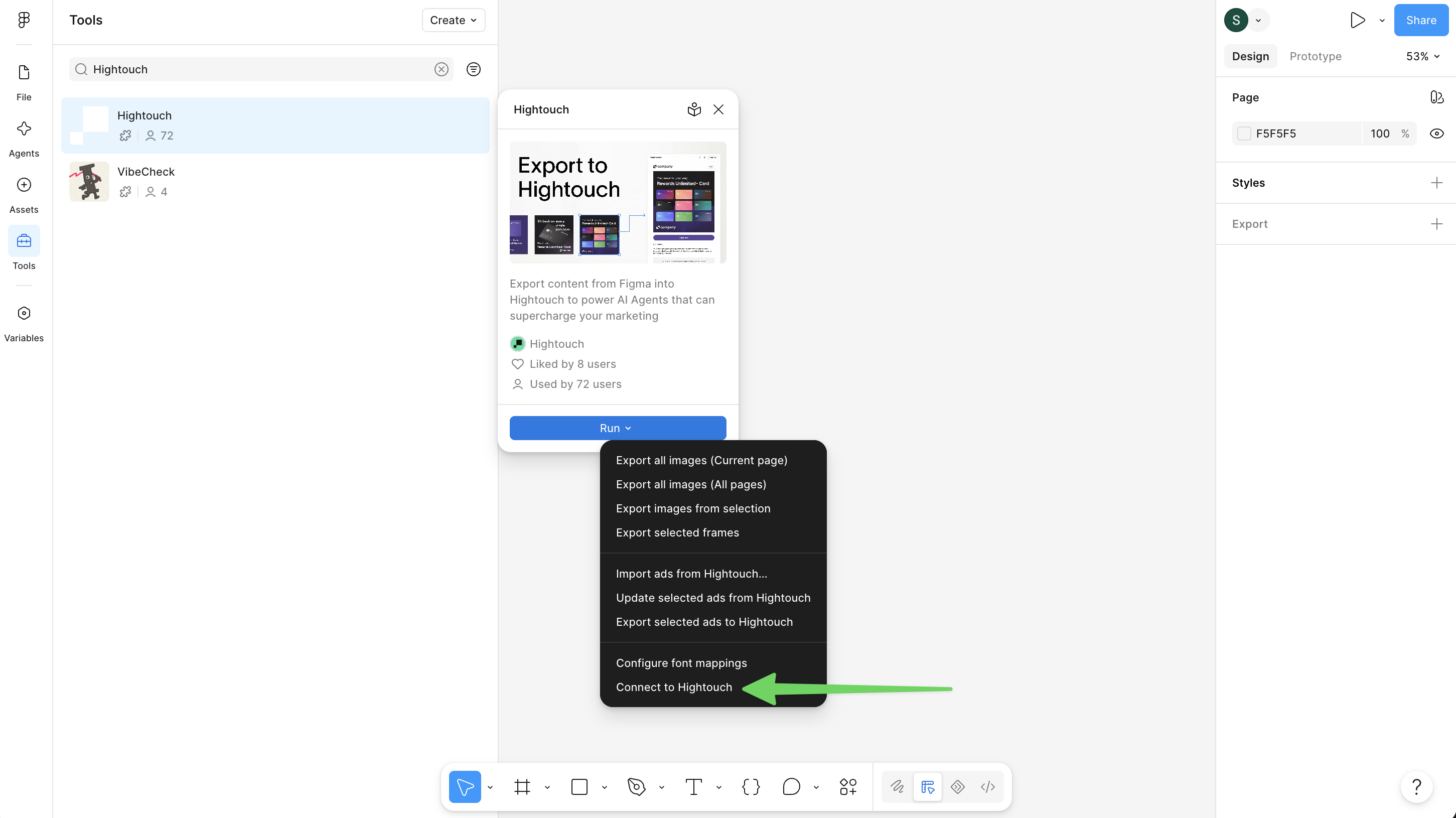
In the Hightouch plugin details, select Run > Connect to Hightouch.
-
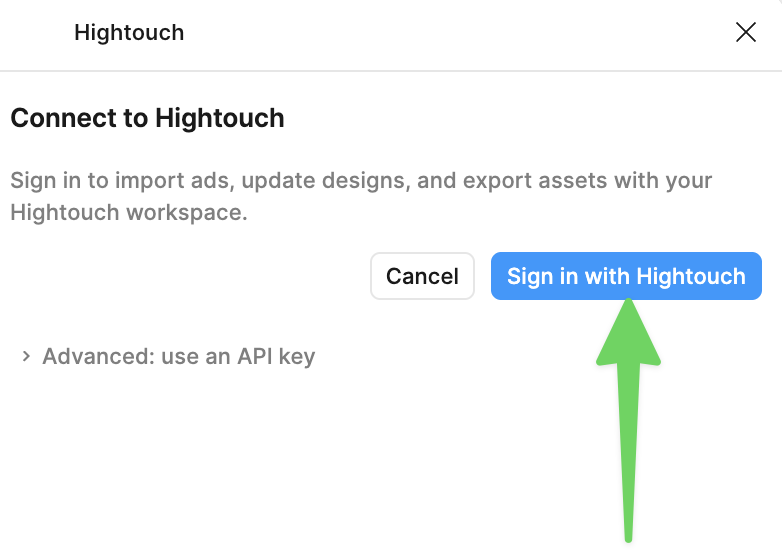
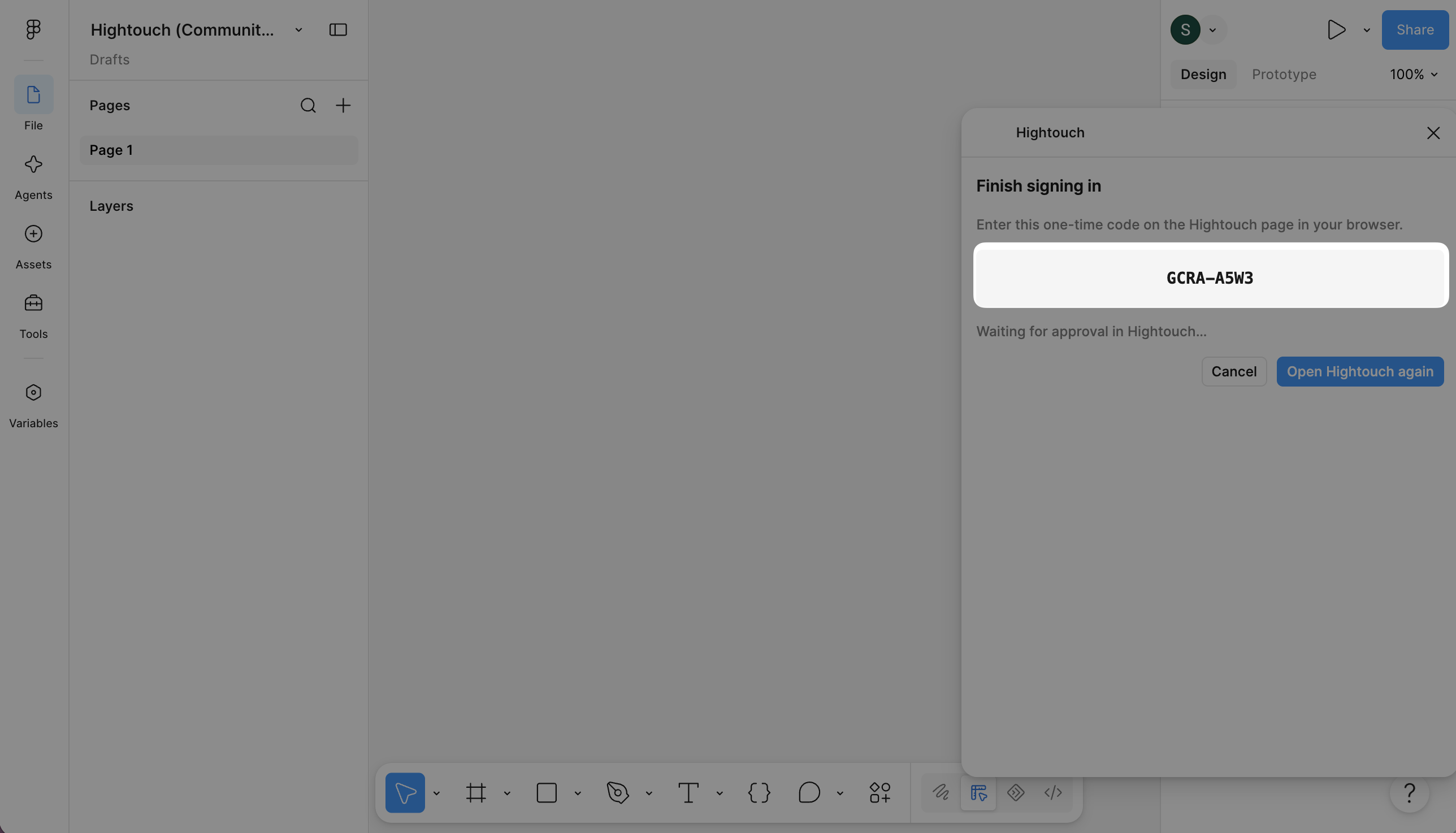
Select Sign in with Hightouch. Hightouch opens in your browser, and the plugin shows a one-time code.
-
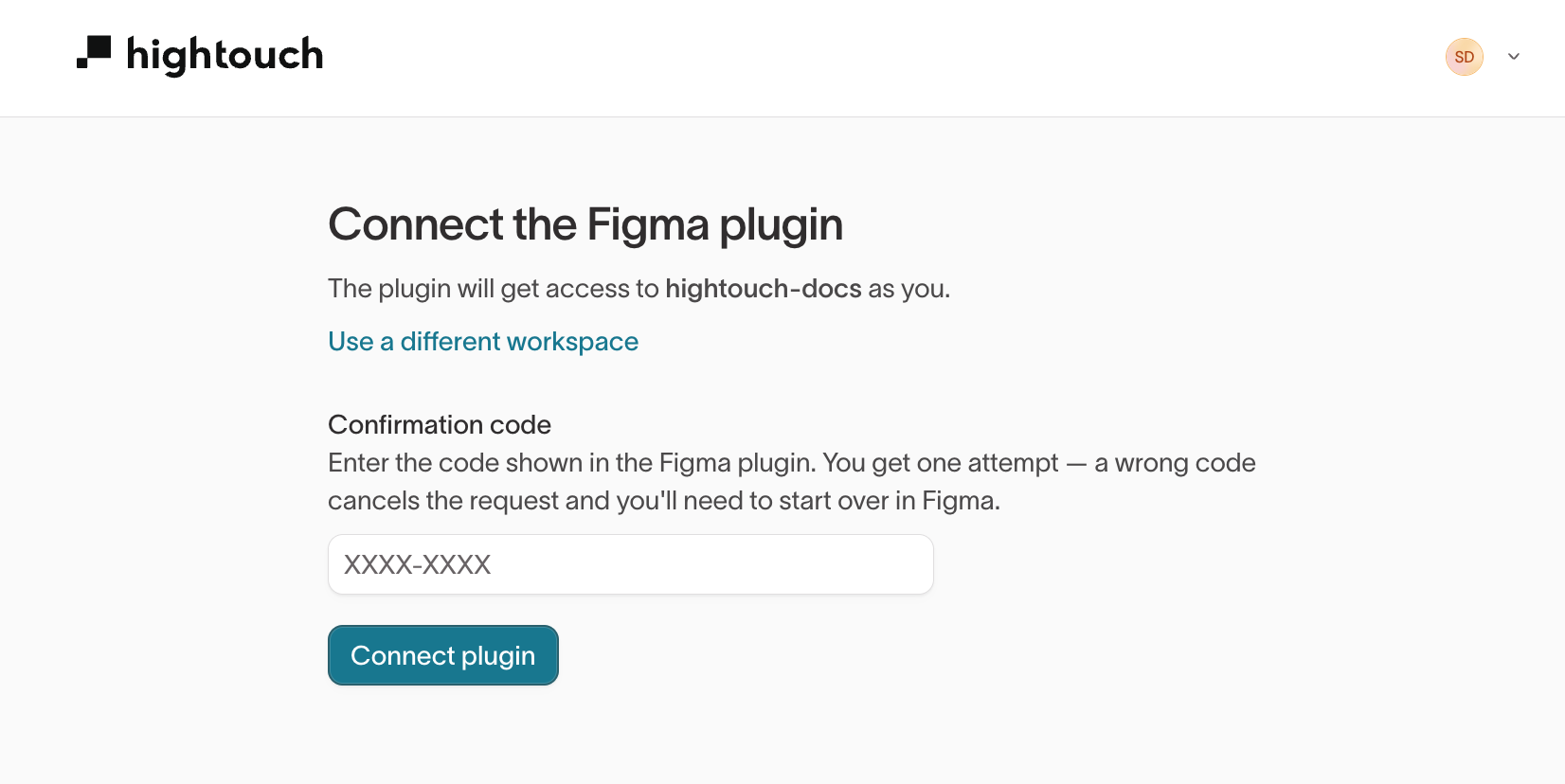
In the browser, confirm the workspace named on the Connect the Figma plugin page. To connect a different one, select Use a different workspace.
-
Enter the code from the plugin in Confirmation code and select Connect plugin. You get one attempt: a wrong code cancels the request, and you start over from step 1 in Figma.
-
Return to Figma. The plugin shows Hightouch is connected. Select Done.
Signing in creates an API key named Figma plugin followed by your email address. You'll find it in Settings > Workspace > API keys.
Connect with an API key
Use an API key when the designer working in Figma doesn't have a Hightouch login. A workspace admin creates the key and shares it with the designer.
-
A workspace admin creates an API key. For User group, pick a group with access to Ad Studio.
-
The admin shares the key with the designer through a password manager or another secure channel.
-
In Figma, the designer finds the plugin and selects Run > Connect to Hightouch.
-
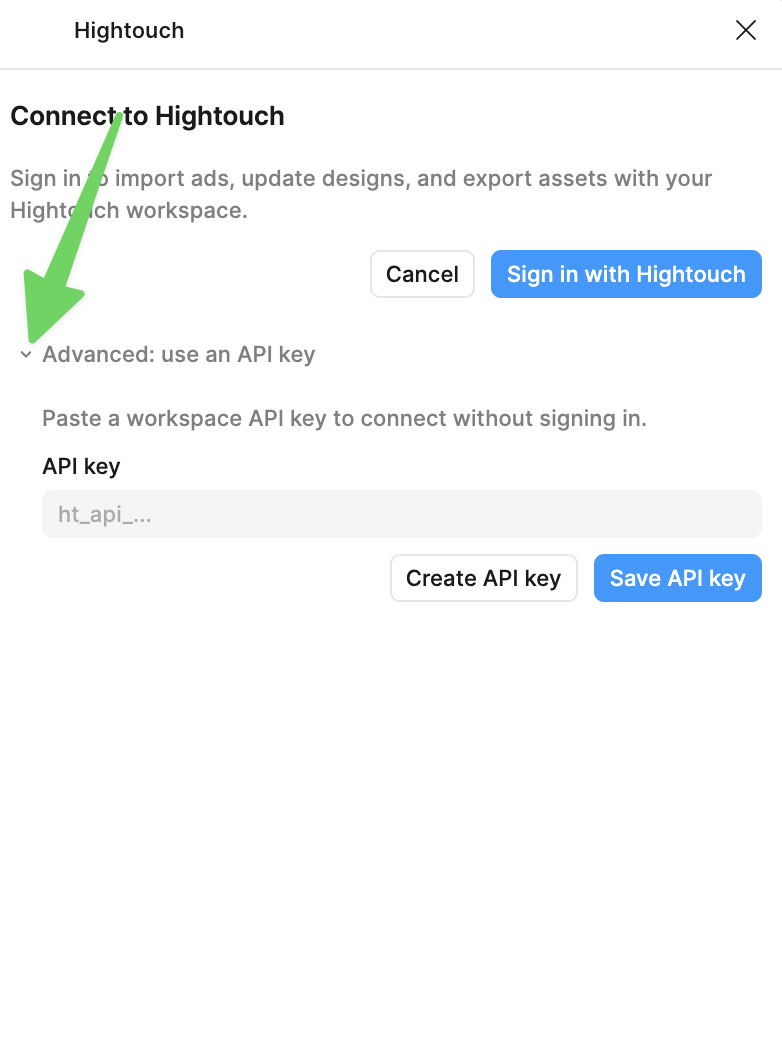
The designer expands Advanced: use an API key, pastes the key in API key, and selects Save API key.
Disconnect the plugin
Selecting Disconnect in the plugin removes the key from that copy of the plugin only. To cut off access everywhere, a workspace admin deletes the key: on the API keys tab, select the key and then select Delete selected. Delete a shared key when the designer no longer needs it, such as when an agency engagement ends.
Import an ad
-
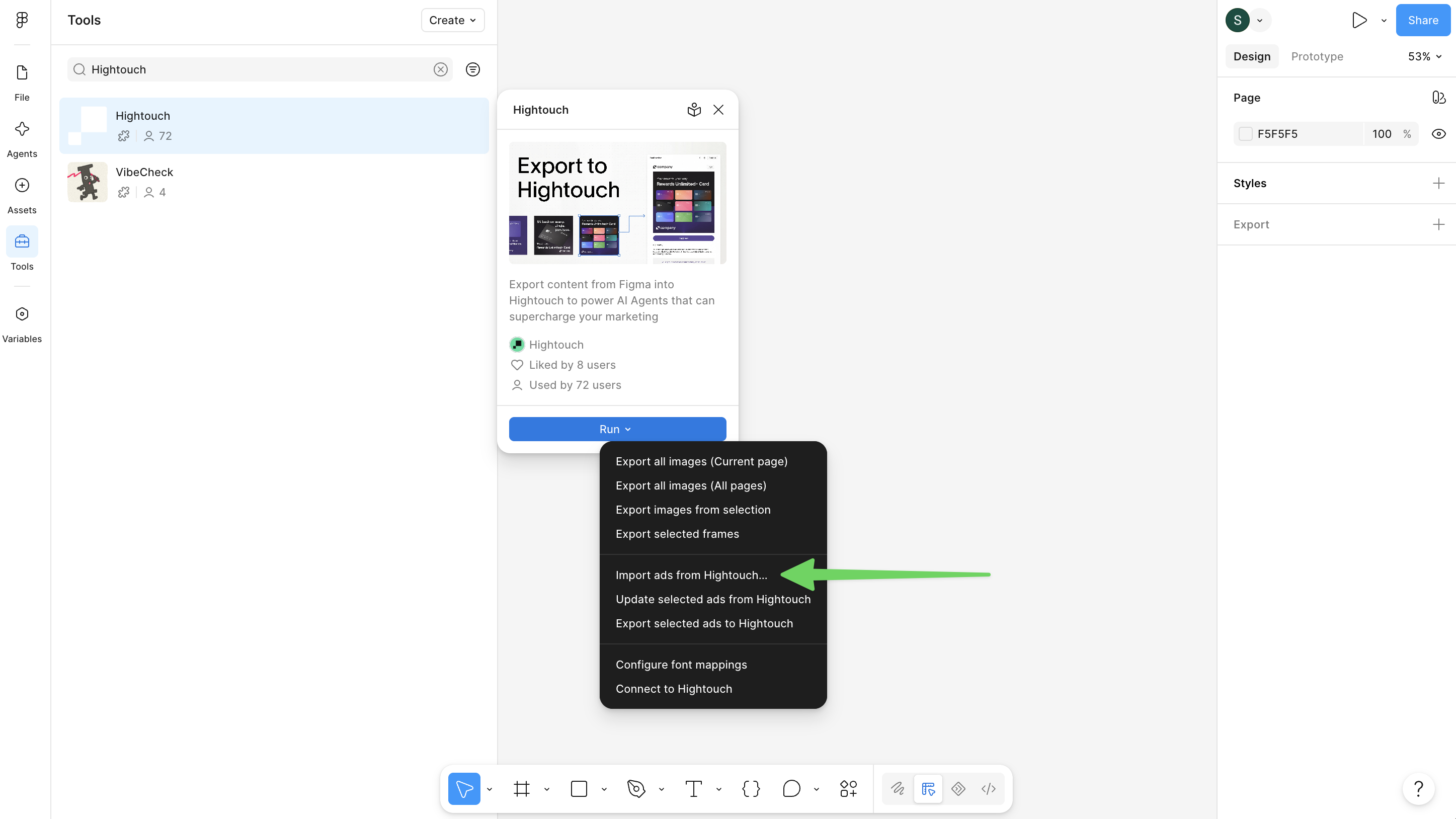
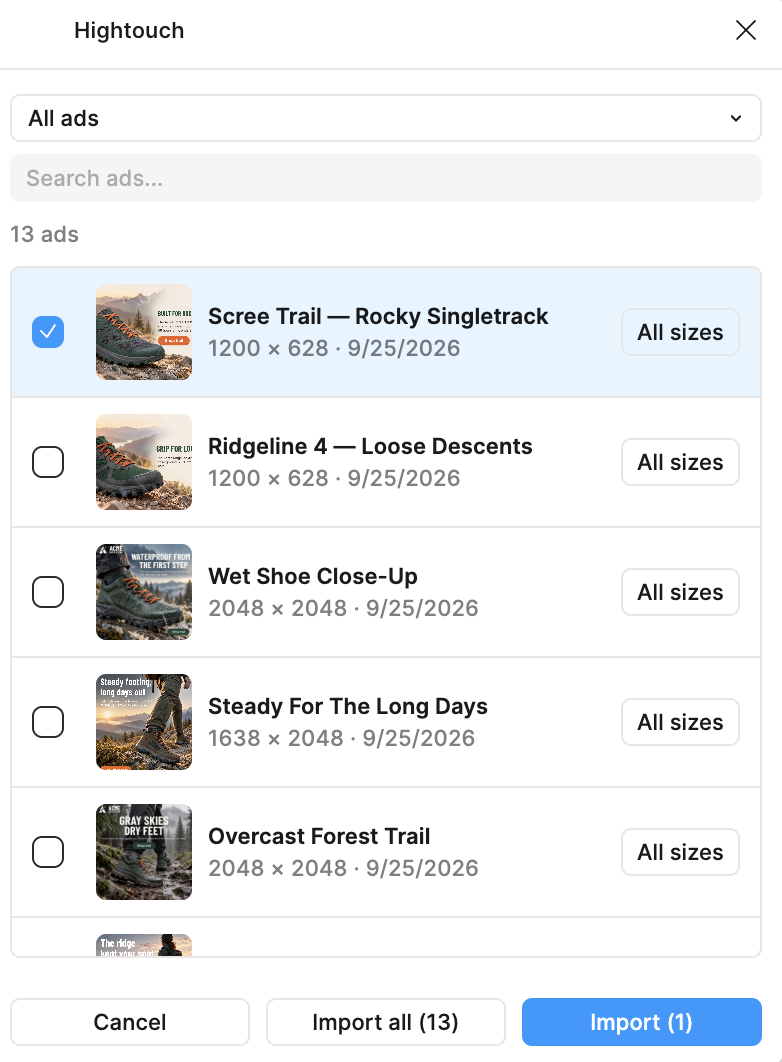
In Tools, select the Hightouch plugin, then select Run > Import ads from Hightouch….
-
Search for ads by the name they have in Hightouch, and select the ones you want.
-
To bring in only some sizes of an ad, select All sizes next to it, choose the sizes, and select Use selected sizes. Otherwise, every size is imported.
-
Select Import, or Import all to bring in every ad in the list.
Each ad lands on the canvas as a layered frame named after the ad, with text, imagery, and background as separate layers you can edit directly.