| Audience | Lifecycle marketers, creative teams |
| Prerequisites |
|
Dynamic content shows different recipients different versions of an image, text, or button in the same email, so you don't need a separate email for each audience.
Overview
Use dynamic content to change parts of an email based on customer data in your ESP, such as a customer's rewards tier, nearest store, or country. You create one email in Lifecycle Studio and choose which parts should vary. When your ESP sends the email, it uses each recipient's data to pick which version they see.
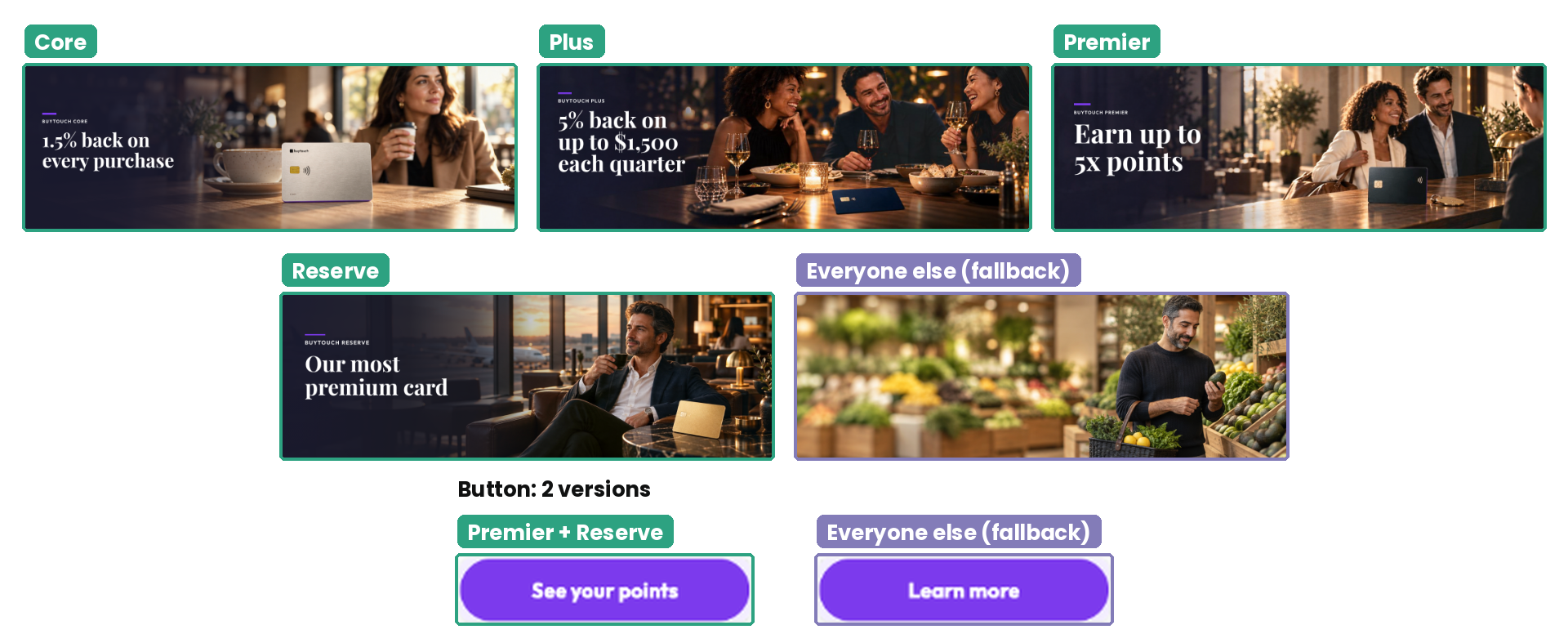
For example, a credit card rewards email can change its hero image and button based on each customer's card tier:
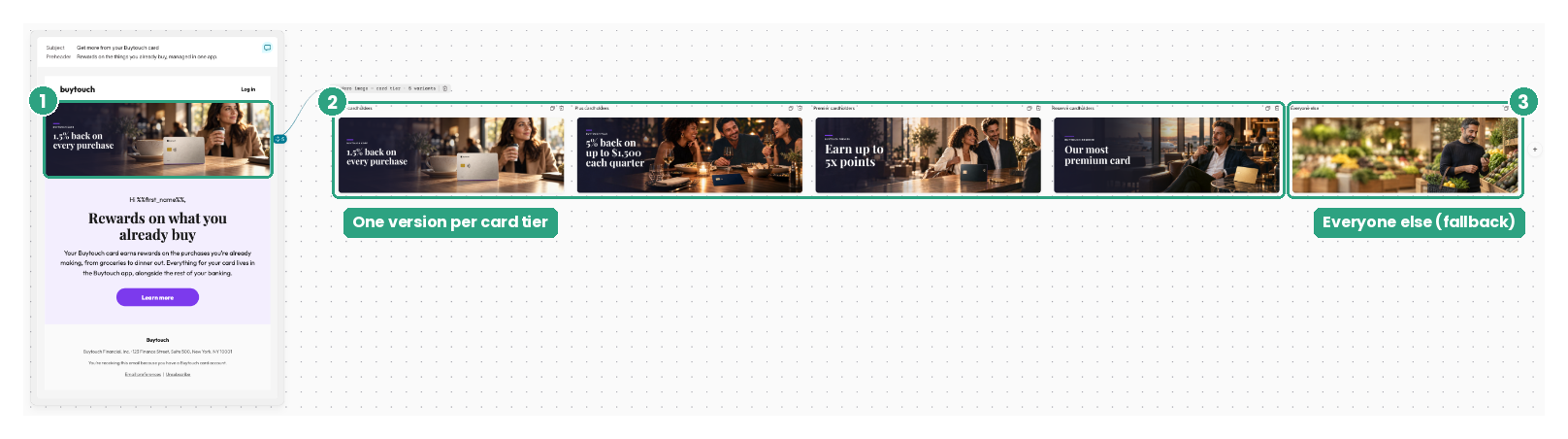
- Core cardholders see a hero image promoting 1.5% back on every purchase.
- Plus cardholders see a hero image promoting 5% back on up to $1,500 each quarter.
- Premier and Reserve cardholders each see their own hero image, along with a See your points button.
- Everyone else sees a general hero image and a Learn more button.
Every recipient gets the same email, but the hero image and button change with their card tier. The logo, layout, and footer stay the same.
How dynamic content works
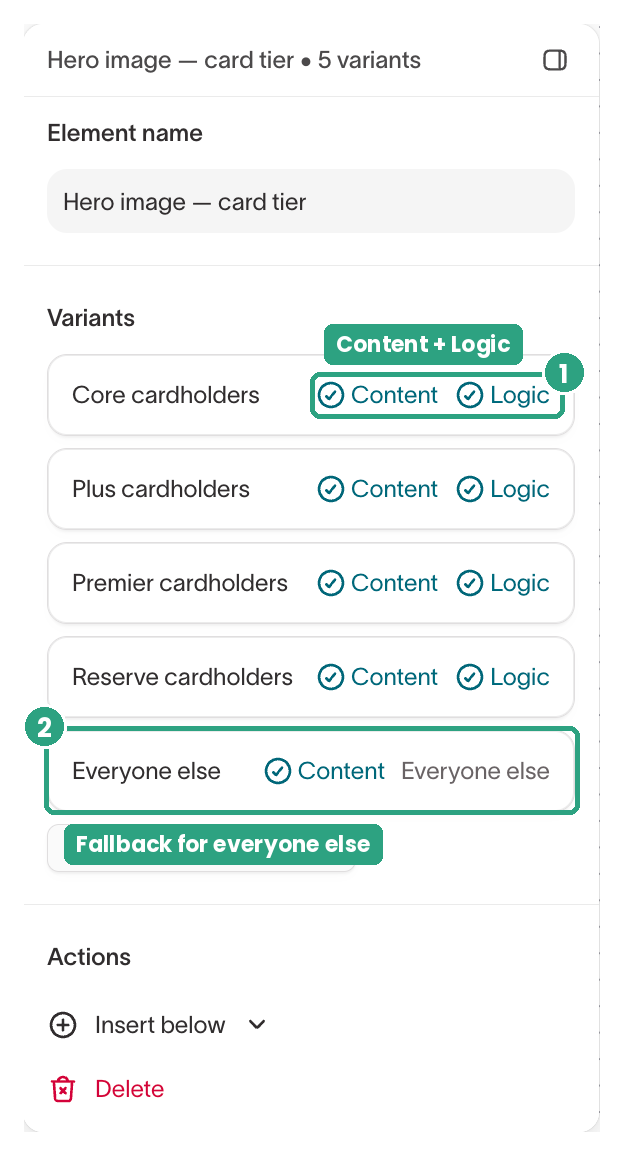
Each part of an email that changes by recipient is a dynamic element. Each version of that element is a variant. Every variant has two parts:
- Content — What the recipient sees, such as an image, text, or a button.
- Logic — The condition that decides who sees the variant, such as "the card tier is Premier or Reserve."
When your ESP sends the email, it checks a dynamic element's variants in order and shows each recipient the first one whose condition matches their data. Every dynamic element ends with an Everyone else variant, which Lifecycle Studio adds for recipients who don't match any condition.
Lifecycle Studio creates the content and conditions, and your ESP applies them. The agent writes each condition in your ESP's template language, such as Liquid for Braze, so you don't write the template code yourself. When you export the email, the conditions go with it, and your ESP applies them when it sends.
Before you begin
Dynamic content uses customer data from your ESP to decide which variant each recipient sees. For example, a rewards email might use a cardtype field to show different content by card tier.
Before you create dynamic content, give Hightouch access to your ESP's customer fields, so the agent writes conditions with the exact field names your ESP uses. If a condition uses a field name that doesn't exist in your ESP, it never matches. Recipients who should have matched it see the Everyone else variant instead.
To make your ESP's fields available to the agent:
-
Turn on read access in your ESP. Open the API key that Hightouch uses and turn on read access to custom attributes and content blocks. In Braze, for example, these permissions are
custom_attributes.get,content_blocks.list, andcontent_blocks.info. Also confirm that the API endpoint matches your ESP account's region. -
Test the destination connection. Open your ESP destination in Hightouch and select Test connection. If the custom attributes test fails, update the destination with an API key that has the permissions from step 1.
-
Sync your personalization data. Go to Context Hub > Connected data. On the Integrations tab, confirm your ESP is connected under Email Service Providers. Then open the Personalization data tab, select your ESP, and select Resync.
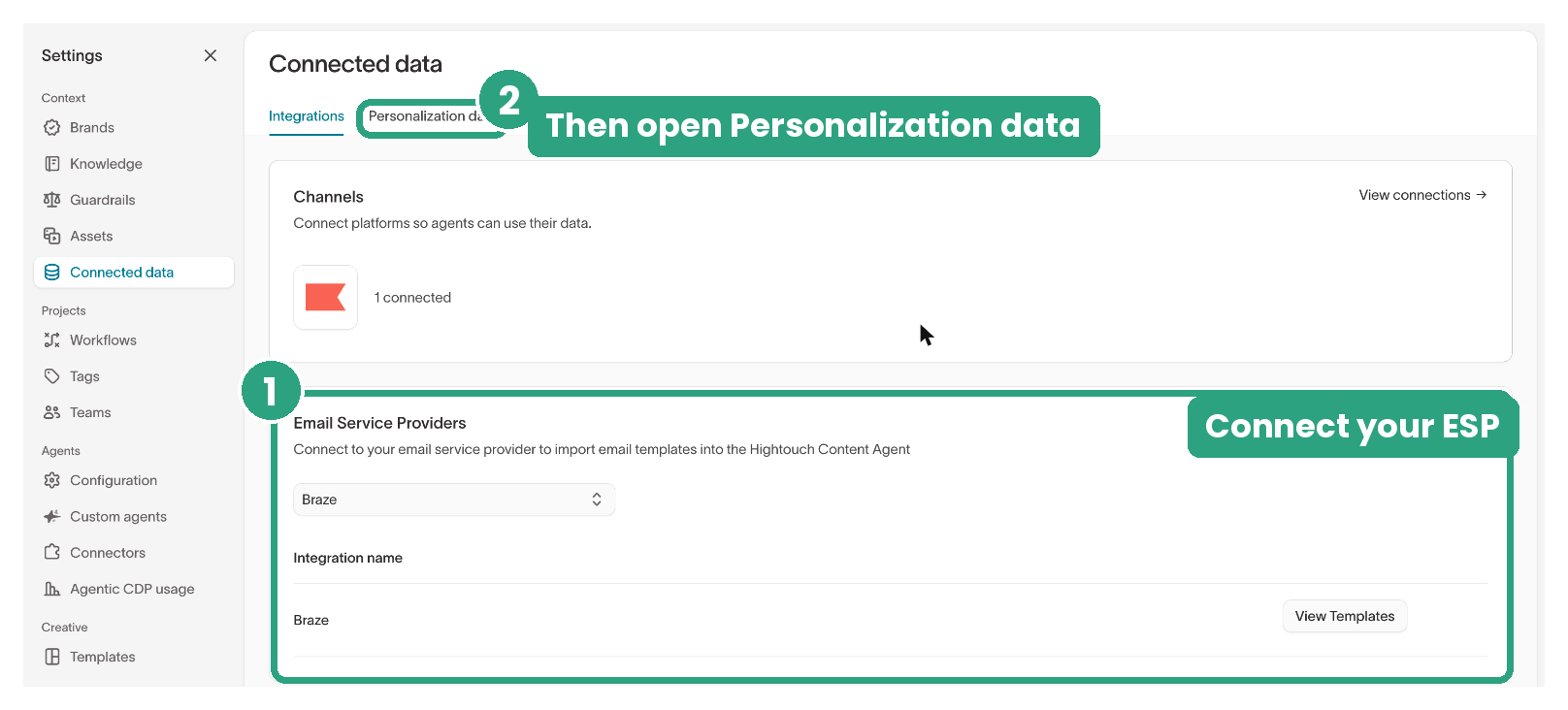
Once the sync completes, the agent uses your ESP's field names when it writes conditions. For details on syncing fields and content blocks, see Personalization data.
Choose what conditions check
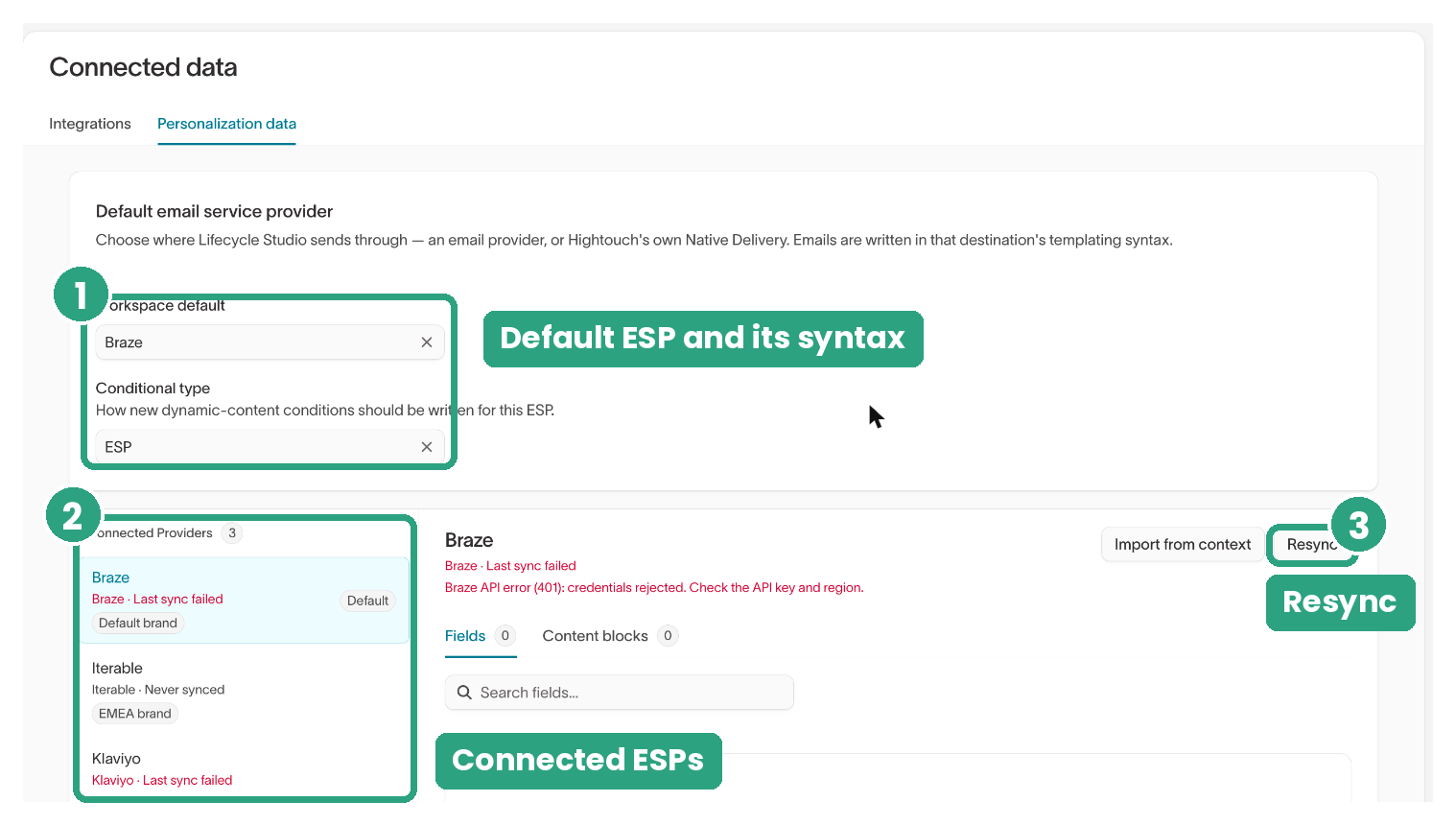
By default, conditions check fields in your ESP's customer profiles. To change this, set Conditional type on the Personalization data tab:
- ESP — Conditions check fields in your ESP's customer profiles, and your ESP checks them when it sends the email. This is the default.
- Hightouch — Conditions use audience definitions built on your warehouse data. Each time the send's sync runs, Hightouch checks which variant each recipient matches and syncs the result to your ESP. Your ESP then shows each recipient their matching variant. This option works with Braze, Iterable, and Salesforce Marketing Cloud.
With Hightouch, a recipient's variant reflects their data when the sync last ran, not when your ESP sends. Changes to a condition or audience apply on the next sync run.
Decide what to make dynamic
Before you create variants, decide which parts of your email change based on customer data. Keep content that's the same for everyone outside dynamic elements.
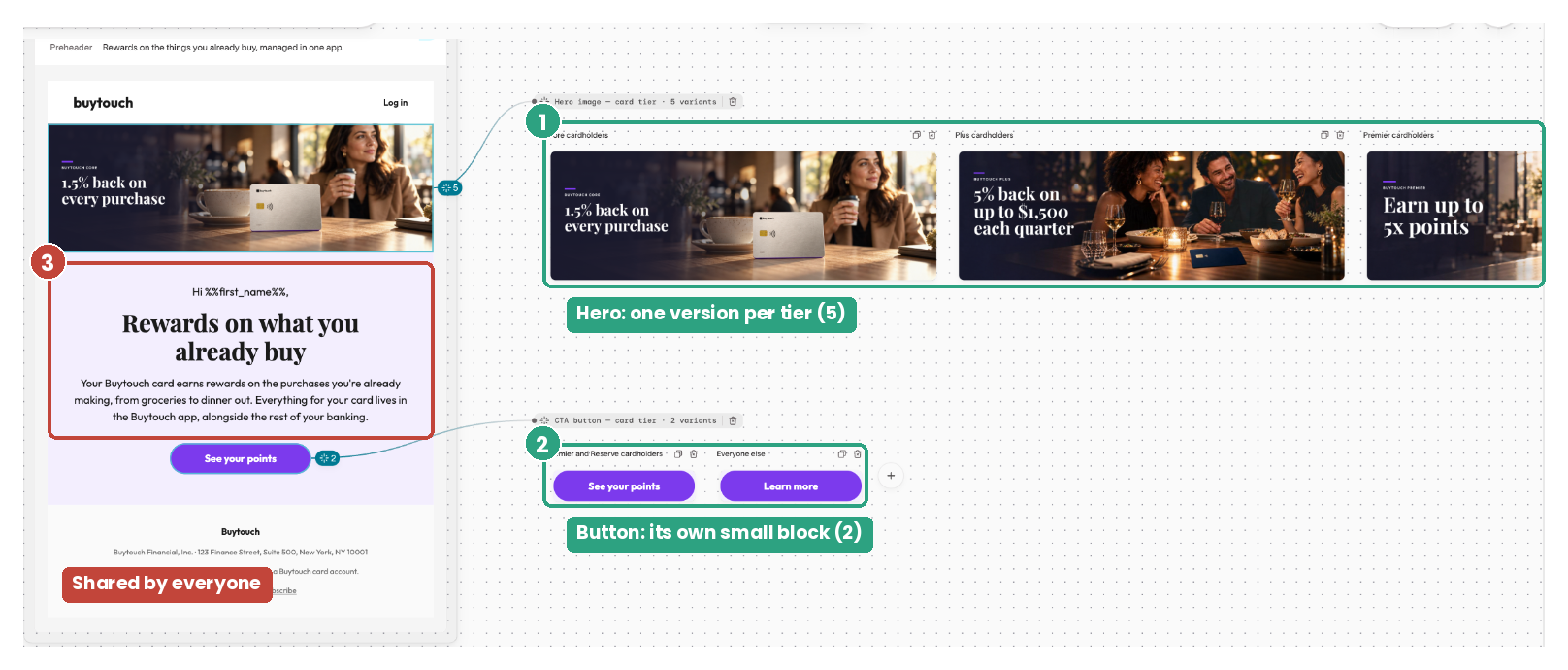
For example, in the card rewards email:
- Hero image — Changes for each card tier.
- Button — Changes only for Premier and Reserve cardholders.
- Logo, body copy, and footer — Stay the same for everyone.
The hero image and button change for different groups of recipients, so each is a separate dynamic element. You can then change the button text once, instead of in every hero variant.
When you choose what to make dynamic:
- Select only the content that changes. If one line of text varies, make that line dynamic instead of the whole section.
- Separate elements that vary for different groups. Make a hero image and a button separate dynamic elements when they change for different recipients.
- Keep shared content outside variants. Don't repeat logos, buttons, legal text, sign-offs, or footers in every variant.
If an email already repeats content across variants, ask the agent to clean it up: "Make only the parts that differ between variants dynamic. Move anything repeated, like buttons or footers, outside the variants. Don't change any copy."
Add dynamic content
Finish your message before you add dynamic content. Changes to the main message don't update variants you've already created.
-
Select the content you want to personalize. In the email preview, select the element that should change by recipient, such as a hero image or product module. If the content has its own background, select the whole block so every variant keeps it.
-
Select Make dynamic. The option appears in the toolbar for your selection.
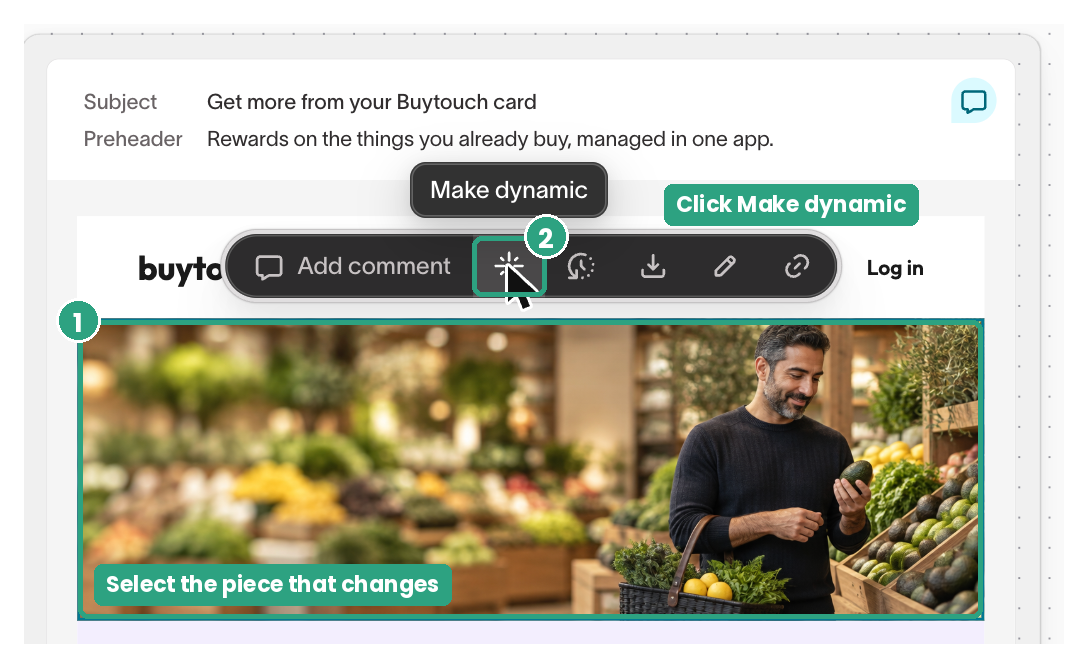
If you select several elements, Lifecycle Studio makes the smallest section that contains all of them dynamic. Each variant replaces that whole section, including any content inside it that you didn't select.
-
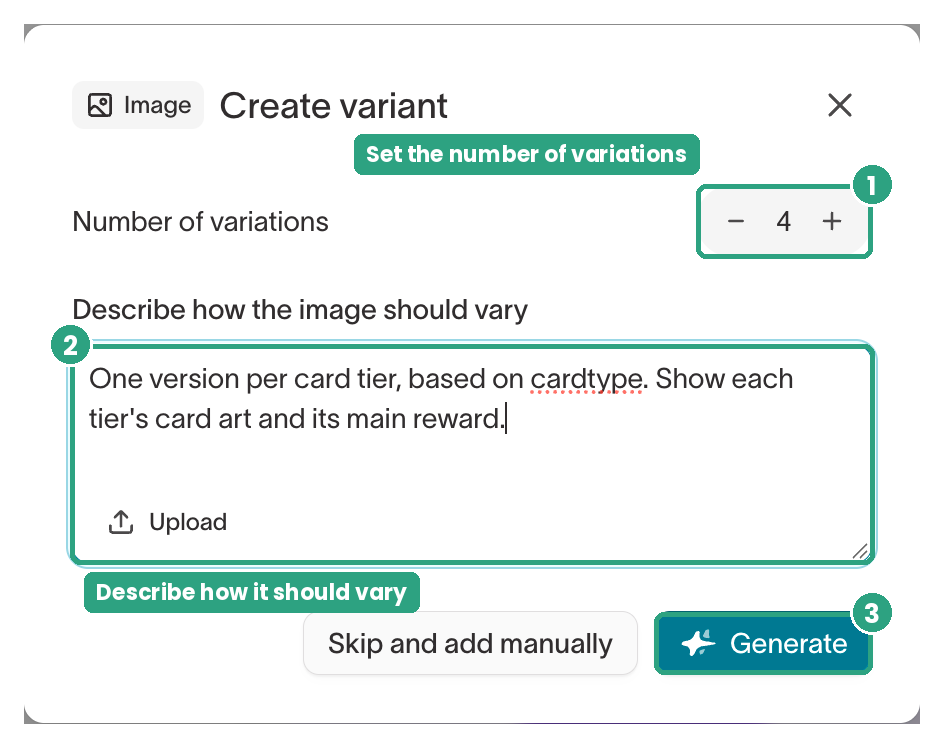
Set the number of variations. Count only the groups that get their own version, not Everyone else. For example, set it to
4for the four card tiers. Lifecycle Studio adds Everyone else as a fifth variant. -
Describe what each variant should show and who should see it. Name the customer field, for example, "One version per card tier, based on cardtype. Show each tier's card art and its main reward." You can also upload a reference file.
-
Generate the variants. Select Generate to have the agent create the variants, or select Skip and add manually to write them yourself. If you have unsaved edits, Lifecycle Studio saves them as a new version before it creates the variants.
-
Review each variant. Variants appear in a row on the canvas, next to the email. Select the dynamic element to check each variant's content and condition. Changes to one variant don't affect the others, so to update content they share, edit each one.
-
Check the Everyone else variant. Make sure its content makes sense for anyone who doesn't match a condition, including recipients with no card tier on file.
-
Repeat for each element that changes separately. For the card rewards button, select the button, set the number of variations to
1, and describe the change. Lifecycle Studio adds Everyone else as the second version.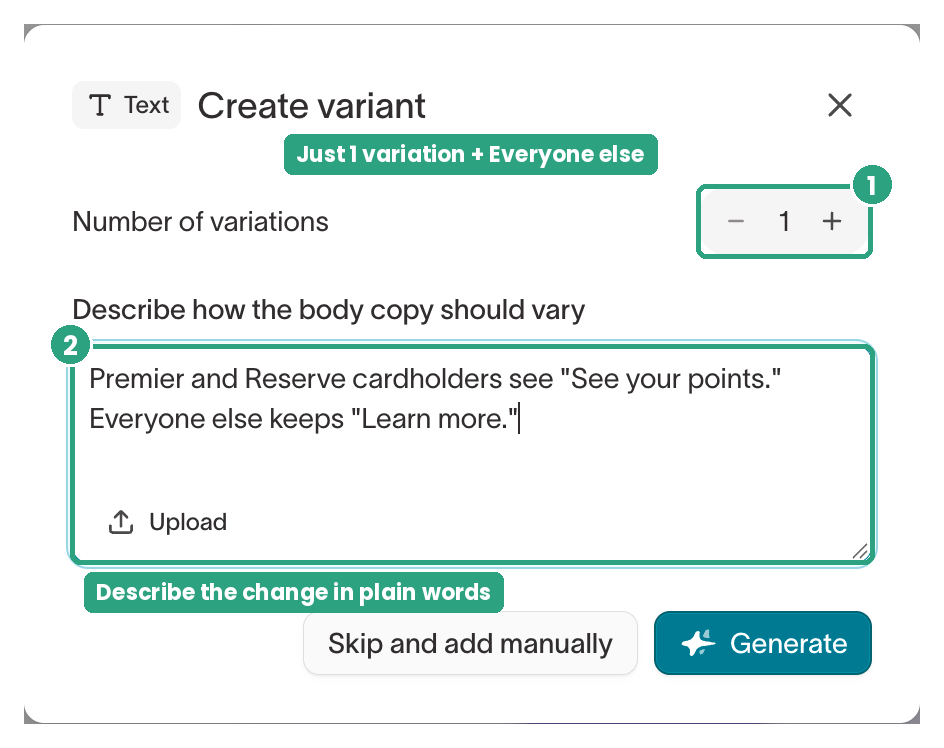
Preview, test, and export
Before you export, use Preview dynamic content to see the email with each variant. Select a variant, such as Core cardholders, to update the email preview. The panel also shows which ESP and template language the conditions use.
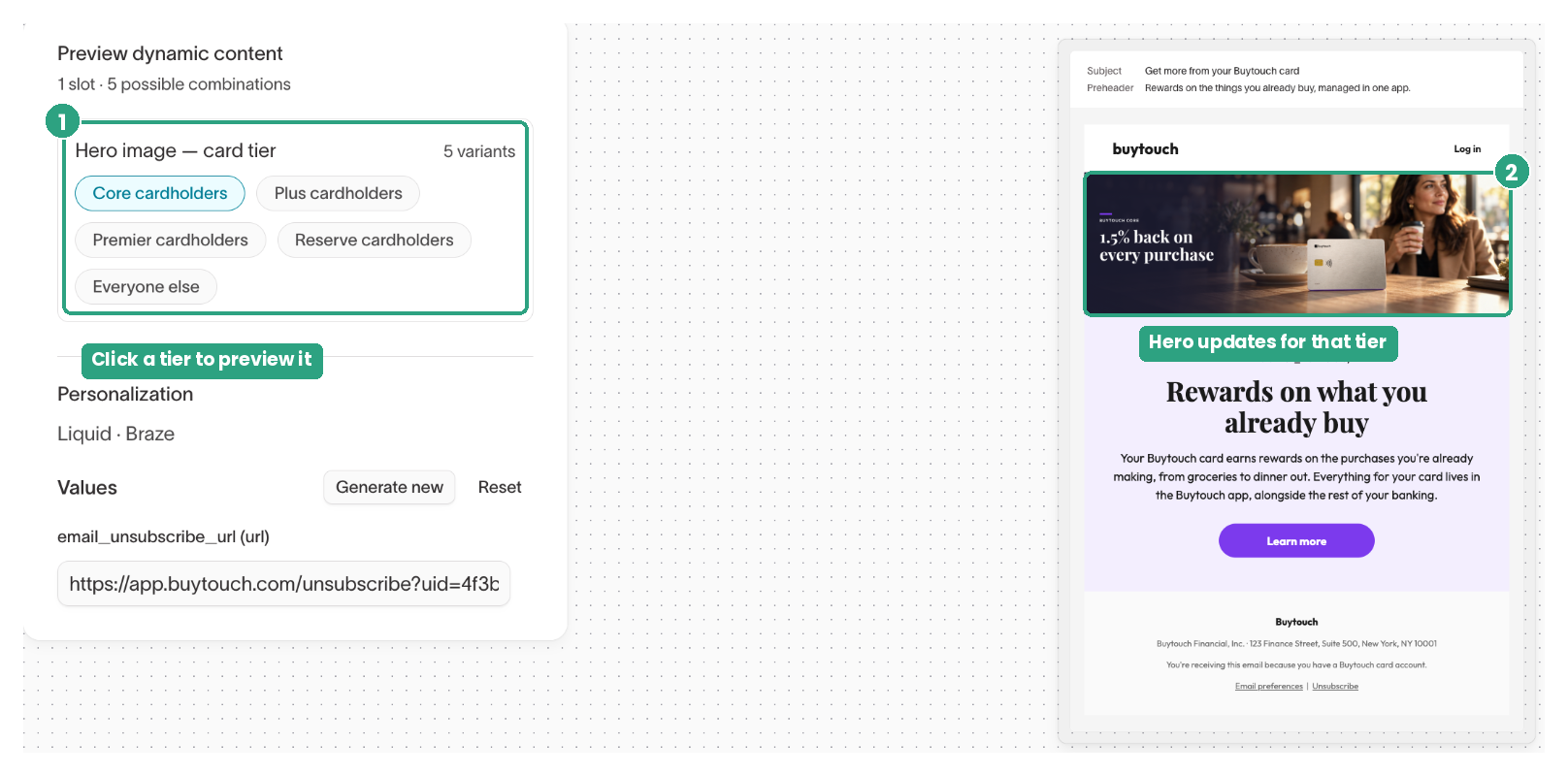
When the email is ready, export it to your ESP.
Test your variants in your ESP
The Lifecycle Studio preview shows each variant, but only your ESP shows which variant a real profile gets. In your ESP, preview the email with test profiles that match different conditions. For the card rewards example, test a Core cardholder, a Reserve cardholder, and someone with no card tier on file.
Before you send, check that:
- Each test profile sees its own variant. If a profile that should match a condition sees Everyone else, check that the field name and value in the condition match the profile's data in your ESP.
- Recipients who don't match any condition see the Everyone else variant.
- Shared content, such as the logo and footer, looks the same in every variant.
- Long product names, tier names, or translated text don't break the layout.
- Variants render correctly in the email clients your recipients use, such as Gmail and Outlook.
If you made the same fix in more than one email, save it as a rule in Context Hub so the agent applies it in future emails.
Where design matters, build the variant as an image. Text-based variants can pick up styling from the section around them, such as a background color. Building designed pieces like hero cards as images keeps every variant consistent.
Localize content for regions and languages
You can also use dynamic content to show different languages or regional content in the same email. For example, recipients in France see French copy, and recipients in Spain see Spanish copy.
Save your markets, languages, and translation rules in a Context Hub file, so you don't have to list them in every prompt. When you ask for localized variants, the agent uses the markets in the file. To cover a new market, add it to the file.
You can ask the Context Hub agent to create the file. Include:
- Markets and languages — The language each market uses, including regional versions such as Latin American Spanish and European Spanish.
- Terms to leave untranslated — Brand names, product names, and tier names that stay in their original language.
- Content your team translates — Content such as legal disclosures, where the agent must use your team's approved translations instead of translating it.
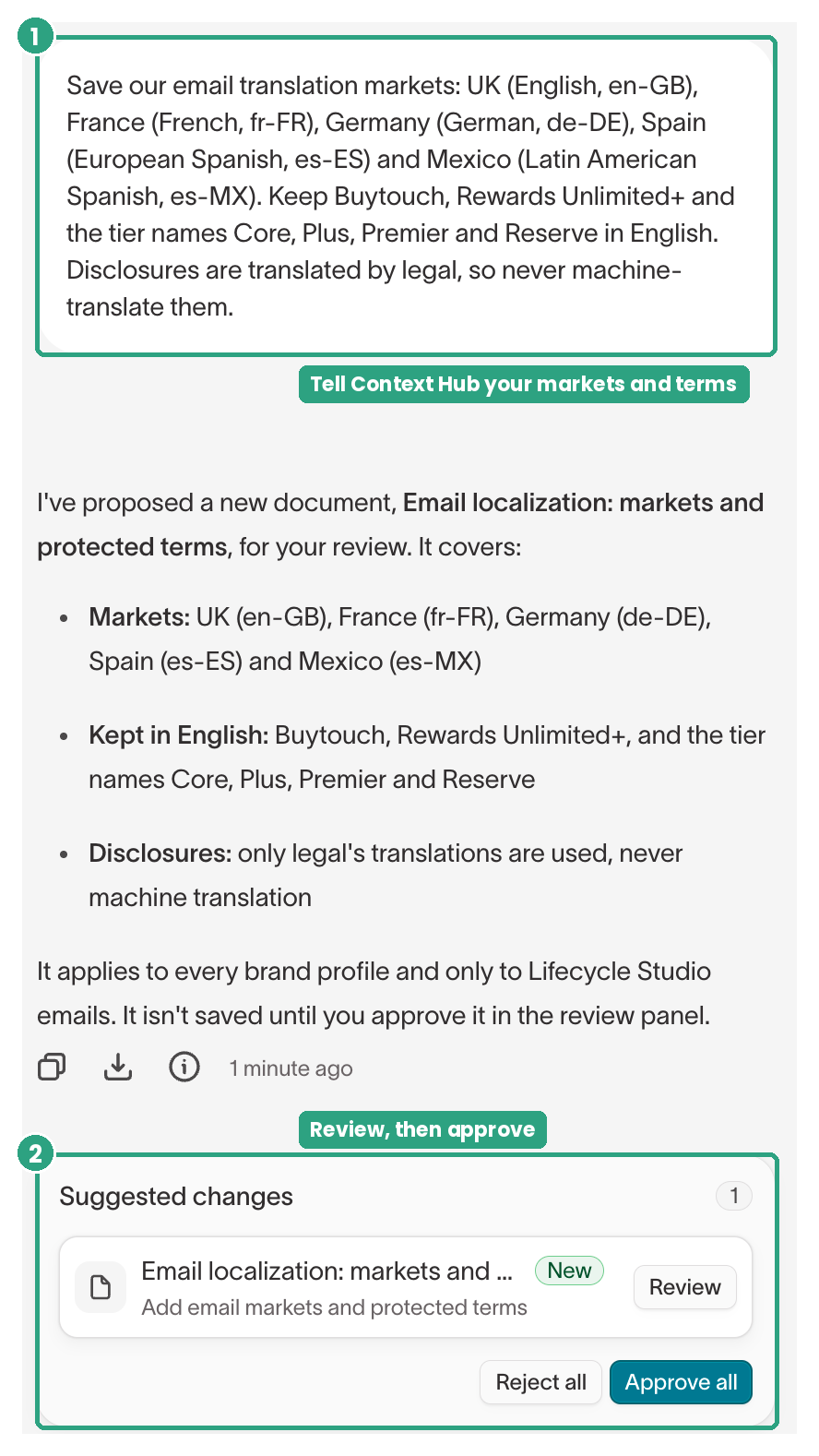
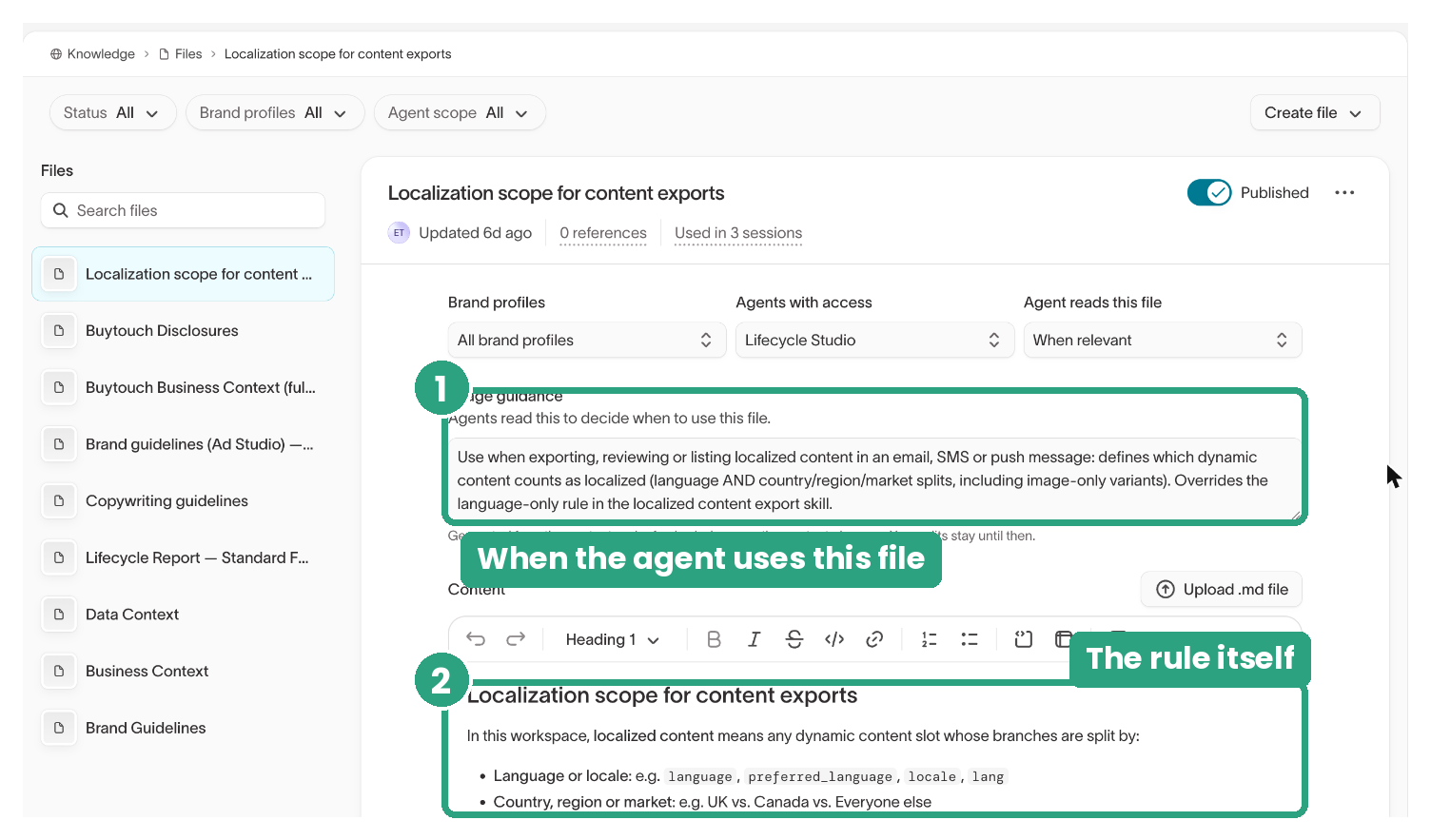
Review and approve the file the agent suggests. The saved file appears with your other files in Context Hub > Knowledge > Files.
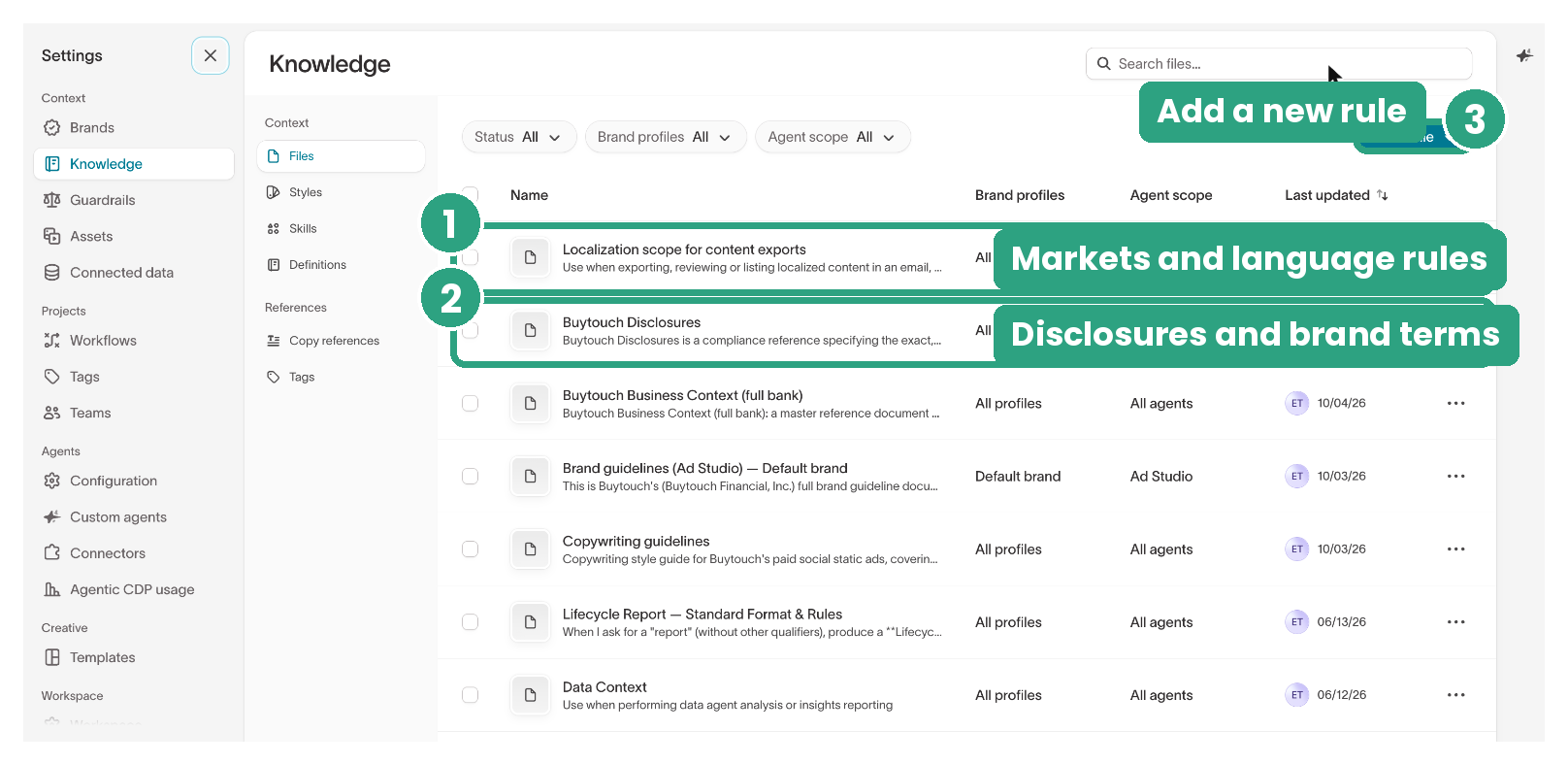
Open the file to update its rules, or to choose which agents use it and when. Usage guidance tells agents when to read the file.
Next steps
- Launch a campaign to pair the email with an audience and sync it to your ESP.
- Personalization data to manage the fields and content blocks the agent writes conditions against.