| Audience | Marketing teams, creative teams, platform admins |
| Prerequisites |
Manage the images, templates, videos, and product catalogs agents use to generate content.
Overview
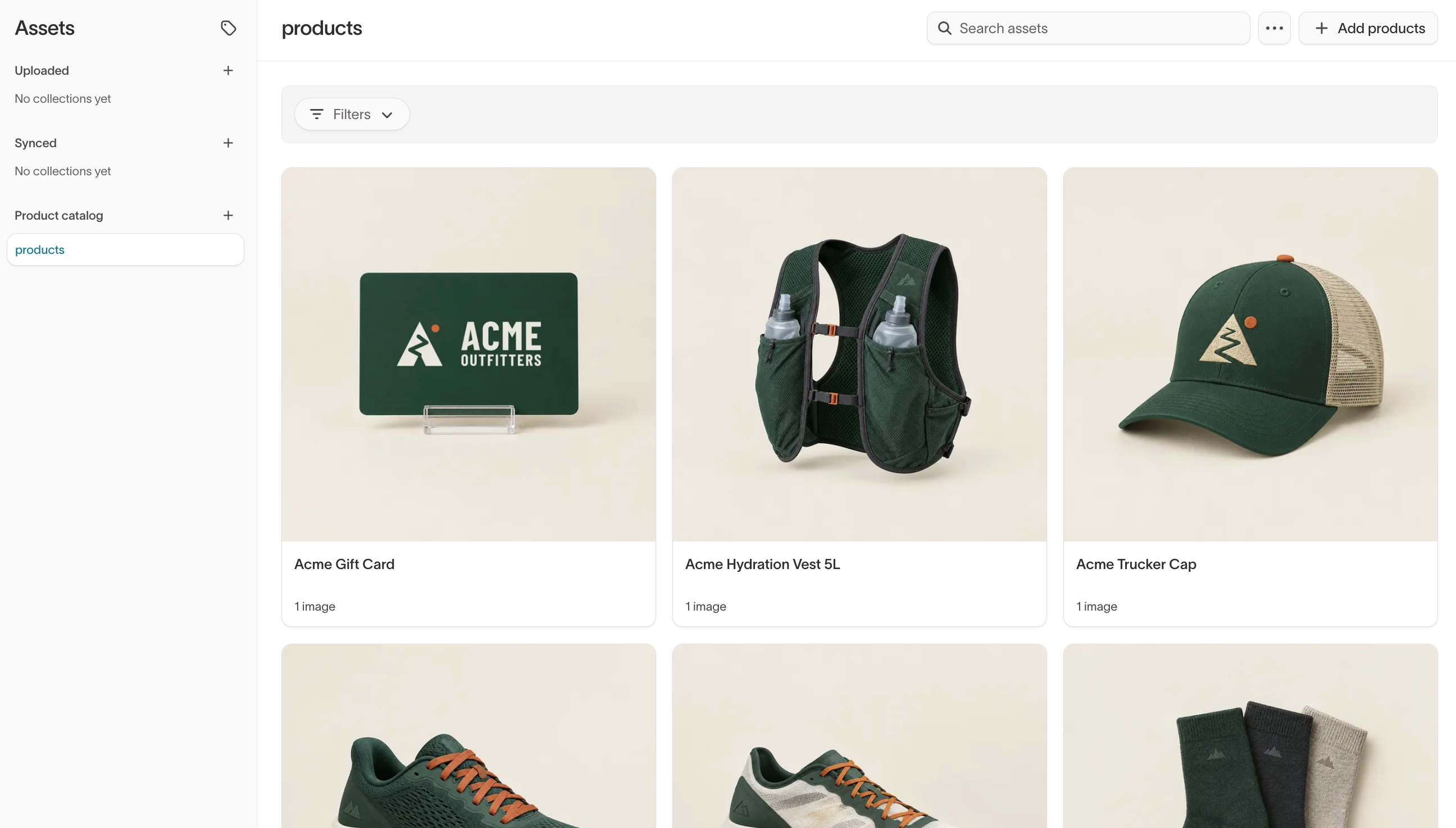
Ad Studio and Lifecycle Studio share one asset library in Context Hub > Assets, so you add a file once and both products can use it. Files live in collections, grouped by where they come from:
- Uploaded — Collections you fill yourself, by uploading files or importing them from a spreadsheet.
- Synced — Collections that Hightouch fills from a connected source, such as ads from your ad platforms or files from your digital asset manager (DAM). You can't upload files to them.
- Product catalog — Your product data, uploaded from a file or synced from a product feed.
Agents use your prompts, collection instructions, and brand settings to find relevant assets. You can also reference a specific asset in a prompt.
Assets are the files agents place in content. Each brand's identity, including its logos, colors, and typefaces, belongs in its brand kit. Logo files and lockups you want agents to place in generated content can also go in a collection here. Business knowledge and instructions belong in Knowledge.
Organize assets into collections
Create a collection for each group of files the agent should handle the same way. Product photography, logos, templates, and lifestyle imagery each need different instructions, so give each its own collection.
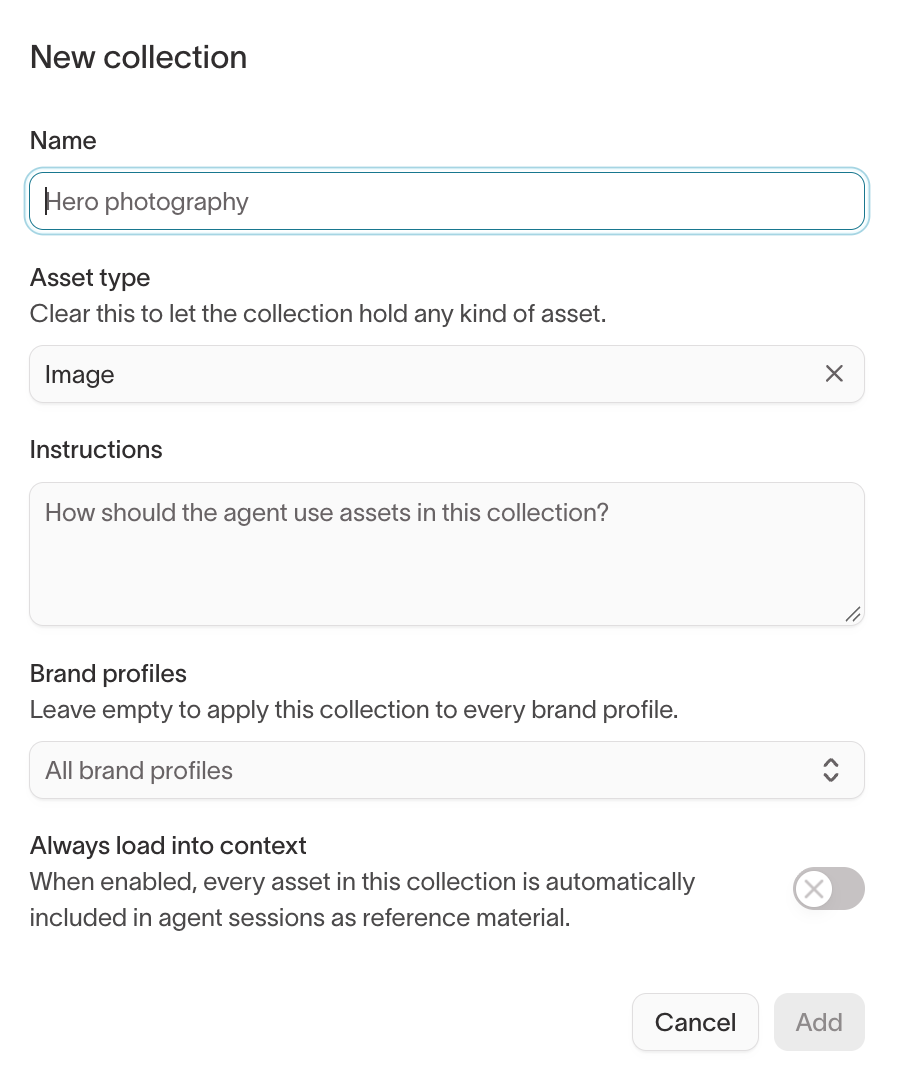
To create one, select Add collection in the Uploaded section. When you set up a collection, you decide:
- What to call it, and whether it holds only images, only components, only video, or any kind of asset.
- How the agent should use the files.
- Which brands can use them.
- Whether every agent session includes them.
To change these settings later, open the collection's actions menu and select Edit collection. Synced collections use the same instructions, brand, and loading settings, but their files come from the connected source.
Add collection instructions
In Instructions, answer the question the field asks: "How should the agent use assets in this collection?" Write it the way you'd brief a designer who hasn't seen your ads before. For example:
- "Use these only as background photography."
- "Always place the logo in a corner, never over a product."
- "Use these lifestyle shots for spring campaigns only."
Instructions apply to every file in the collection, so write a rule here once instead of repeating it in every prompt.
Limit a collection to specific brands
Limit a collection when its files belong to one brand, so they stay out of your other brands' ads and emails. In Brand profiles, select the brands that can use the collection. Leave it empty to apply the collection to every brand profile.
Control when assets load
Turn on Always load into context for the few files the agent should see every time, such as your primary logos and brand lockups. Every asset in the collection then goes into agent sessions as reference material.
Leave it off for large collections like product photography or campaign imagery. Agents still find files in those collections based on your prompt and the collection's instructions.
Control asset modifications
Turn off AI edits for a collection when its files, such as licensed photos or approved product shots, must be used exactly as they are. You set this in Guardrails.
Upload assets
- Go to Context Hub > Assets and open a collection in the Uploaded section.
- Select Upload, or drag files onto the collection.
- Choose how to upload:
- Files — Add image, component, or video files directly.
- Spreadsheet — Import assets from a CSV, XML, or JSONL file that lists them by URL. Then map the columns, such as Record ID column, Title column, and the column that holds each image or video URL.
- Select Upload.
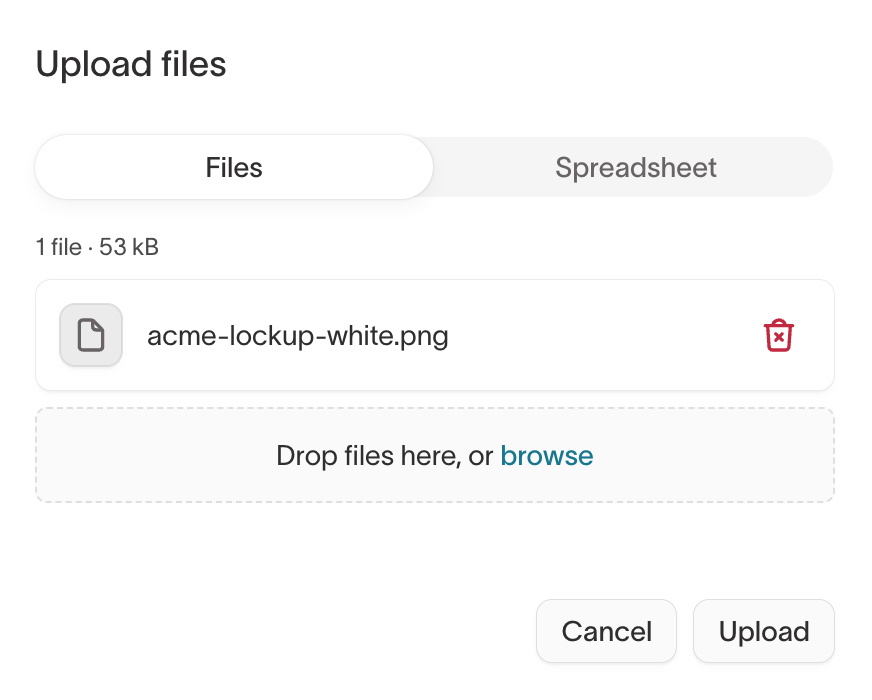
A collection accepts only the file types that match its Asset type. Images can be JPG, PNG, GIF, or WebP, components are SVG, and video can be MP4, MOV, or WebM.
Upload a range of material, such as product shots, lifestyle imagery, logos in several formats, and background textures, so agents have more to choose from when they generate different concepts.
Upload Figma templates
To generate ads against your own Figma layouts, export each template frame as SVG and upload it to a collection with the Component asset type. In Figma's export settings, leave Outline text unchecked. That keeps the text layers editable, so the agent can replace copy in the template instead of redrawing it.
To import Figma frames as templates without exporting them, connect Figma Designs in Connected data.
Sync assets from connected platforms
Use synced collections for files that already live in your ad platforms or DAM. Hightouch fills them from the connected source, so you don't upload or replace those files by hand. You can still edit a synced collection's instructions, brand profiles, and Always load into context setting.
Ads from your ad platforms
When you connect Facebook Ads, Hightouch syncs your static and video ads into the Static Ads and Video Ads collections in the Synced section once a day. Ads that stop appearing in your account are removed after 60 days. These collections are named by the sync and can't be renamed.
Agents use these ads as inspiration for mood, palette, and composition. They don't copy an ad's layout or copy unless you ask them to keep specific elements.
Files from your digital asset manager
To bring files in from your DAM, first connect it in Connected data. Syncs work with the digital asset managers listed there, such as Bynder, Canto, and Frontify. The Figma cards don't support synced collections.
After you connect your DAM:
- In the Synced section, select Create synced collection.
- Name the collection, add instructions, and select brand profiles, then select Add.
- In the new collection, select Create sync.
- Select the Source, name the sync, and choose which part of your DAM library to pull from.
- Set a schedule: run the sync manually, or keep it current on an interval, a custom recurrence, or a cron expression.
- Select Create sync.
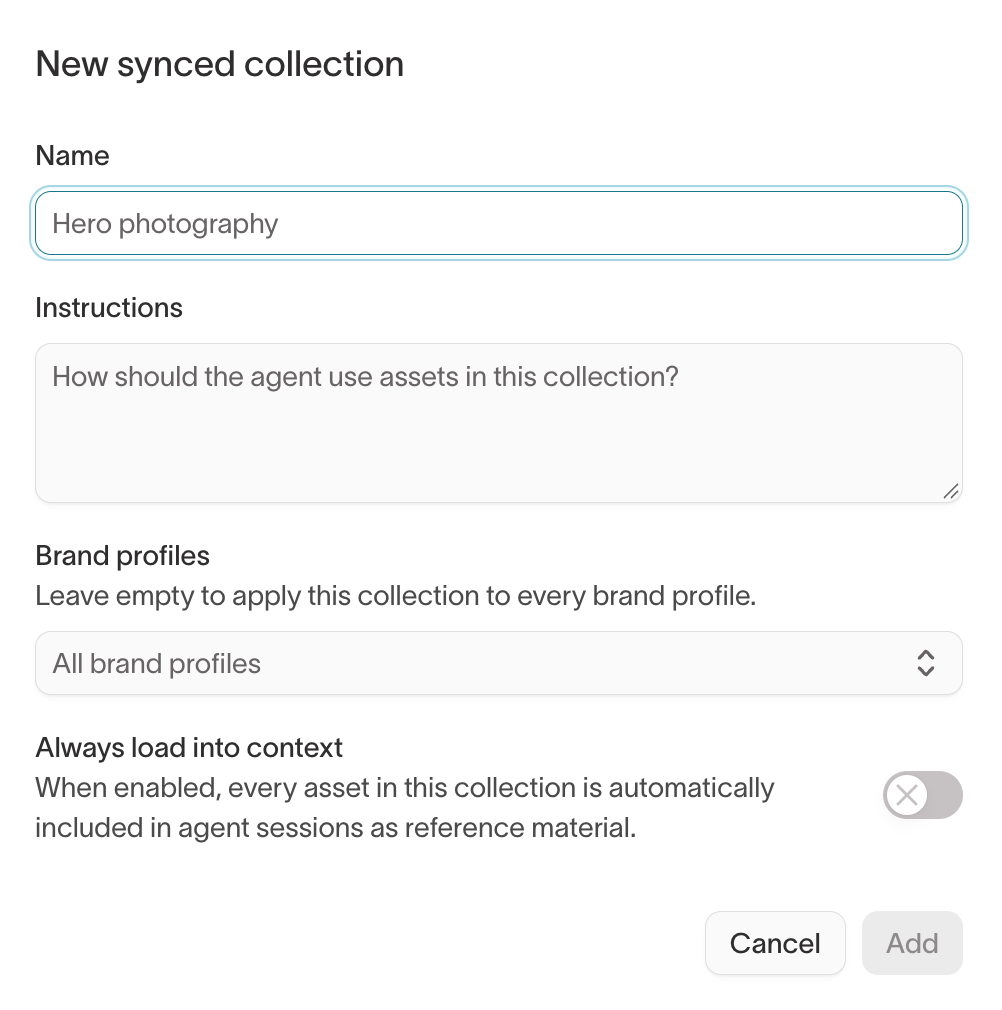
To check a sync's progress, run it again, or change its settings, open the collection's actions menu and select Manage sync.
Connect a product catalog
Connect a product catalog when you want agents to generate product-specific ads and emails. The catalog gives agents your product names, descriptions, and images during generation. If your team creates brand or campaign content rather than product content, you can skip it.
To add a catalog, select Create product catalog in the Product catalog section, enter a Name, and select a Brand profile or All brands. You can add more than one, such as one per brand.
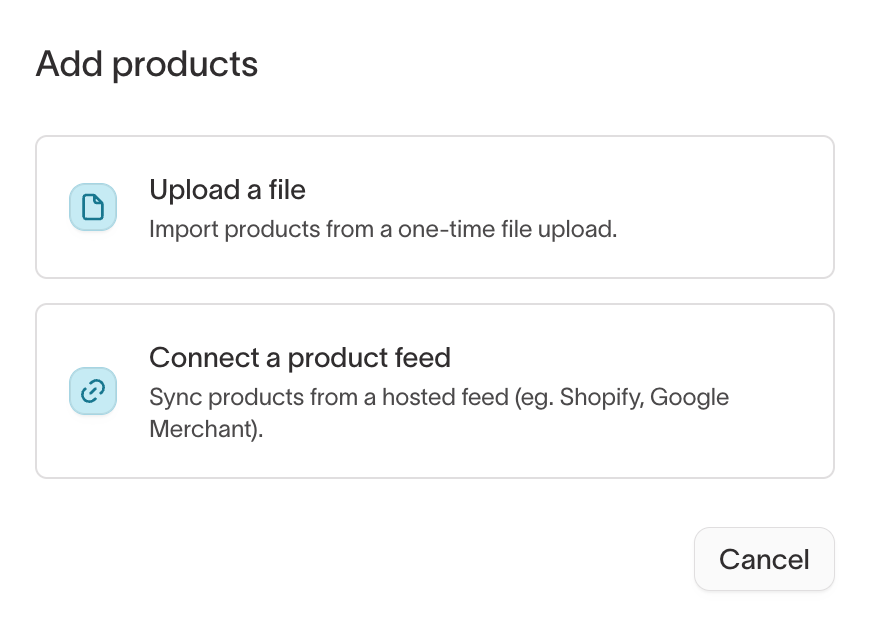
To fill a catalog, open it and select Add products. Choose how products arrive:
- Upload a file — A one-time import. Use it for a small or rarely changing catalog, or to try the catalog before you set up a feed.
- Connect a product feed — A recurring sync from a hosted feed. Use it when your products, prices, or images change often.
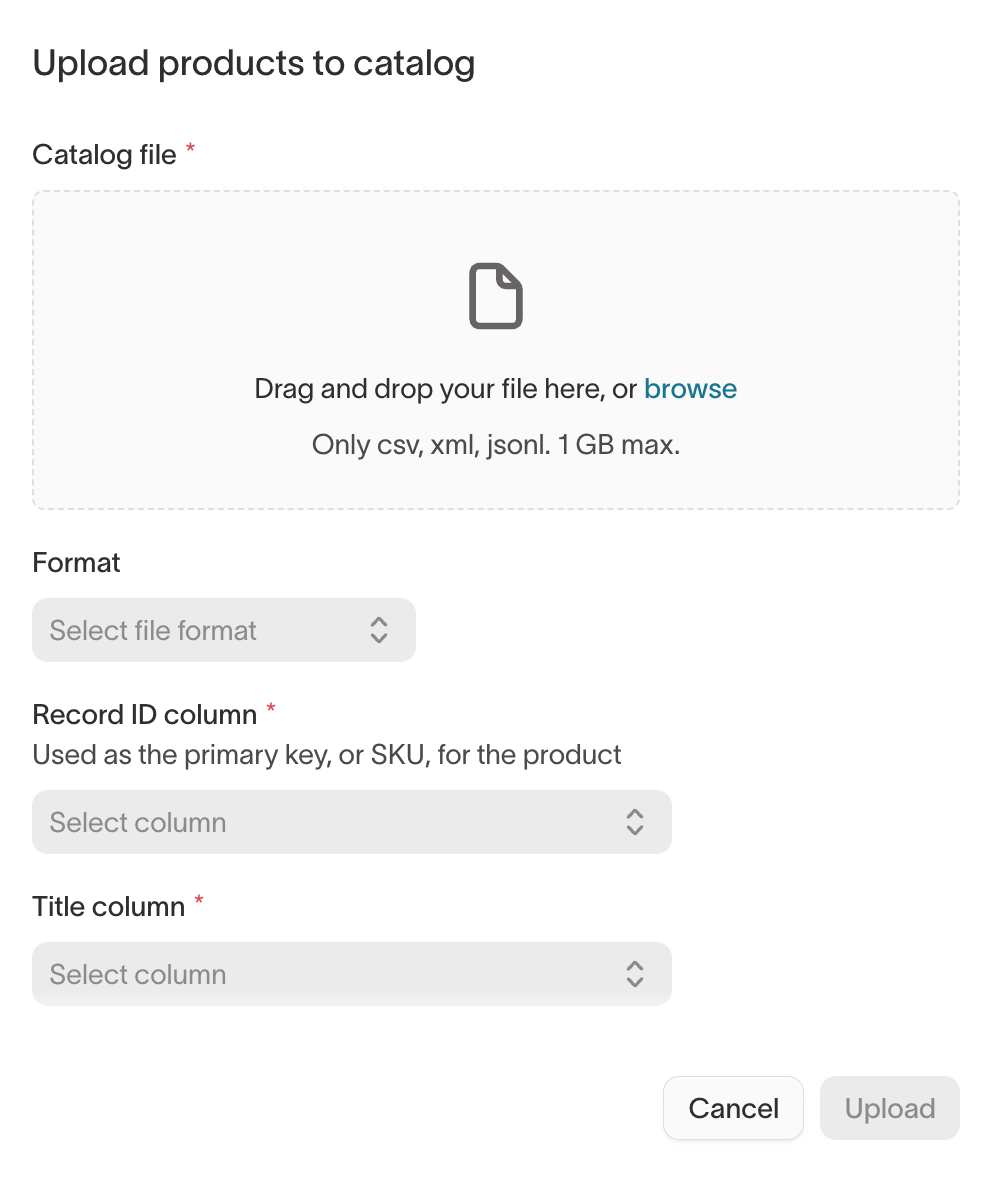
Upload a product file
Upload a CSV, XML, or JSONL file of up to 1 GB, choose its Format, then map your columns to the catalog fields:
| Field | Required | How the agent uses it |
|---|---|---|
| Record ID column | Yes | The primary key, or SKU, that identifies each product |
| Title column | Yes | Product name in headlines and copy |
| Primary image column | Yes | URL of the main product image used in generated content |
| Description column | No | Product details that inform copy |
| Additional image columns | No | URLs of extra product images, for more variety |
Connect a product feed
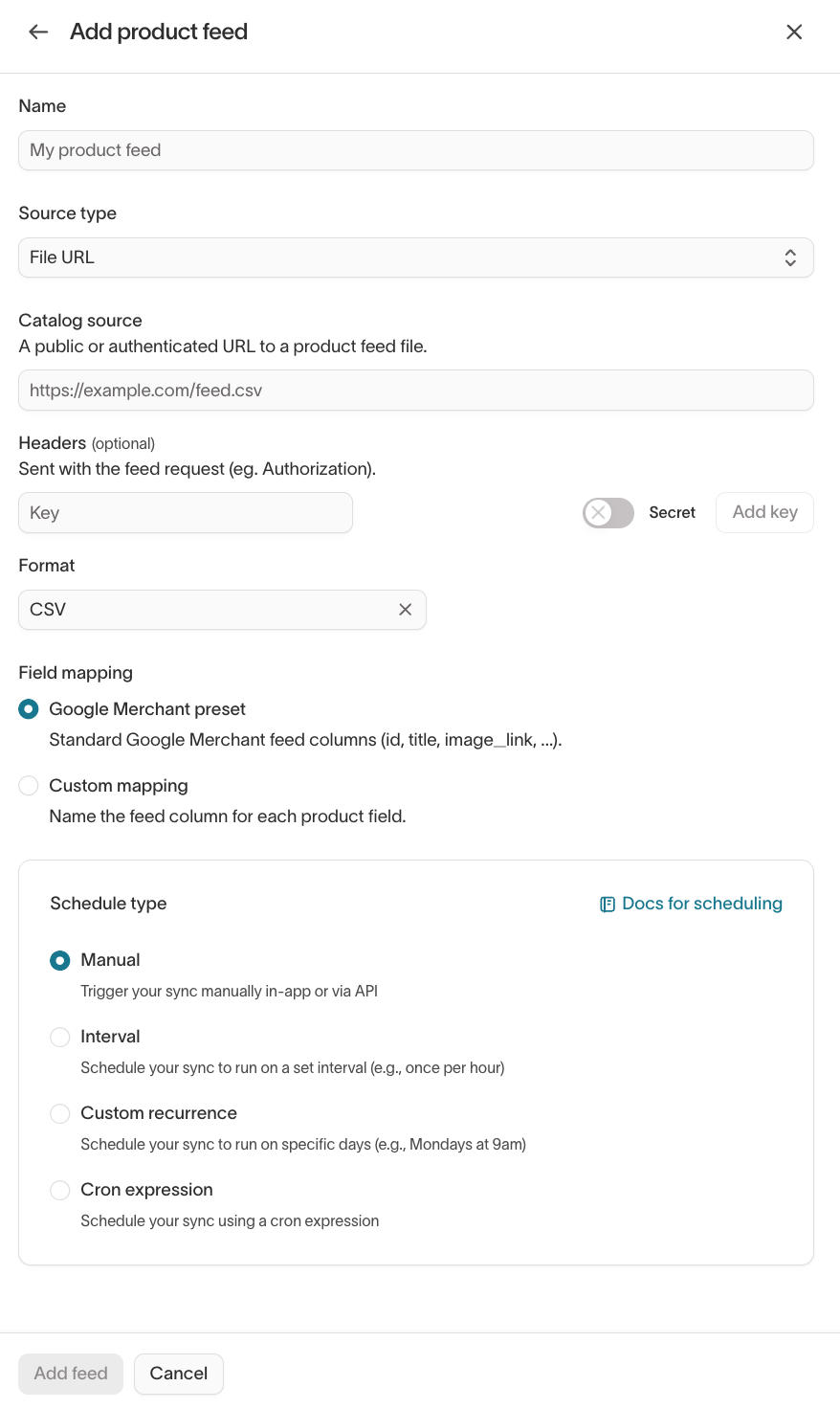
Connect a feed when you already publish a product feed file, such as a Shopify or Google Merchant export, and want the catalog to stay in sync with it.
- Enter a Name for the feed.
- Choose where the feed lives in Source type:
- File URL — A public or authenticated URL to the feed file. Add request headers, such as an authorization header, if the URL needs them.
- SFTP — A file on your SFTP server, using a password or private key.
- Choose the feed's Format: CSV, TSV, or JSONL.
- Map the feed columns:
- Google Merchant preset — Use it when your feed follows the standard Google Merchant columns, such as
id,title, andimage_link. - Custom mapping — Name the feed column for each product field when your feed uses its own column names.
- Google Merchant preset — Use it when your feed follows the standard Google Merchant columns, such as
- Choose a Schedule type:
- Manual — Sync only when you trigger it. Good for a catalog that rarely changes.
- Interval — Sync at a regular interval, such as every few hours.
- Custom recurrence — Sync on specific days and times.
- Cron expression — Sync on a schedule you write as a cron expression.
- Select Add feed.
To run a feed now, view its sync runs, or edit it, open the catalog's actions menu and select Manage sync.
To use catalog products in generated content, see Ads and Lifecycle Studio campaigns.
Reference assets in a prompt
Name an asset in your prompt when you want a specific file in the result instead of the one the agent would choose. Refer to it exactly or loosely, such as "the blue sweater," and say whether to use it as-is or as a starting point.
During iteration you can swap assets in the chat, such as "use the lifestyle shot instead of the product image," or select a specific file in the visual editor.
See Reuse assets from your workspace for how to word these requests.
Next steps
- Connect a digital asset manager to bring your DAM files into a synced collection.
- Set guardrails to control which changes agents can make to each collection's images.