| Audience | Marketing teams, platform admins |
| Prerequisites |
|
Control how agents can change images in ads and emails, set ad and email defaults, and create agent reviewers for ad creative.
Overview
You manage guardrails in Context Hub > Guardrails. Which tabs you see depends on the products in your workspace:
- Ads — Image rules, AI disclosure defaults, and ad sizes for Ad Studio. Requires Ad Studio.
- Emails — Layout, image rules, and HTML best practices for Lifecycle Studio. Requires Lifecycle Studio.
- Agent reviewers — Agents your team can ask to review ad creative in Ad Studio comments. Requires Ad Studio.
Each guardrail applies at one of these levels:
- One brand — The brand's image generation setting, AI disclosure defaults, and agent reviewers. If your workspace has more than one brand profile, select the brand in the brand menu on the tab before you change them.
- One asset collection — Collection guardrails, which apply to every brand that uses the collection.
- The whole workspace — Ad sizes and channels, and everything on the Emails tab.
Set ad guardrails
Go to Context Hub > Guardrails > Ads to decide what Ad Studio agents can do with images, how AI-generated ads are labeled, and which sizes ads are produced in.
Control image modifications
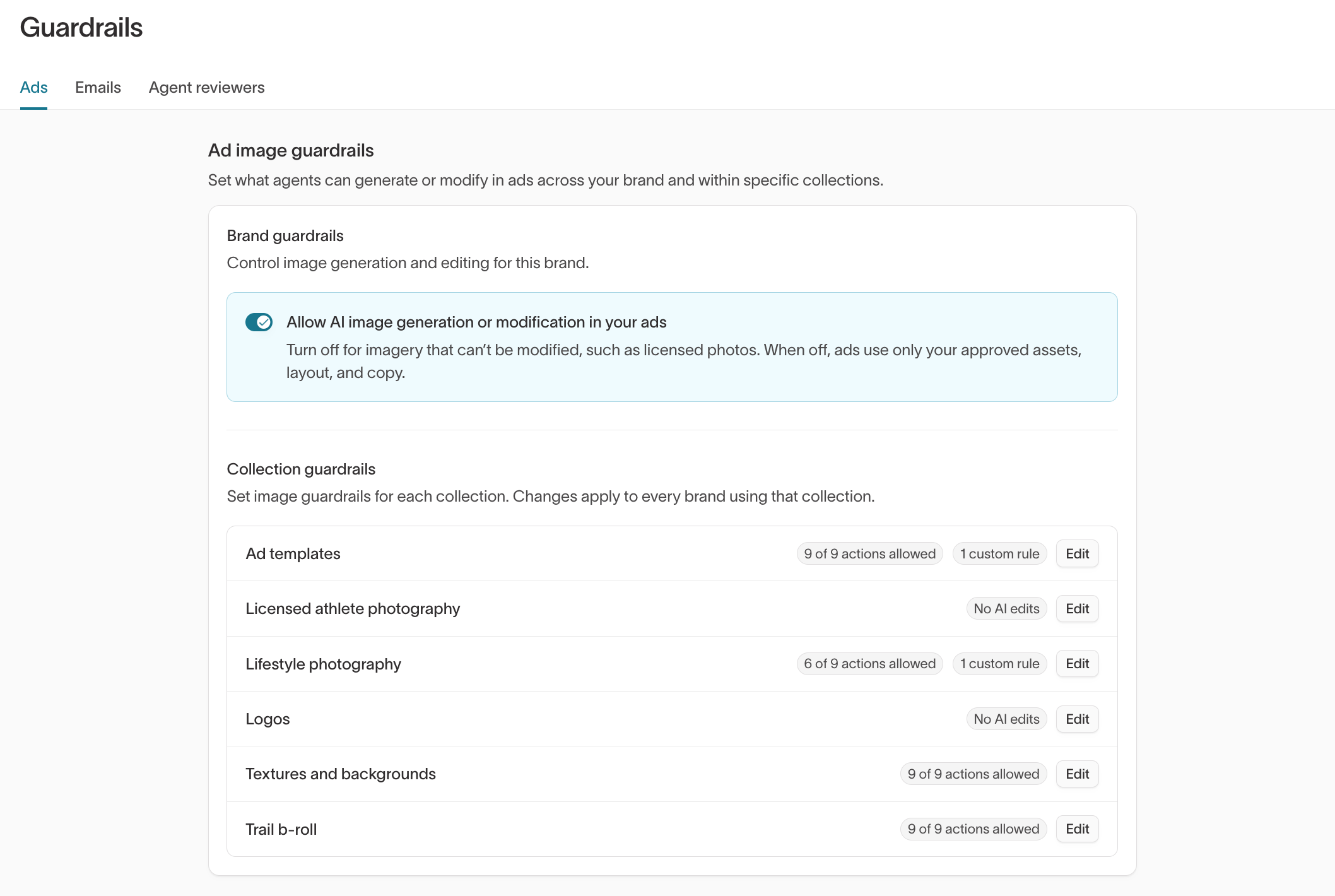
Allow AI image generation or modification in your ads controls whether agents can generate or edit images in the brand's ads. It's on by default. Turn it off for a brand whose imagery can't be altered, such as licensed photos or images with strict usage rights.
When it's off, agents build ads only from your approved assets, layout, and copy. They don't generate new images or edit existing ones, and you can't edit the brand's collection guardrails until you turn the setting back on.
Limit changes for specific asset collections
Use collection guardrails when some images can be edited and others can't. For example, you might allow background changes on product shots but forbid any edits to photos of real customers. Collection guardrails apply to every brand that uses the collection, so a change for one brand changes it for all of them.
Each asset collection assigned to the brand appears under Collection guardrails. If no collections appear, assign a collection to the brand in Assets first. Select Edit on a collection, then choose what agents can do with its images:
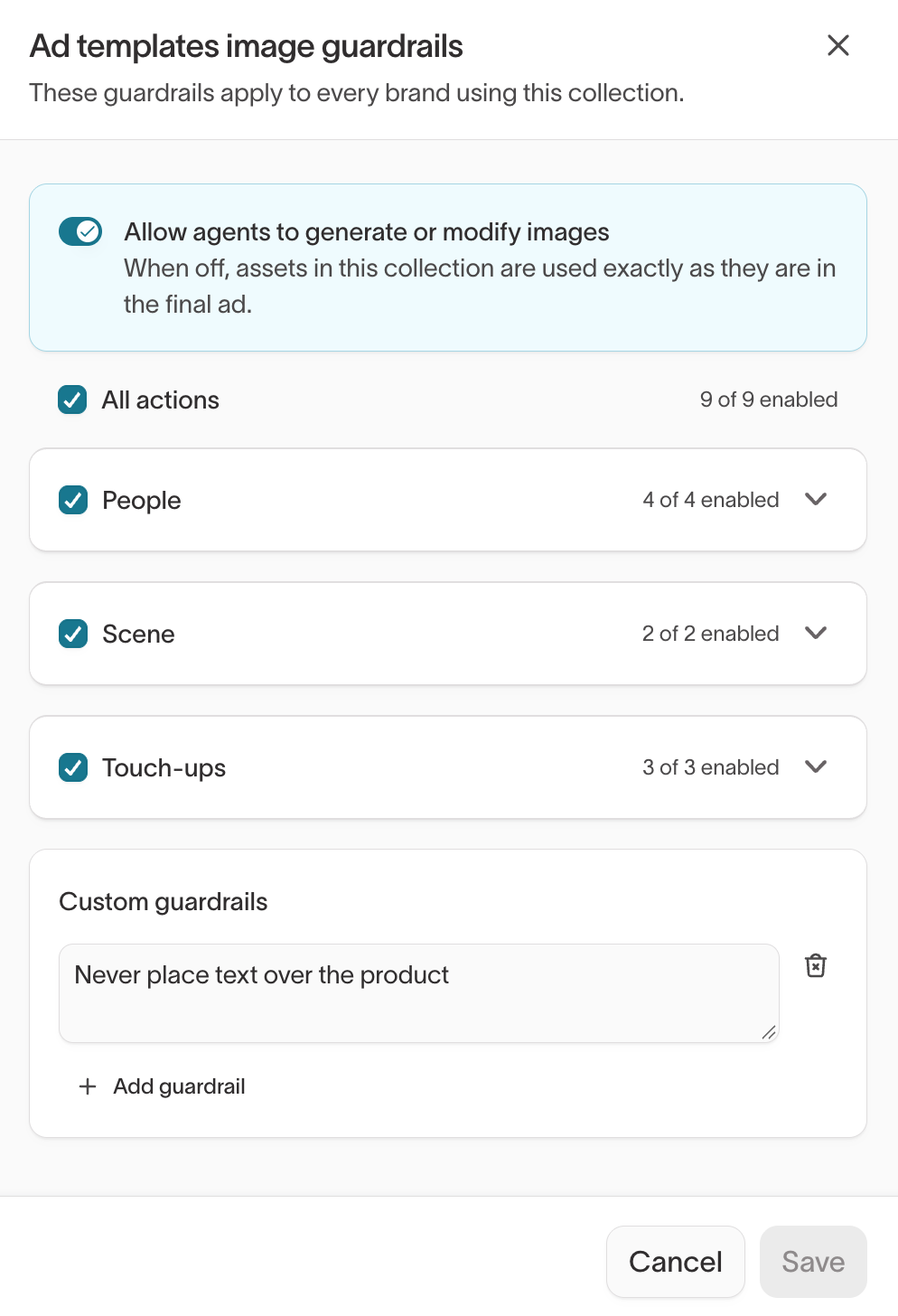
- Turn off Allow agents to generate or modify images when the collection's assets must appear in the final ad exactly as they are.
- Under People, decide whether agents can modify faces, bodies, or skin, or generate new people.
- Under Scene, decide whether agents can modify backgrounds or swap products.
- Under Touch-ups, decide whether agents can remove burned-in text, extend images beyond their original framing, or upscale images.
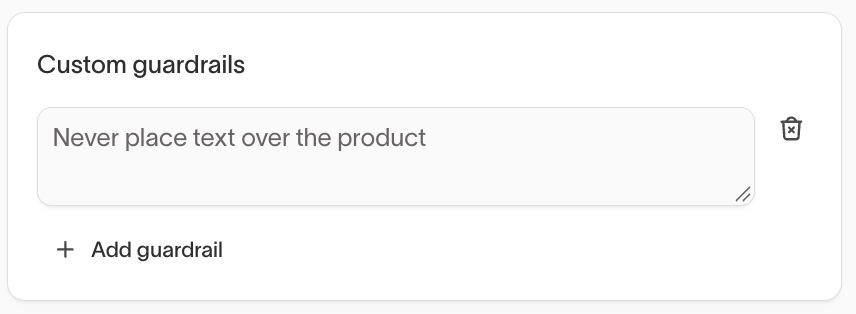
- Under Custom guardrails, select Add guardrail to write a rule in your own words, such as "Never place text over the product."
Write each custom guardrail as a single rule in plain language, and add one guardrail per rule so each is easy to change or remove later.
Set AI disclosure defaults
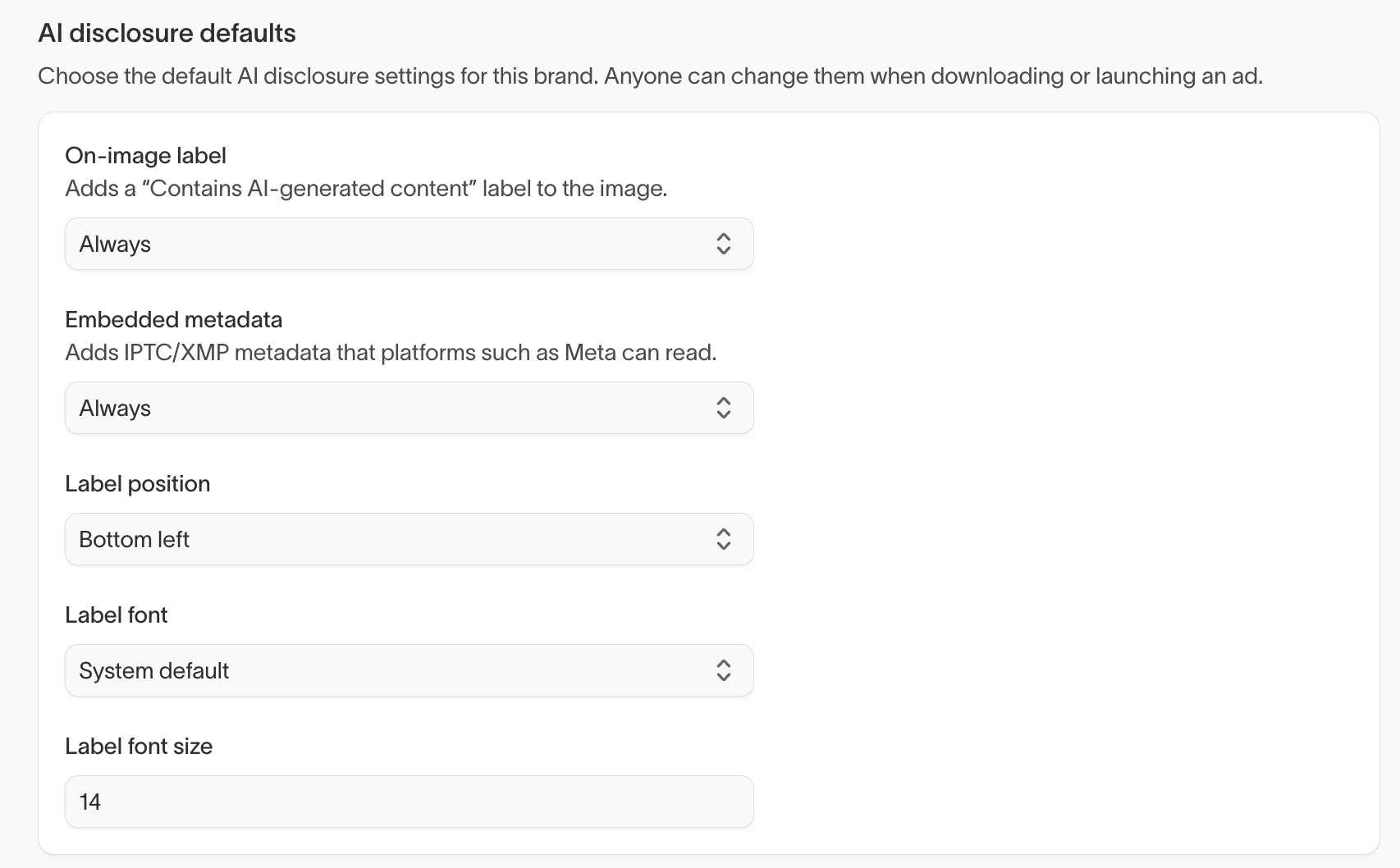
AI disclosure defaults set how ads for this brand disclose AI-generated content when someone downloads or launches them. They're defaults, not locks: anyone can change them for a specific ad at download or launch time.
Choose defaults that match your legal and platform requirements:
- On-image label — Adds a visible "Contains AI-generated content" label to the ad.
- Embedded metadata — Adds IPTC/XMP metadata that platforms such as Meta can read.
For each, choose Always, Only when AI is used, or Never. If you show an on-image label, set its Label position, Label font, and Label font size so it fits your layouts. The font list includes your brand's typefaces.
Set ad sizes and channels
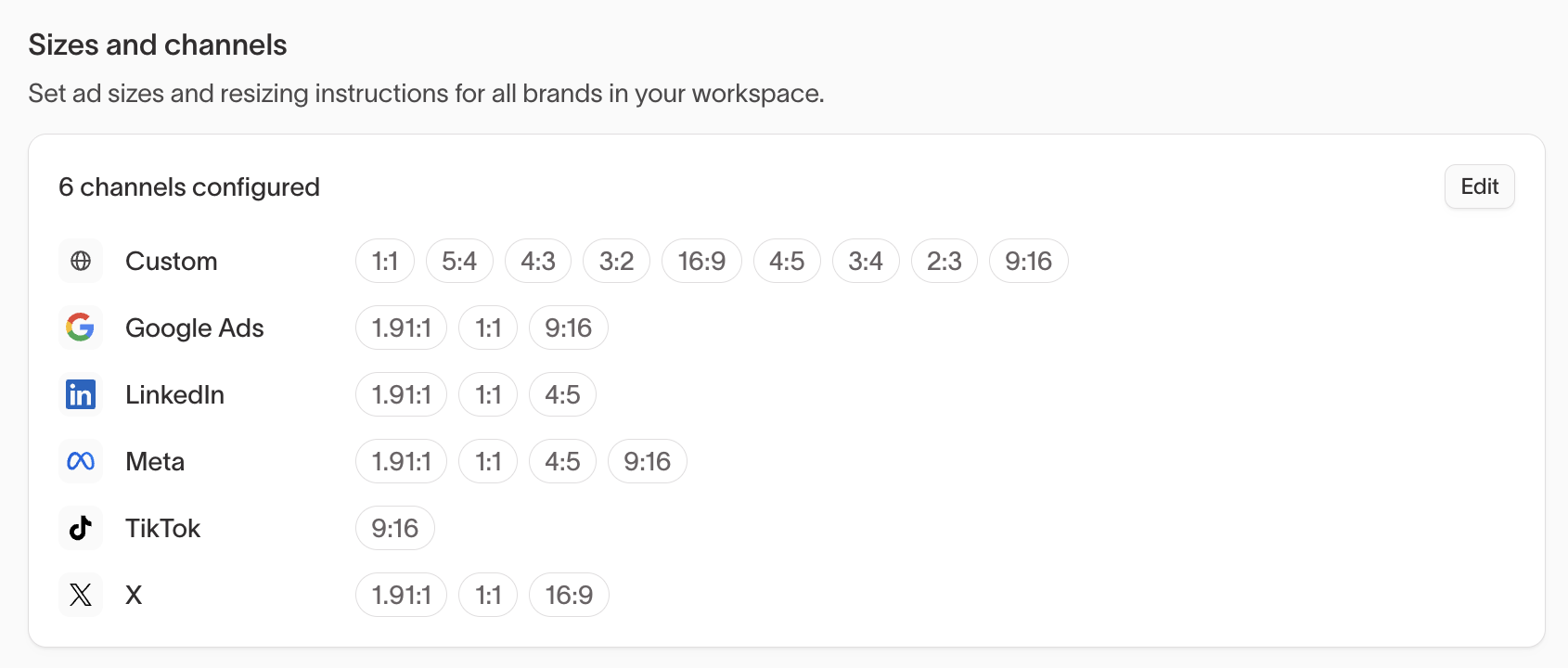
Use Sizes and channels to set the sizes agents produce for each ad channel, such as Meta or Google Ads, and to tell agents how to resize creative to fit. These settings apply to all brands in your workspace.
Select Edit to open the editor. From there you can:
- Add a size to a channel, or edit an existing one. Give it an optional label and Size guidance, and turn on Set as default to make it the channel's default size.
- Write Resizing instructions for a channel, such as "Keep the product in the center of the image." Agents follow them when they resize ads for that channel.
- Select Create custom channel for a placement that isn't listed.
Set email guardrails
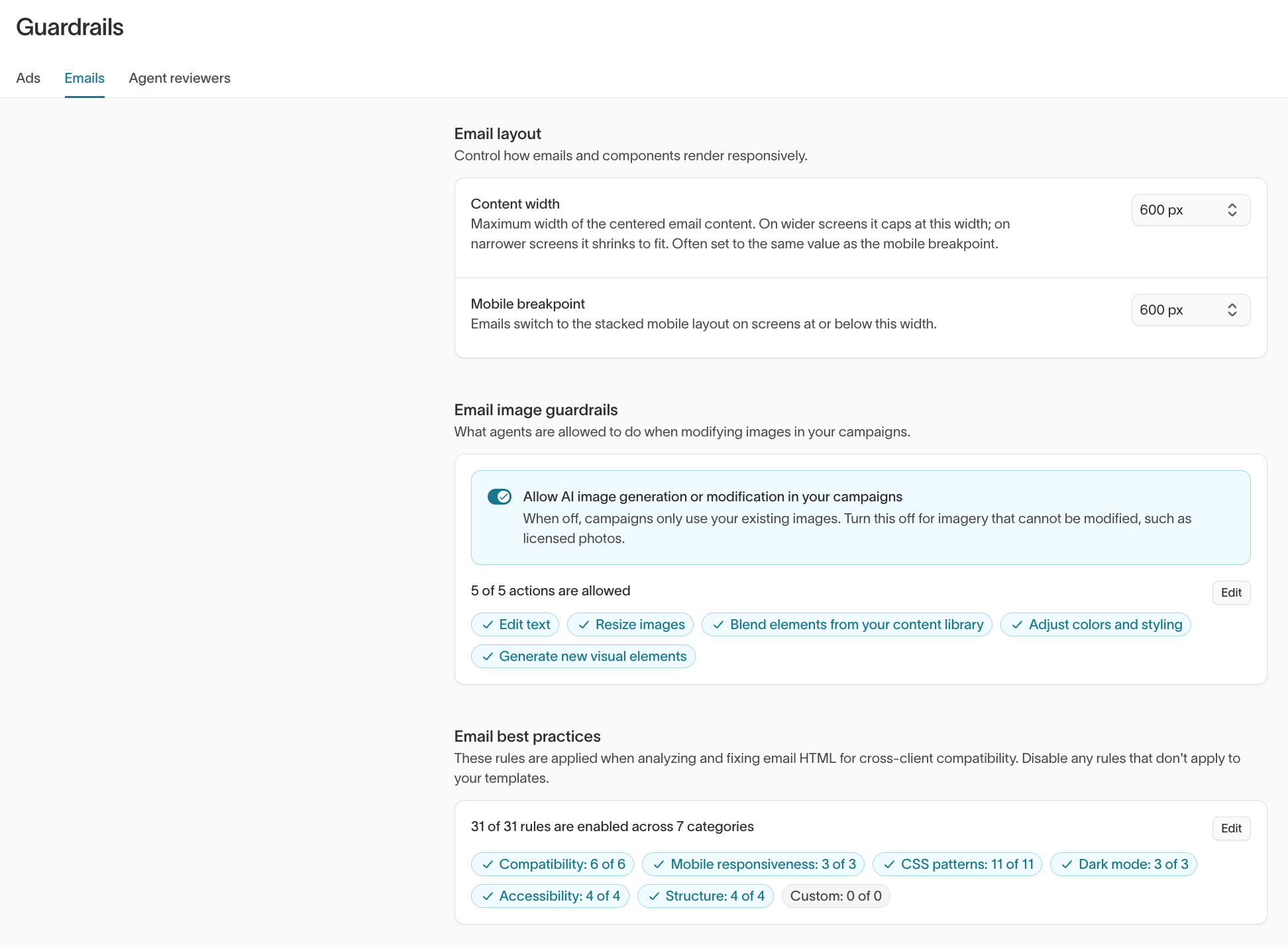
Go to Context Hub > Guardrails > Emails to control how Lifecycle Studio lays out email, what it can change in images, and which HTML rules it applies. These settings apply to every email in your workspace.
Set the email layout
Use Email layout to control how emails render on different screen sizes. For each setting, choose a preset or Custom:
- Set Content width to the maximum width of the centered email content. On narrower screens, content shrinks to fit.
- Set Mobile breakpoint to the screen width at or below which emails switch to a stacked mobile layout.
Content width is often set to the same value as the mobile breakpoint. Email layout is saved on your default brand profile and applies to every brand.
Control email image modifications
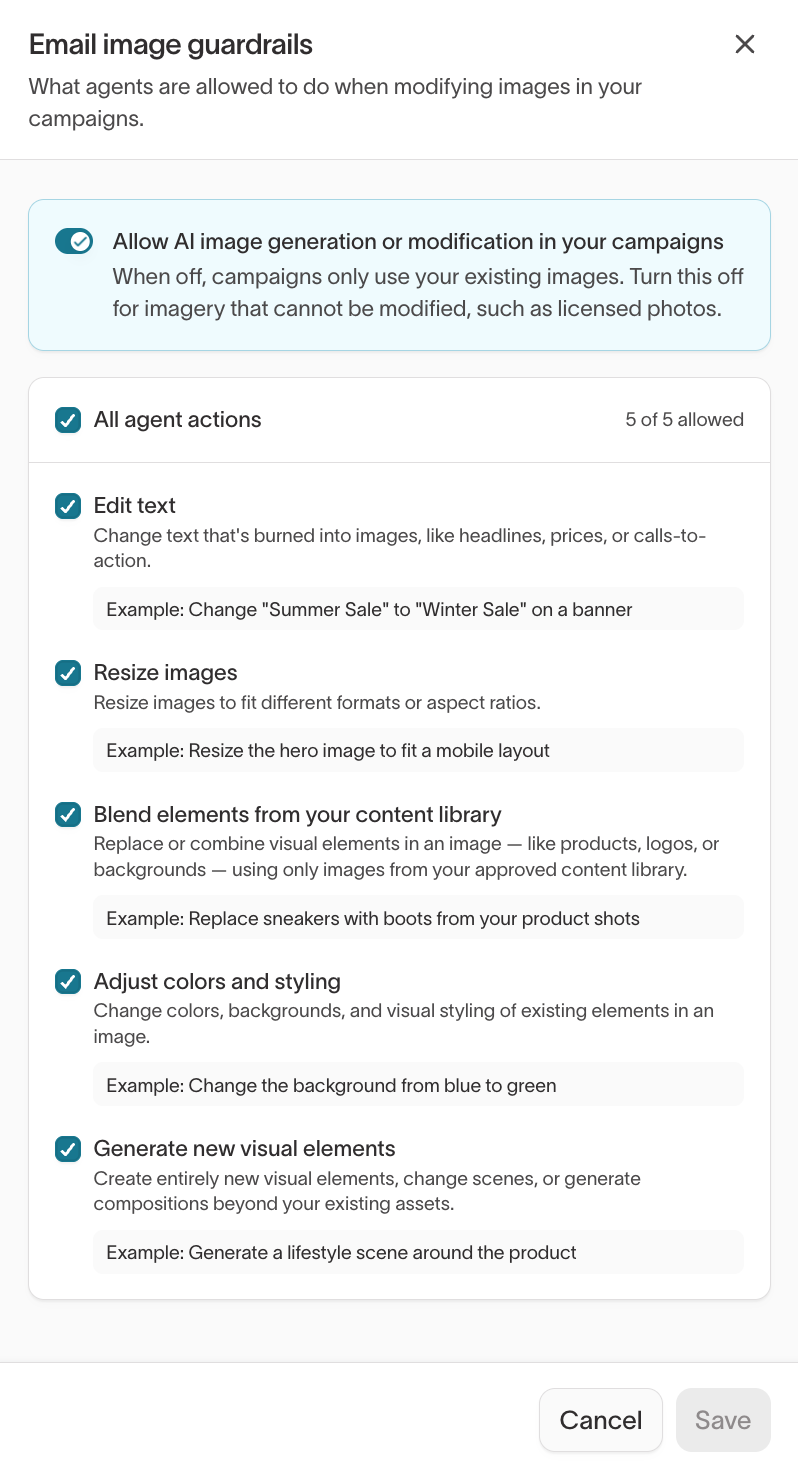
Turn off Allow AI image generation or modification in your campaigns when agents shouldn't change images at all, such as when your emails use licensed photos. When it's off, campaigns use only your existing images.
When it's on, select Edit to choose which changes agents can make:
- Edit text — Change text burned into images, such as headlines, prices, or calls to action.
- Resize images — Fit images to different formats or aspect ratios.
- Blend elements from your content library — Replace or combine elements such as products, logos, or backgrounds, using only images from your approved content library.
- Adjust colors and styling — Change colors, backgrounds, and the styling of existing elements.
- Generate new visual elements — Create new elements, change scenes, or build compositions beyond your existing assets.
Allow only the changes your brand and legal teams are comfortable with. For example, allow text edits and resizing for seasonal banners, but leave new visual elements off if every image must come from approved photography.
Set email HTML rules
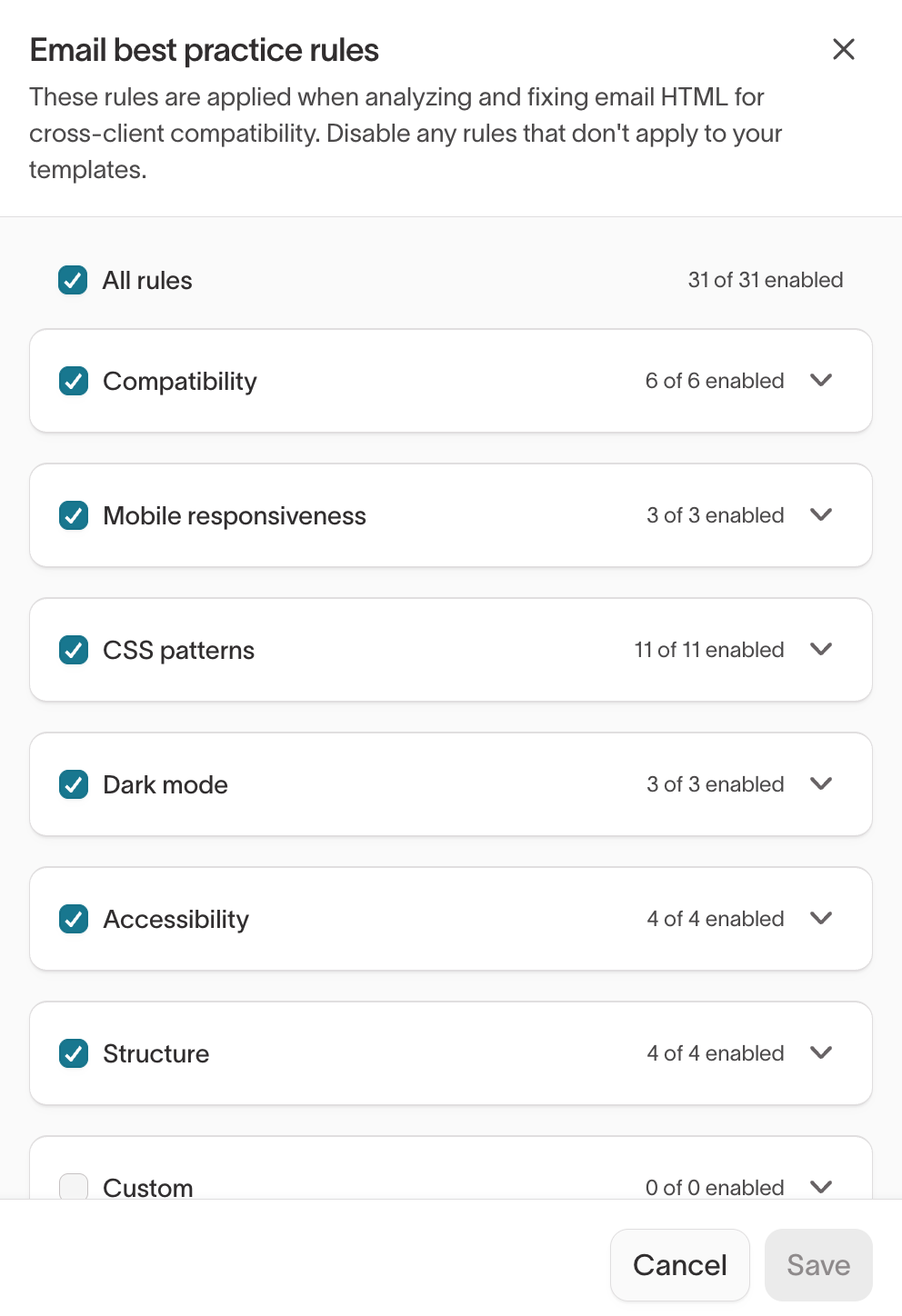
Agents apply the Email best practices rules when they check and fix email HTML. The rules cover areas such as compatibility, mobile responsiveness, dark mode, and accessibility.
All rules start enabled. Select Edit to review them:
- Turn off any rule that doesn't apply to your templates, such as a dark-mode rule your templates already handle another way.
- Select Add rule to write your own, with a Rule name and Description such as "Keep product names unchanged."
Create agent reviewers
Create an agent reviewer when your team wants an on-demand check of ad creative in Ad Studio, such as brand compliance or claims review. A reviewer responds only when a teammate @mentions it in a comment on an ad. It reviews the ad using the skill you assign to it and replies in the comment thread.
Create one reviewer for each kind of check. Each reviewer belongs to one brand profile.
Before you start, write the review process as a skill in Context Hub > Knowledge > Skills. Only skills you create that apply to this brand, or to all brands, can guide a reviewer.
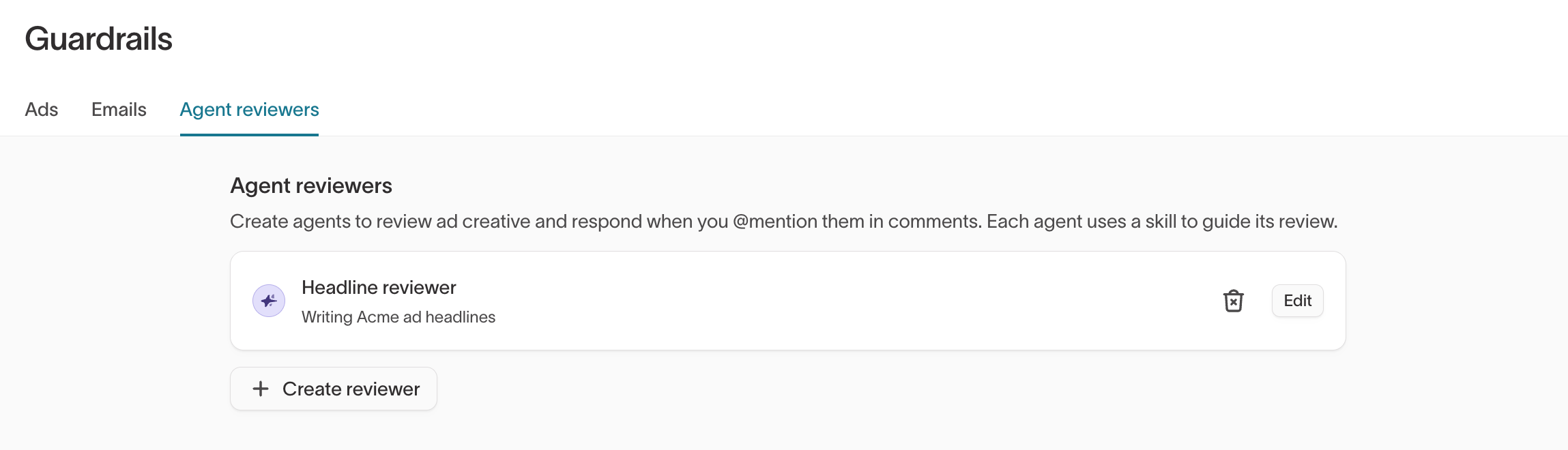
- Go to Context Hub > Guardrails > Agent reviewers.
- Select Create reviewer.
- In Agent name, enter the name your team will @mention, such as "Brand reviewer."
- In Review skill, select the skill that guides the review.
- Select Create reviewer.
To change the reviewer's name or skill later, edit it from the same tab. If the reviewer's skill is deleted, edit the reviewer and select another skill. If you delete a reviewer, it stops reviewing creative, and its existing comments stay visible.
Next steps
- Manage assets to organize files into collections before you set collection guardrails for them.
- Set creative direction to add visual styles and copy references that guide generated images and copy.