| Audience | Marketing teams, creative teams, platform admins |
| Prerequisites |
|
Create reusable visual styles and approve copy references to guide generated images and copy.
Overview
Use styles and copy references to guide the creative content agents generate in Ad Studio and Lifecycle Studio. You manage them in Context Hub > Knowledge.
- Styles describe how generated images should look, including lighting, composition, and color palette.
- Copy references provide approved examples of emails, SMS messages, push notifications, and ads that agents can use when writing new content.
- Tags label your ad creative by attributes such as hook tactic or offer type, so you can compare performance by creative approach in Ad Studio.
Styles and copy references complement your brand profiles, which define logos, colors, and fonts. Use guardrails to control how agents can modify images.
Save visual styles
Create a style when you want generated images to share the same look. Write the art direction once instead of repeating it in every prompt. For example, you might keep one style for warm, golden-hour lifestyle ads and another for clean editorial email imagery.
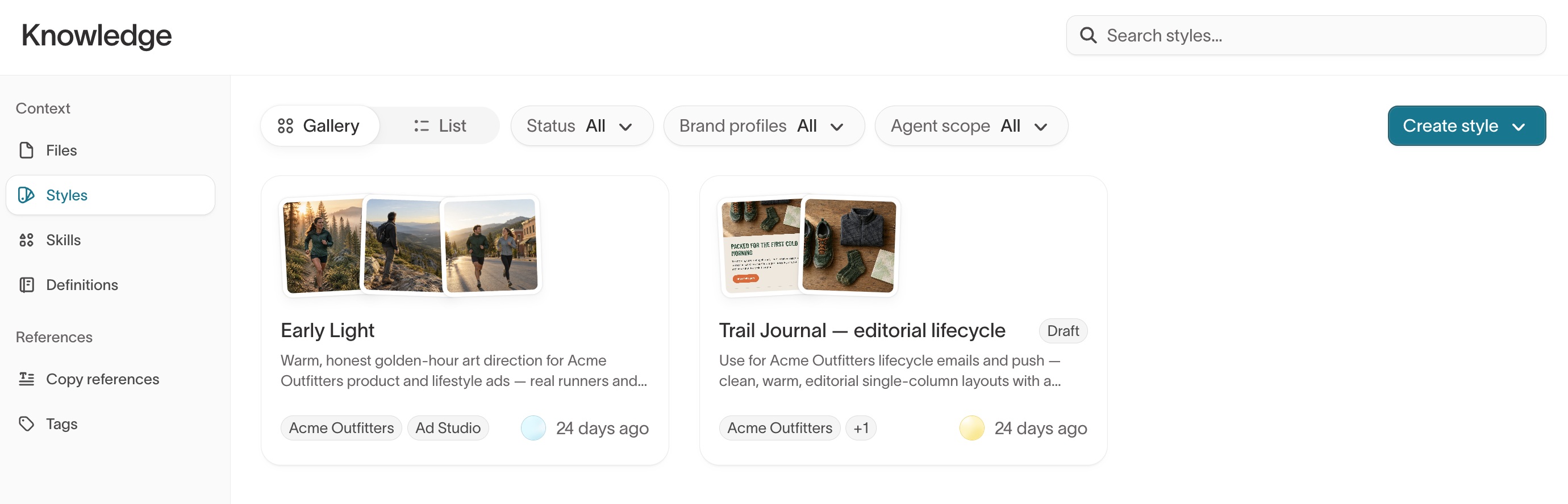
Create a style
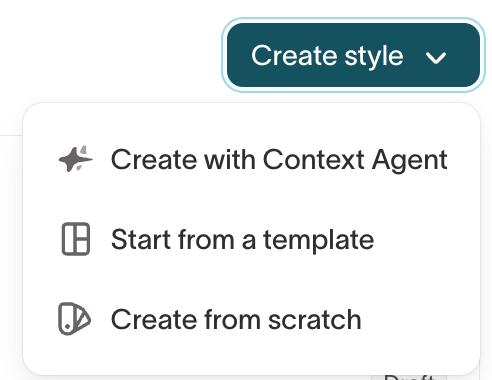
Go to Context Hub > Knowledge > Styles and select Create style. Choose how to start:
- Create with Context Agent — Describe the look or share reference images, and the agent drafts the style with you.
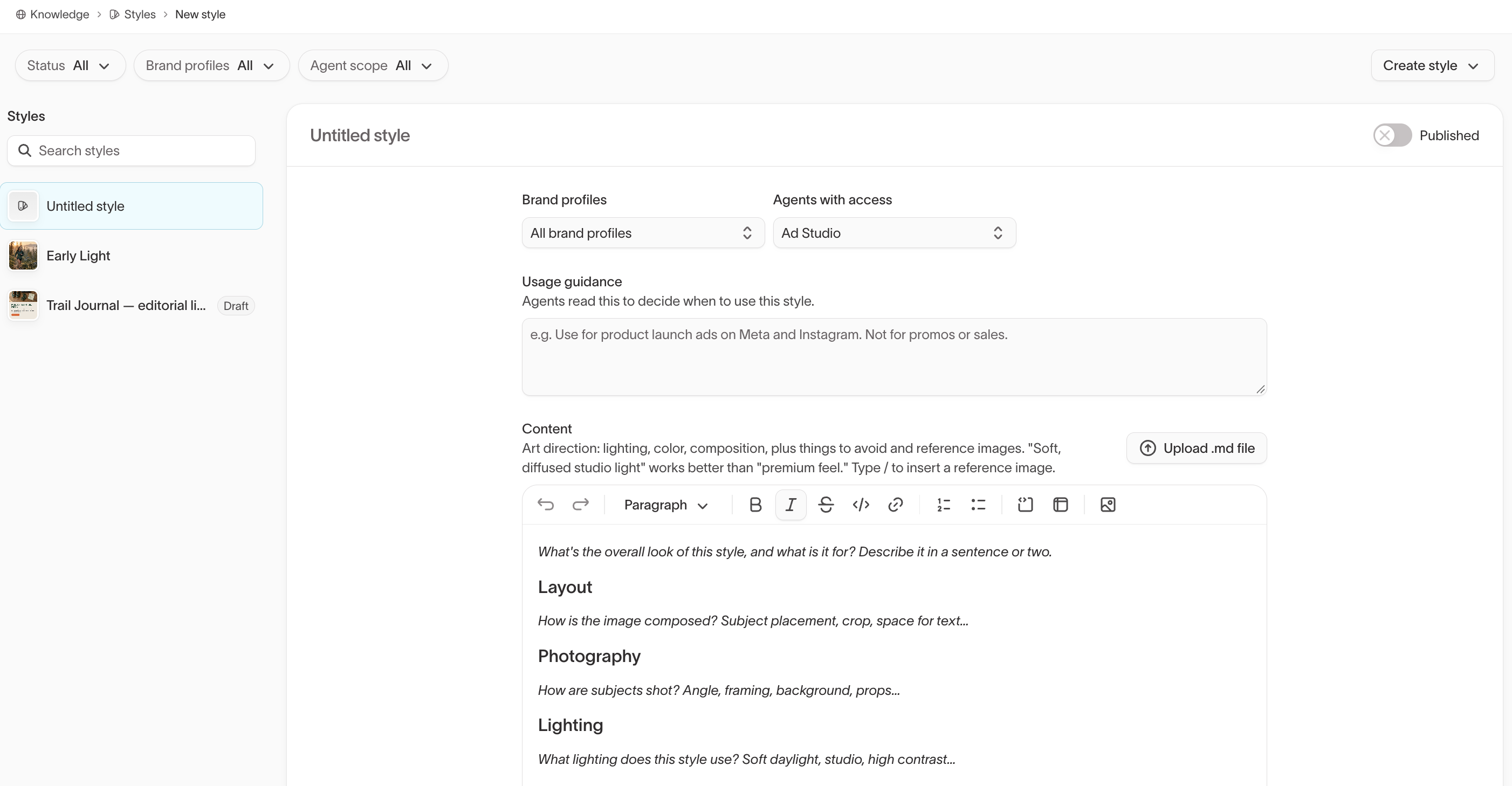
- Start from a template — Fill in prompts for layout, photography, lighting, and palette.
- Create from scratch — Write the style yourself.
A style is a single Markdown document. Describe the art direction in concrete terms: "Soft, diffused studio light" gives an agent more to work with than "premium feel." Include what to avoid, and add reference images from your own creative under the parts of the look they show. Type / in the document to insert a reference image, or select Upload .md file to import an existing style.
Set where a style applies
Limit a style to the brands and products it's meant for, so it doesn't shape content it wasn't written for.
- In Brand profiles, select a brand when the look belongs to one brand. Leave it on All brand profiles for a look you use everywhere.
- To limit the style to ads or to lifecycle messages, select Ad Studio or Lifecycle Studio in Agents with access. This setting appears when your workspace has both products. See Choose where agents use context for what each option means.
- In Usage guidance, say when agents should use the style, such as "Use for product launch ads on Meta and Instagram. Not for promos or sales." Agents use this guidance to match the style to requests.
Test and publish a style
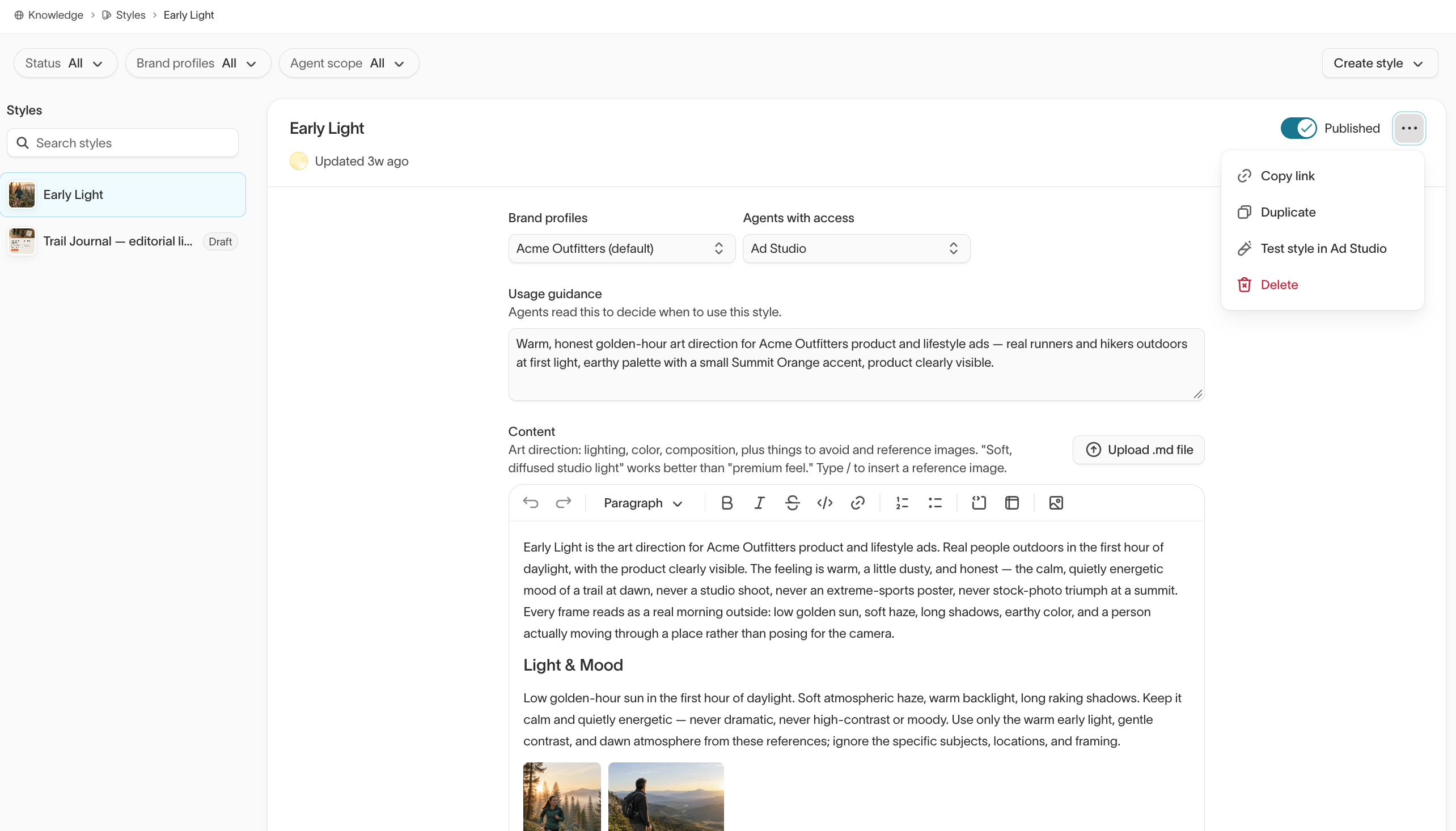
Agents use a style only after you turn on Published. Until then, it shows as Draft in the gallery.
Before you publish, test the style from its actions menu, on its card or its detail page:
- Test style in Ad Studio — Opens Ad Studio with the style applied, for styles that Ad Studio can use.
- Test style in Agents — Opens a new Agents chat with the style applied, for styles that Lifecycle Studio can use. Appears only in workspaces with Agents.
To take a style out of use without deleting it, select Unpublish from its actions menu in the styles list, or turn off Published on its detail page.
Add copy references
Add copy references when you want generated copy to sound like the messages your team already sends. Agents use the examples you approve as a reference for tone, structure, and calls to action.
Go to Context Hub > Knowledge > Copy references. You connect and approve each channel separately: Email, SMS, Push, and Ads.
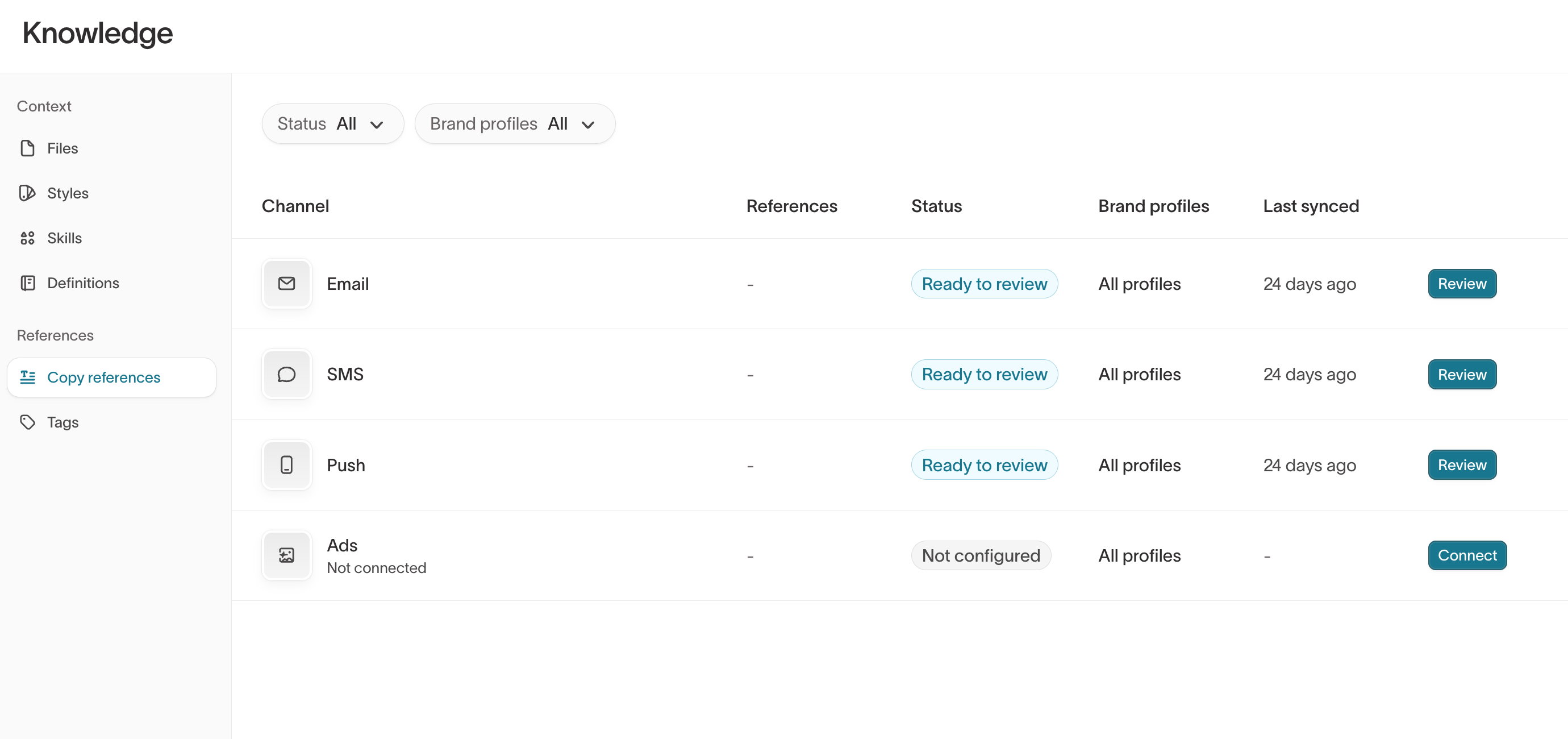
Connect a source
-
Select Connect on the channel you want to add.
-
Choose where the examples come from:
- ESP — Read past sends from your email service provider.
- Warehouse — Read sample copy from a table in a connected warehouse source.
- Paste or upload — Paste examples, or upload a Markdown or CSV file.
For Ads, search the Meta Ad Library instead and select your brand's advertiser page.
-
For email, SMS, and push, select Continue and decide which sends to use: set how many references to extract and, for ESP and warehouse sources, a date range.
-
Select Save & connect.
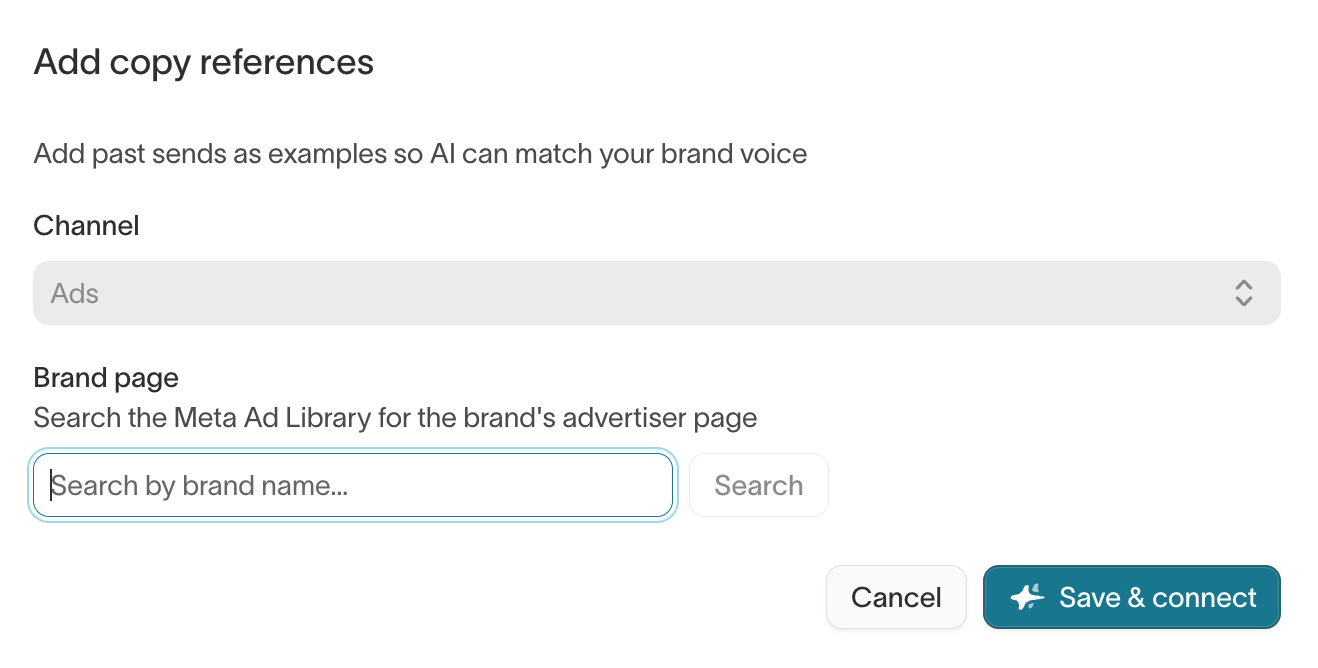
An agent pulls the examples and prepares them for review. This can take a few minutes. When it finishes, the channel shows Ready to review. If the channel shows Needs retry, select Retry.
Review and approve references
Agents don't use copy references until you approve them.
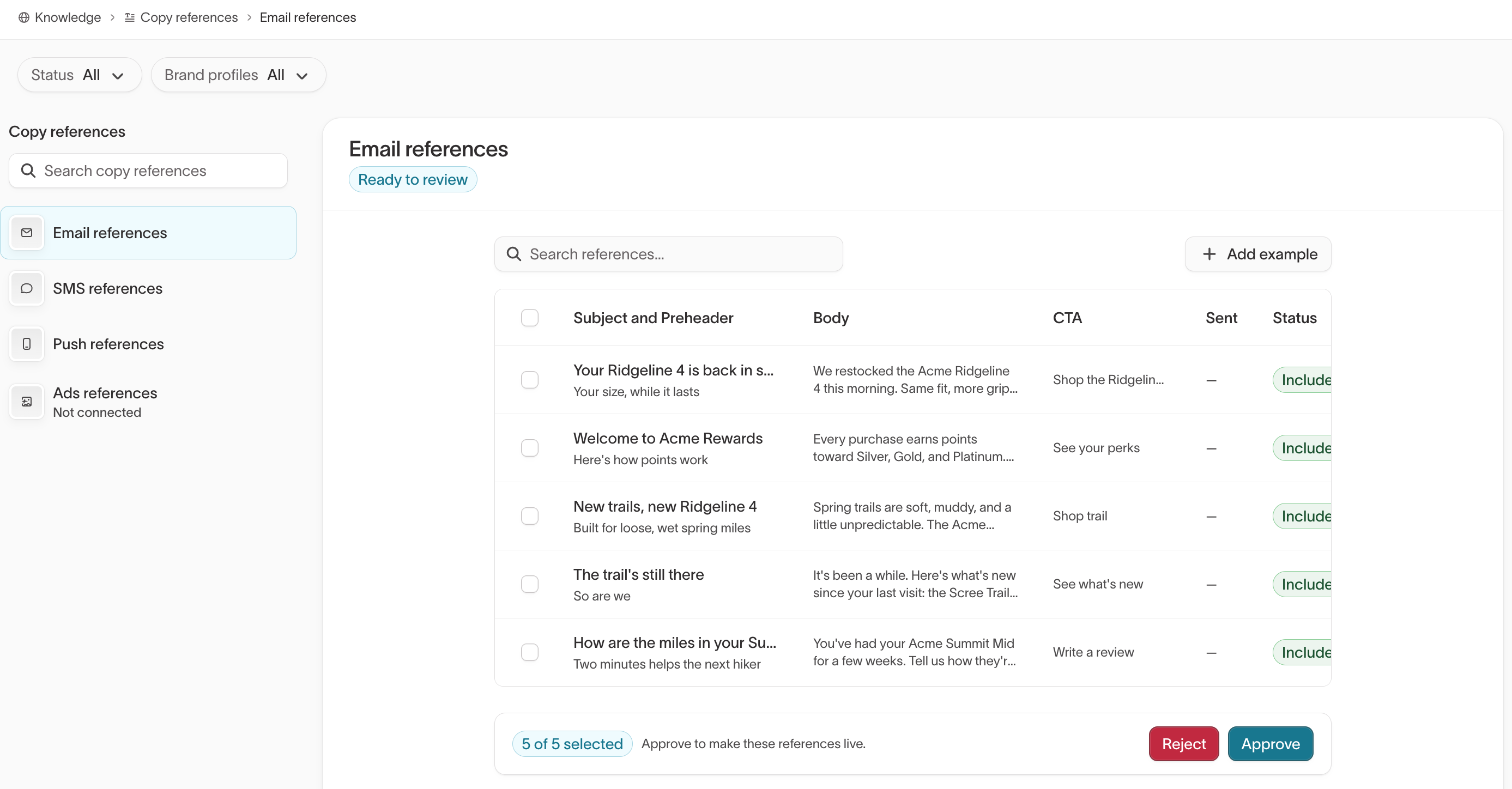
- Select Review on the channel.
- Check the proposed examples. Select an example to edit its fields, turn off Used as a reference to exclude it, or select Remove to drop it.
- To include a message the agent didn't pull, select Add example and enter its copy.
- Select Approve to make the references live, or Reject to discard the whole set.
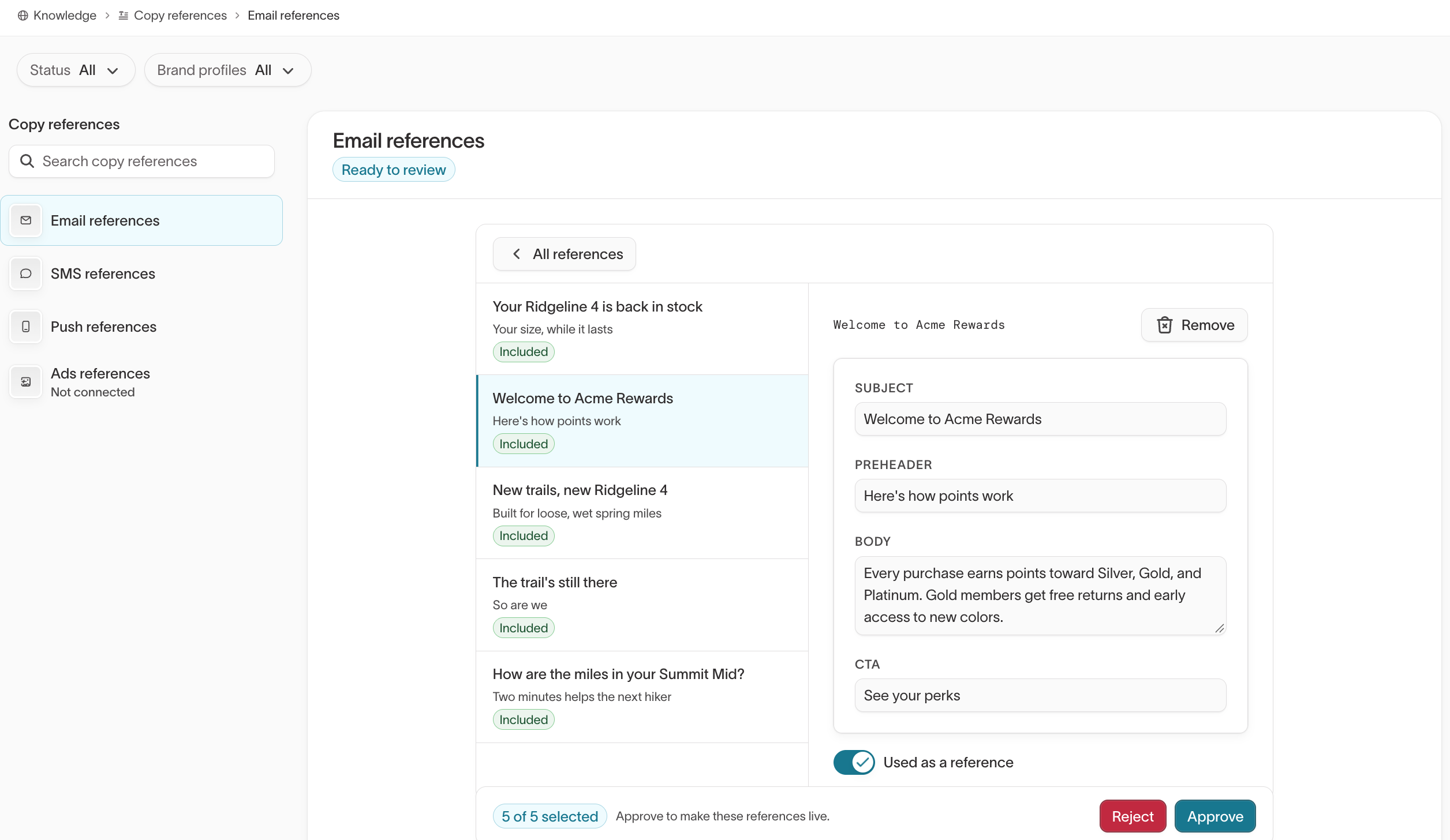
After you approve, the channel shows Live. You can keep refining a live set: add references, include or exclude examples, or select Refresh to pull a fresh set from the source. Refresh isn't available for examples you pasted or uploaded. A refresh comes back for review before it replaces what agents use.
Set brand access
Open a live set to set its Brand profiles. Assign it to a brand when that brand writes differently from the rest, or leave it on All brand profiles to share one voice across brands. Use Usage guidance to tell agents when the references apply.
Tag your ad creative
Tag your ad creative when you want to compare performance by creative approach instead of ad by ad. For example, you can see whether ads that open with a question outperform ads that open with a product shot. An agent labels the images and videos from your connected ad accounts. You decide which tags exist and which values they can take.
After tagging runs, you can use the tags in Insights:
- Group ad performance by a tag. In Group by, select Creative tags and then the tag.
- Open an ad to check its tags. You can correct a list tag's value, and later runs keep the values you set by hand.
- Ask an agent in Insights which creative patterns perform best. The agent can compare performance across your tags.
Go to Context Hub > Knowledge > Tags to manage tags. Hightouch provides built-in tags, such as Hook tactic, Messaging angle, Offer type, and CTA style, which show as System. Tags you create show as Custom.
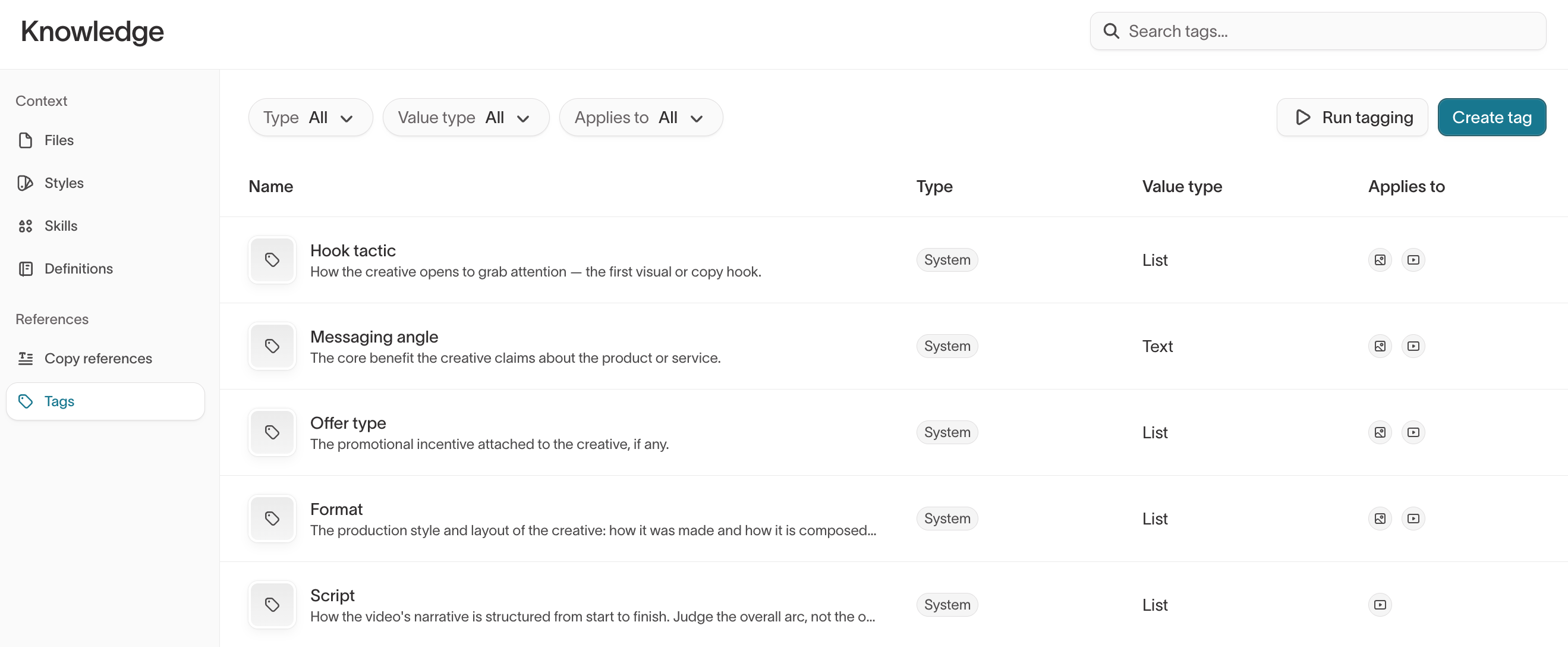
Run tagging
Select Run tagging on the Tags page. A run tags creative that hasn't been tagged yet, and re-tags existing creative for any tag you've changed since the last run. It also tags the competitor ads you track in Insights. The button shows Tagging… until the run finishes.
Run tagging again after you create or change a tag, so the new definition applies to the creative you already have.
Create a tag
Create a tag when the built-in tags don't cover an attribute you want to compare, such as a recurring creative concept or a sub-brand.
-
Go to Context Hub > Knowledge > Tags and select Create tag.
-
Enter a name and a Key. The key names the tag in your warehouse tables, and you can't change it after you create the tag.
-
In Usage guidance, tell the agent how to recognize the tag. For example: "Whether the ad features our mascot, Max the fox, and how prominently."
-
Choose a Value type:
Value type Use when List You want to compare creative across a fixed set of values. Enter them in Allowed values. Text You want a short description that doesn't fit a fixed set of values. Number The attribute is a count or measurement, such as the number of products shown. -
In Applies to, select Images, Videos, or both.
-
Select Create tag.
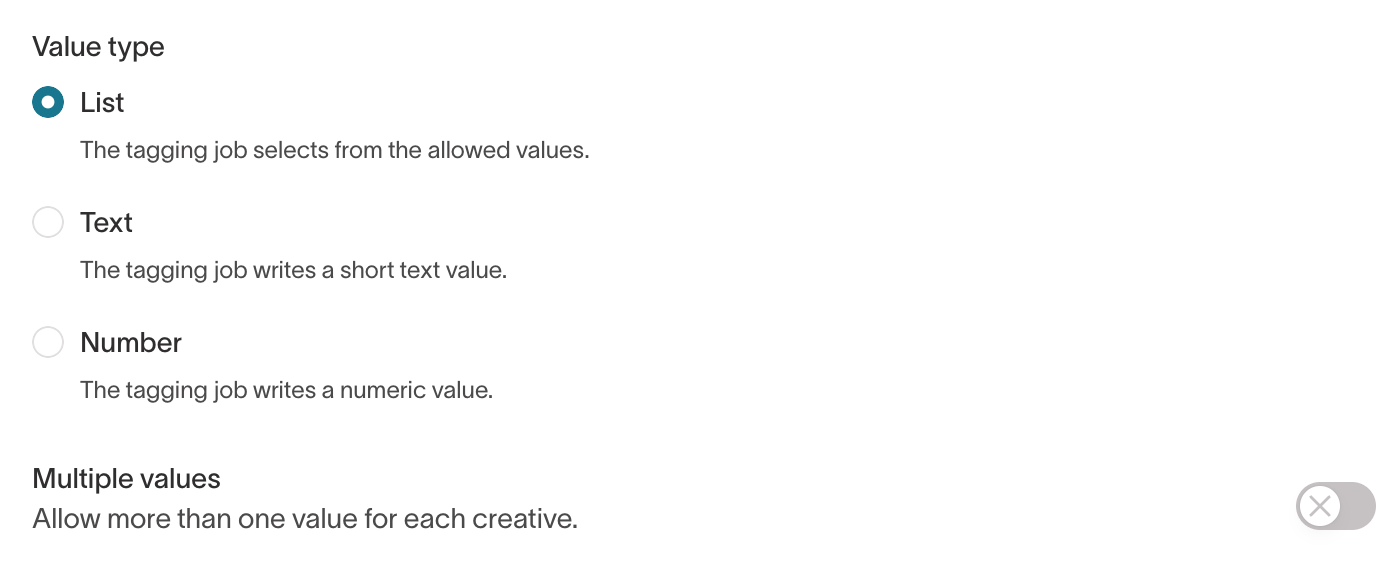
Turn on Multiple values when one creative can have more than one value, such as an ad that features several products. Turn off Require values when some creative won't have a value for the tag.
Adjust a built-in tag
Edit a system tag when its values or usage guidance don't match how your team talks about creative. For example, you might add an offer type your brand runs often. Saving any change makes the tag your workspace's version: it shows as Overridden, and future updates to the built-in tag no longer apply.
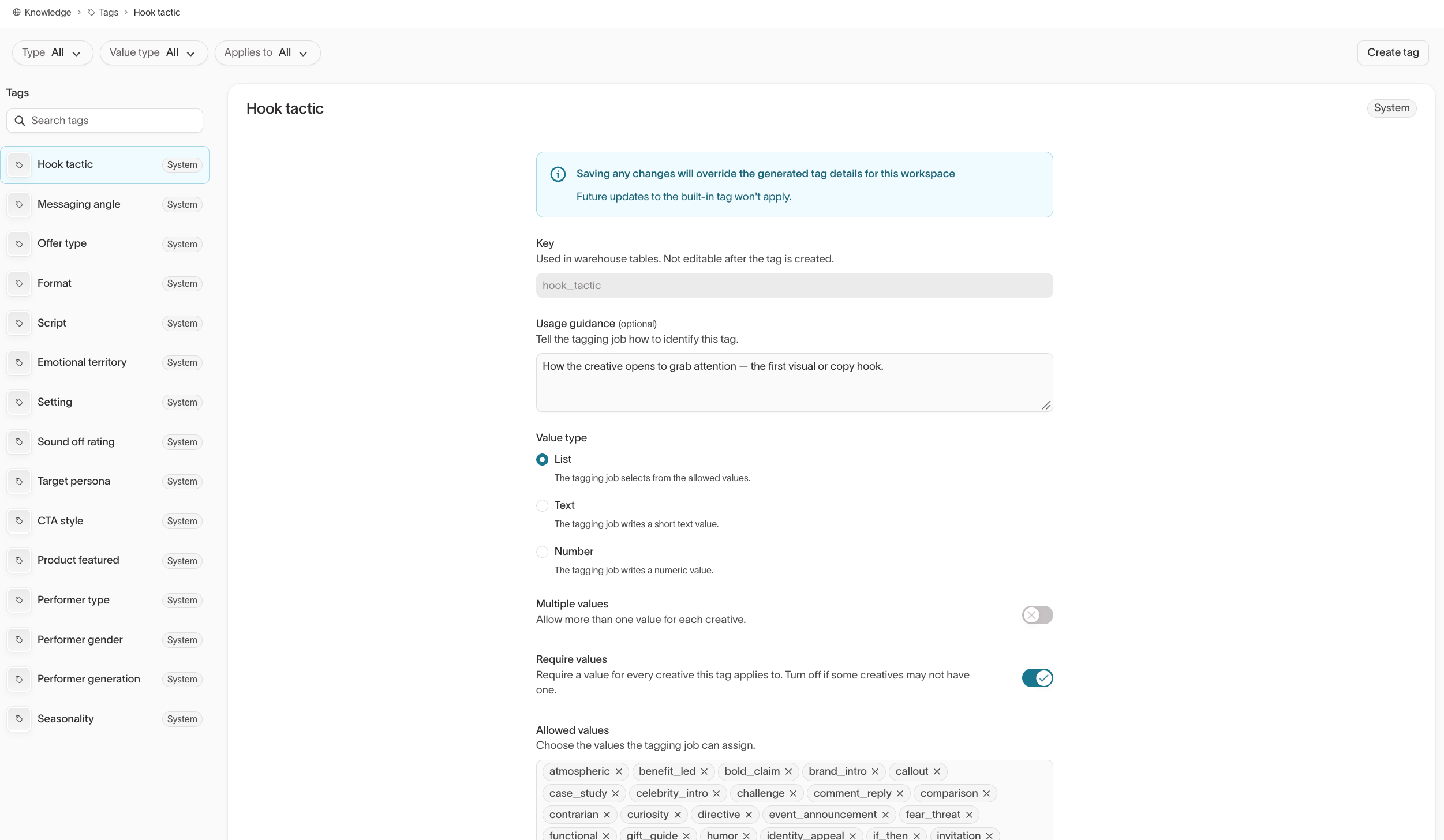
To return to the built-in definition, open the tag's actions menu and select Reset to default. You can delete custom tags but not system tags. Resetting or deleting a tag keeps the values already written to your warehouse.
Next steps
- Set guardrails to control how agents can modify images in ads and emails.
- Manage assets to add the images, templates, and product catalogs agents use to generate content.